GroupEd lets you record and manage Additional Learning Needs (ALN) information for students. This includes SEN or SEND status, need types, and any associated provisions or support plans. ALN information is visible on the student's profile and informs teachers when they take the register or view class lists.
Viewing a Student's ALN Information
Navigate to Classroom → Students and open the student's profile.
ALN information appears in two places on the student profile: the ALN overview on the General Details tab (SEN status and need types, with an Add ALN link), and the Provision Map tab (provisions and support plans).
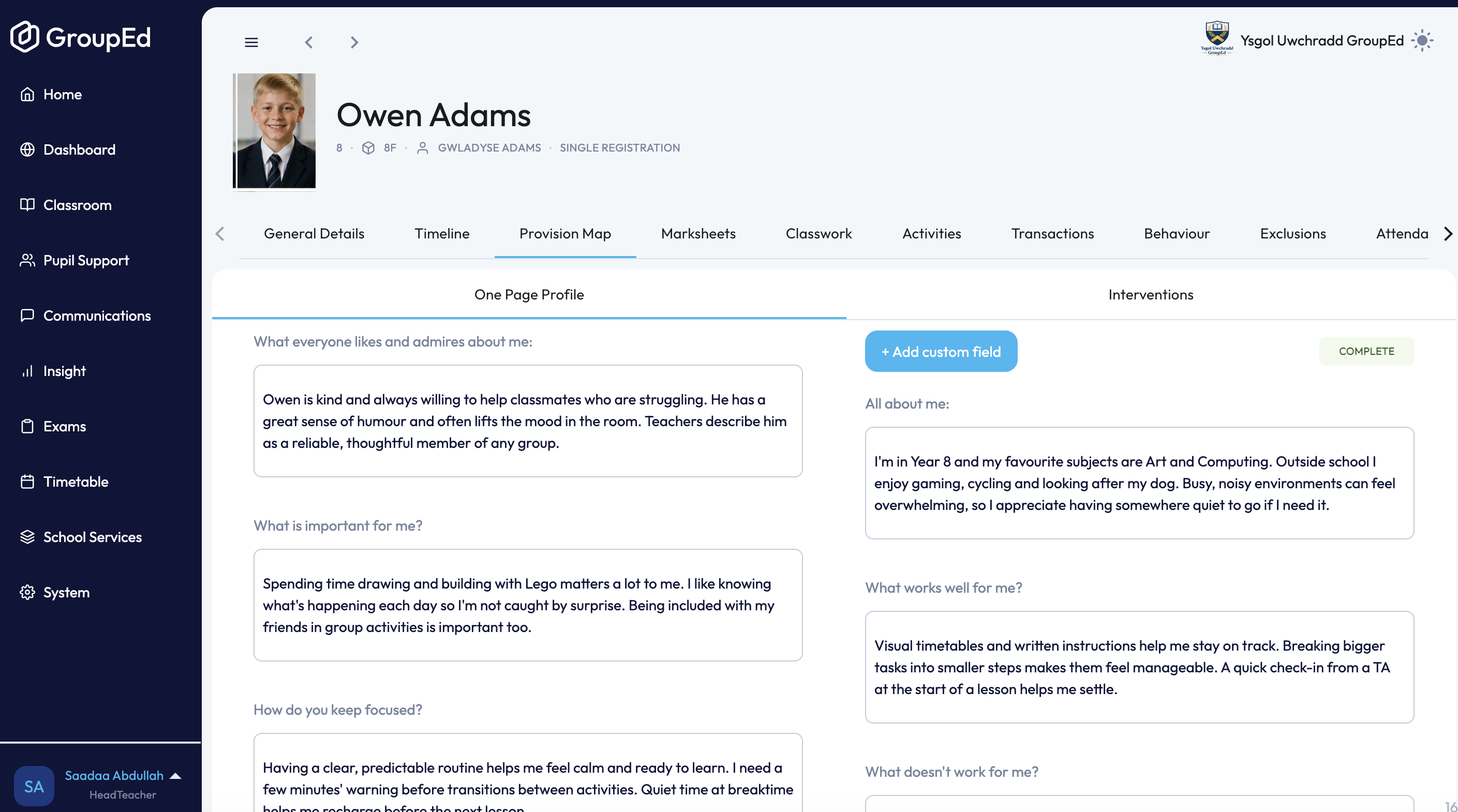
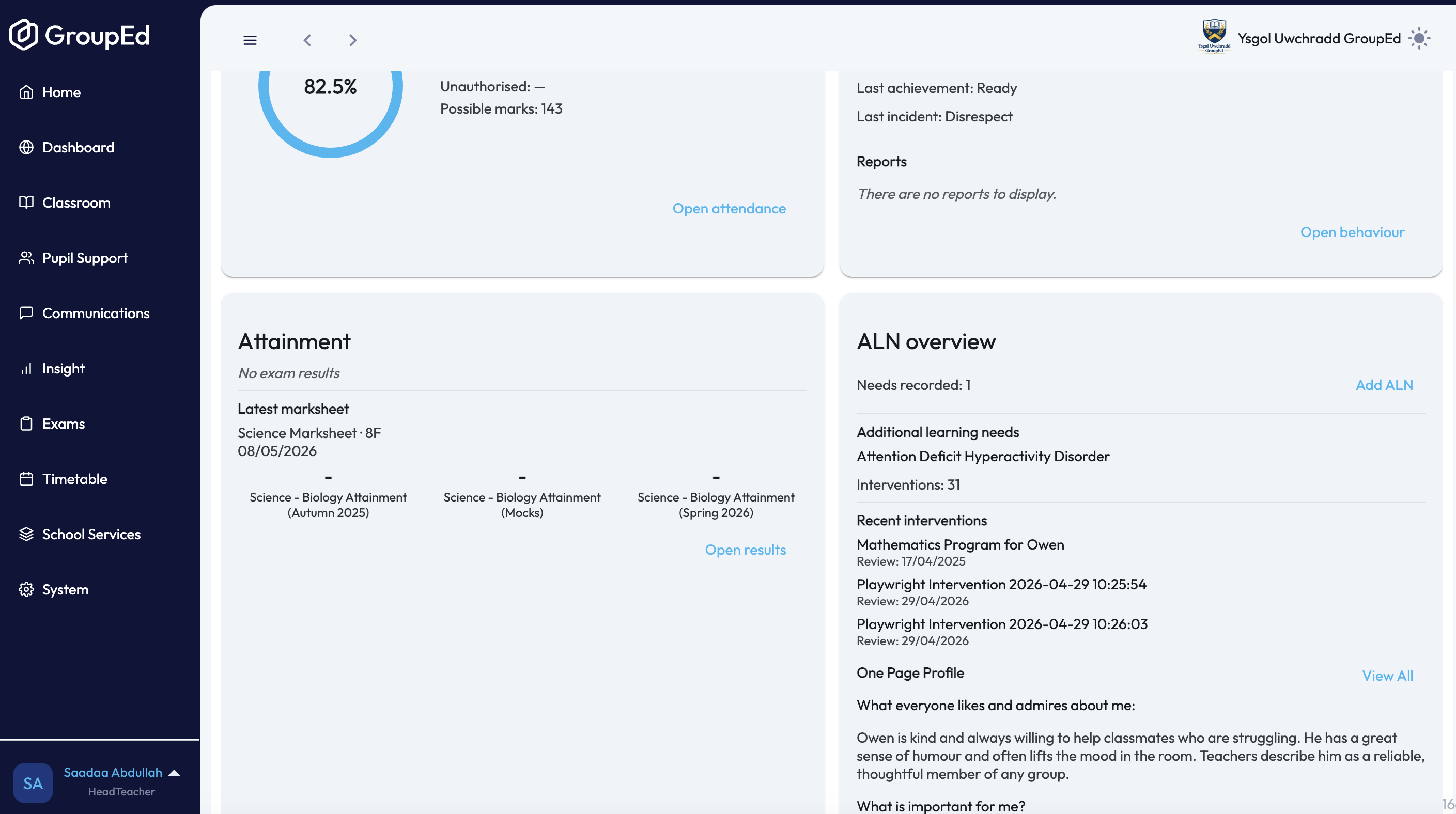
The ALN tab shows:
SEN status — whether the student is on the SEN register, has EHCP or other provision.
Need types — categories such as Cognition and Learning, Communication and Interaction, Social, Emotional and Mental Health, or Sensory and Physical.
Provisions and support — any recorded interventions or support plans.
Adding or Updating ALN Records
Editing ALN information typically requires SENCO or administrator-level access. Contact your school administrator if you do not have edit permissions.
From the General Details tab, click Add ALN in the ALN overview to open the edit form.
Update the SEN status, need types, and any provision details as required.
Click Save. Changes take effect immediately.
ALN Flags on Registers
When a student with ALN information is on your class list, GroupEd displays a small indicator next to their name in the lesson register. This is a prompt for teachers to be aware of any relevant needs during the lesson — it does not reveal the full ALN record to all staff.
ALN in Reports
ALN data is included in the PLASC census export. Ensure all SEN statuses and need types are accurate and up to date before submitting statutory returns to the local authority.
ALN Overview dashboard
Under Pupil Support, the ALN Overview gives you a whole-school snapshot of Additional Learning Needs and lets you drill into individual students from one screen.
Summary tiles
Five tiles across the top show your ALN caseload at a glance, each with a "View" link through to the underlying list:
Students with ALN
Students with IDP
Interventions reviews due soon
Interventions reviews overdue
ALN attendance gap (versus the rest of the school)
Student list
Below the tiles, the Students panel lists every student with ALN — showing year, class, gender, and the interventions or plans assigned to them (e.g. IDP, VT – Visual Timetable, SSG – Social Skills Group work, CoF – Circle of Friends). Use Find Student, or the search box and Year/Class/ALN Status filters, to narrow the list, and sort A–Z or Z–A. Clicking on a student takes you straight to their student profile.
Tabs
The tabs across the top of the page (Interventions, Reviews due soon, Reviews overdue, Reviews, Marksheets, Support Dashboard) show the same information broken out by category — for example, Reviews overdue lists only students whose intervention reviews have passed their due date.
Was this article helpful?
That’s Great!
Thank you for your feedback
Sorry! We couldn't be helpful
Thank you for your feedback
Feedback sent
We appreciate your effort and will try to fix the article