Lesson Attendance
The Lesson Attendance section lets teachers take the register for their classes. You can mark students as present, absent, or late, add attendance codes, leave comments, and submit the completed register — all from within the GroupEd app.
Getting There
Click Classroom in the left-hand sidebar, then click the Lesson Attendance tile.
The date picker in the top-right corner shows today's date by default. Click it to view or edit the register for a different date
Taking the Register
The Morning register and Afternoon register tabs work in the same way. To take the register for a class:
Go to Classwork > Lesson Attendance
The Register will open automatically for that current date and time.
The register opens, listing all students in that class.
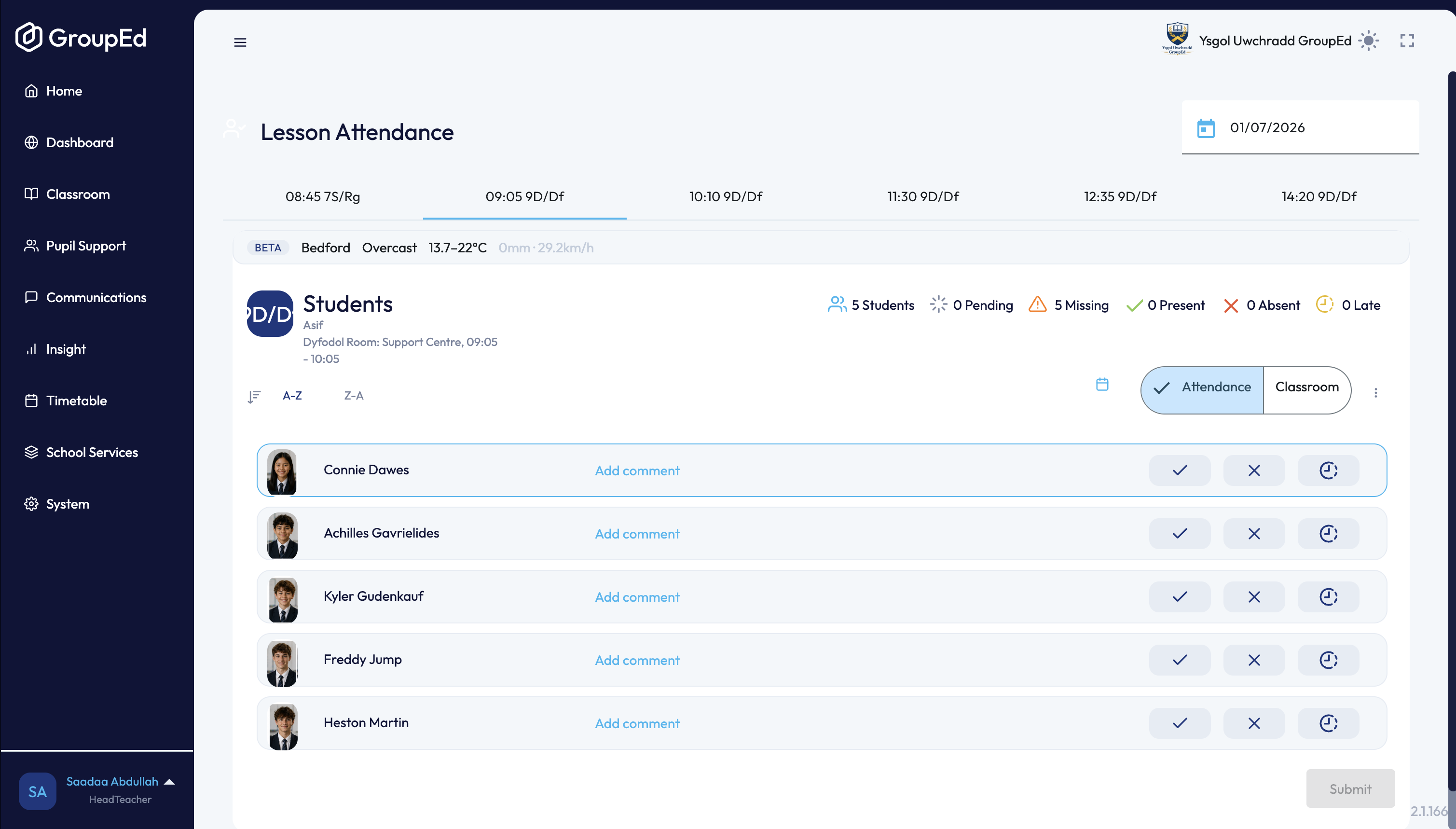
The Register View
At the top of the register you will see the class name and teacher, along with a live summary showing the count of students in each state:
Status | Meaning |
Students | Total number of students in the class |
Pending | Marks that have been entered but not yet submitted |
Missing | Students who have not yet been marked |
Present | Students marked as present (✓) |
Absent | Students marked as absent (✗) |
Late | Students marked as late (clock icon) |
Marking Students
Each student row in the register shows the student's photo, name, and current attendance code. To mark a student:
Tick (✓) — marks the student as Present
Cross (✗) — marks the student as Absent
Clock icon — marks the student as Late
The lesson register also supports keyboard shortcuts, so you don't need to click through every row with the mouse. Select a student's row, then use:
L — mark the student late
U — mark the student late after the register has closed
X — mark the student absent
Any single-letter code your school has configured (for example N or H) — applies that specific absence code directly
Up / Down arrow — move to the previous or next student
/ or \ — these mark a student present on morning and afternoon registers.
Sorting and Additional Options
Use the A-Z and Z-A buttons above the student list to sort alphabetically. Click the three-dot menu (⋮) for additional actions:
View ALN — view the Additional Learning Needs information for students in the class
Report a concern — log a safeguarding or welfare concern directly from the register
Report a behaviour or achievement – log a behaviour or achievement for a student directly from the lesson register
Each student's row has an "Add comment" link, which appears once you've selected a mark other than Present. Use it to note a short reason or extra context — for example "forgot kit" or "left early, collected by parent." Comments are capped at 200 characters, so keep them brief; once saved, the comment collapses to a "See comment" link with an Edit option. If you need to record more detail, use the Report a concern or Report a behaviour options from the ⋮ menu instead.
Submitting the Register
Once you have marked all students, click the Submit button at the bottom of the student list. This records the register for the session and updates the school's attendance data.
Note: You must click Submit for the register to be saved. Marks entered but not submitted will show as Pending in the status bar and will not be counted in school attendance reports.
and select the right group of students.
Was this article helpful?
That’s Great!
Thank you for your feedback
Sorry! We couldn't be helpful
Thank you for your feedback
Feedback sent
We appreciate your effort and will try to fix the article