Interventions
GroupEd includes features for tracking student interventions and are designed to give leaders visibility of support and training across the school.
Creating a Student Intervention
The Interventions feature lets you record targeted support programmes for individual students or groups of students. Each intervention has an assigned member of staff, an area of concern, and a set of students.
Open the New Intervention form from one of three places:
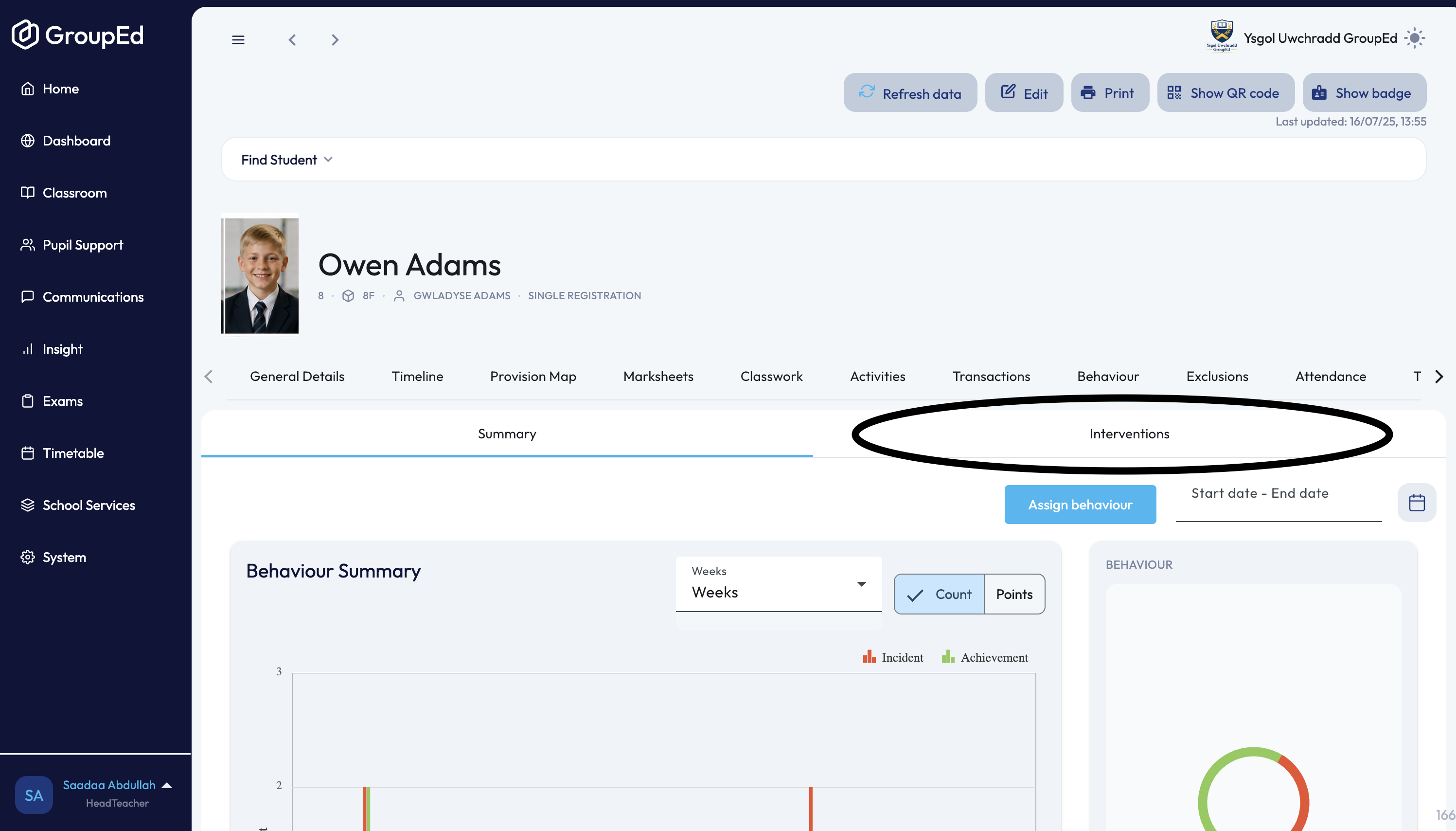
From a student's profile (Classroom → Students → select a student) — use the Interventions sub-tab on either the Behaviour tab or the Provision Map tab, or click Open interventions on the profile dashboard (this jumps straight to the Provision Map's Interventions sub-tab). Interventions is not a top-level menu item on the student profile — it's nested under Behaviour and Provision Map.
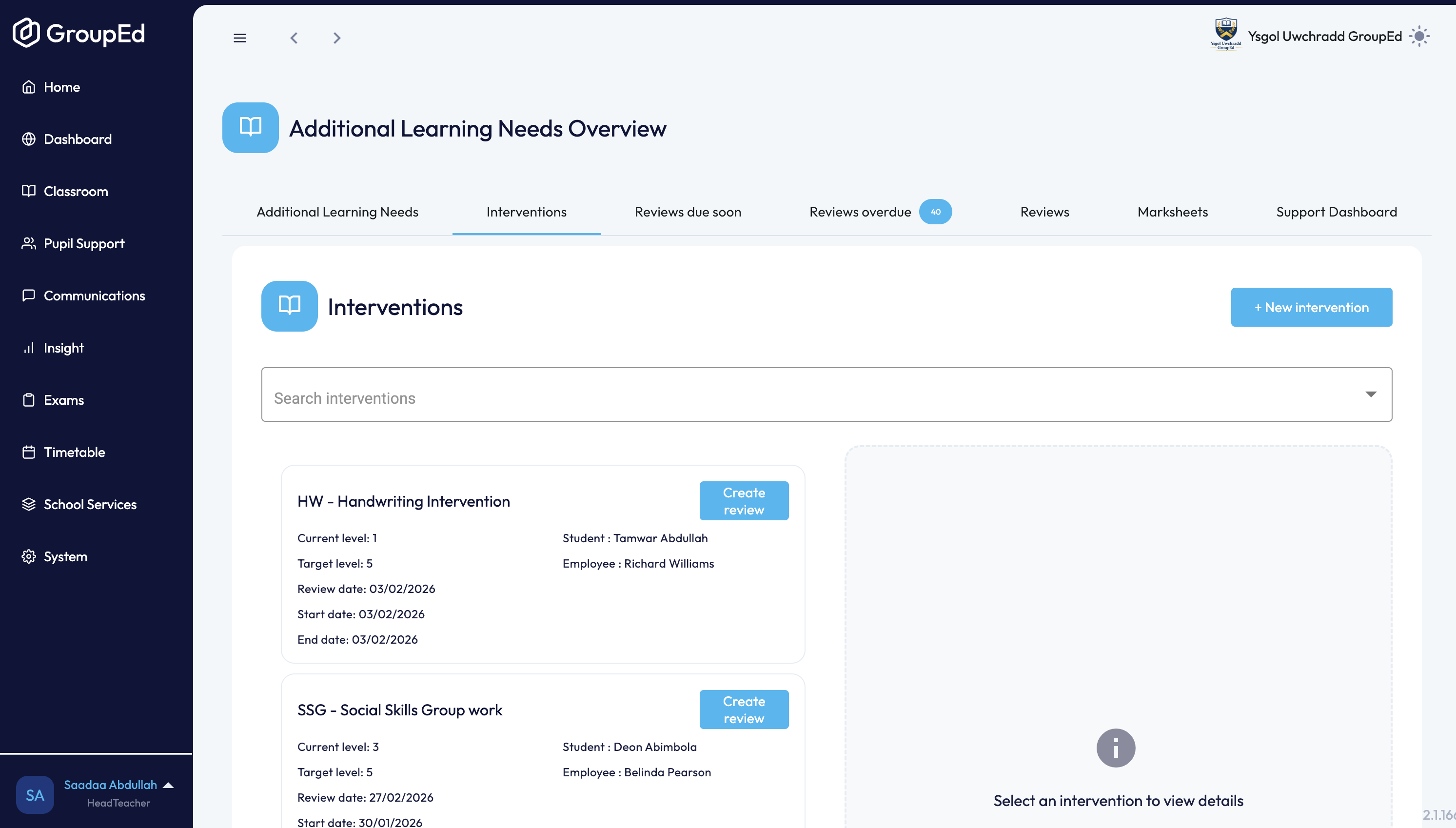
From Pupil Support → ALN Overview — click the Interventions tab at the top of the page to see every intervention across the school, then click + New intervention.
Click New Intervention (or + New intervention if starting from ALN Overview). The intervention form opens.New Intervention form showing Assigned To, Area of Concern, No employees selected yet, and No students selected yet fields with a Save button
In the Assigned to field, search for and select the staff member(s) responsible for the intervention.
Select an Area of Concern — for example, Literacy, Numeracy, or Social and Emotional.
Add the students who are part of this intervention using the student selector. (If you opened the form from a student's own profile, this student is added automatically and the selector isn't shown.)
Click Save. The intervention is created and appears in the Interventions list.
Adding Progress Reviews
Once an intervention is underway, progress reviews can be added to record how students are responding to the support.
From the Interventions list (whether viewed from a student's profile or from ALN Overview → Interventions), find the intervention and click Create review directly on its row. [Updated by guide runner — 06/07/2026] Previous version: "Open the intervention from the Interventions list and click Add Progress Review." Verified: there's no separate "open" step and no "Add Progress Review" button — clicking Create review on the intervention row goes straight to the review form. Clicking the row itself only opens a read-only details panel alongside the list.
Enter review notes, any targets set, and the review date.
Click Save. The review is added to the intervention record.
Was this article helpful?
That’s Great!
Thank you for your feedback
Sorry! We couldn't be helpful
Thank you for your feedback
Feedback sent
We appreciate your effort and will try to fix the article