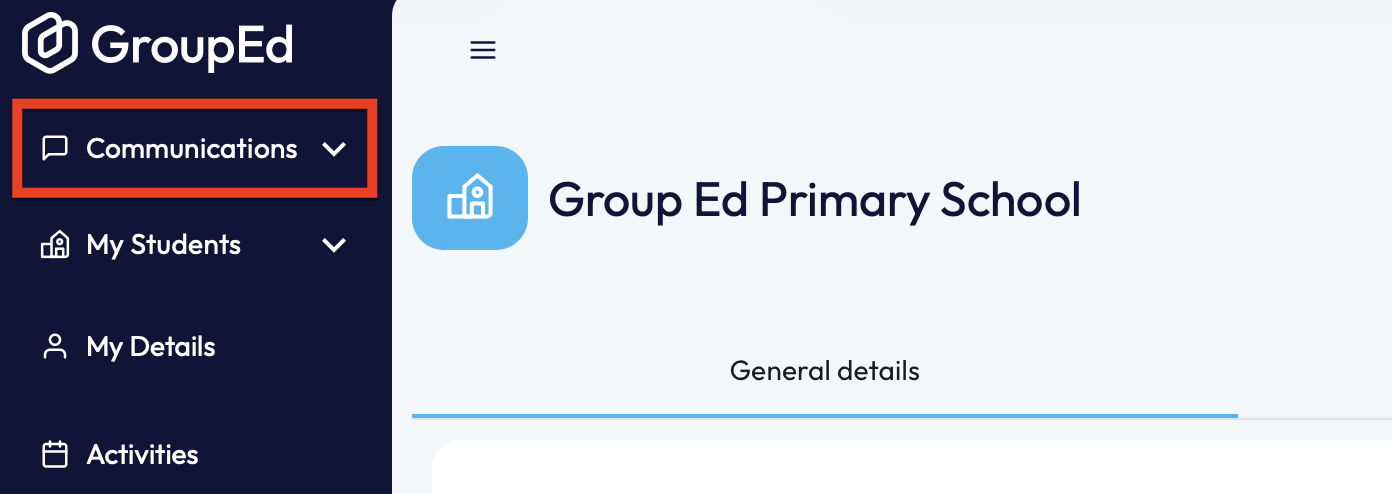
1. To create a survey you'll first need to locate the 'Survey' section, you can do this by navigating to the 'Communications' drop down on the left-hand side of your screen (as shown below). You will then need to click the 'Surveys' option.
2. To start the creation of the survey, you'll need to click on '+New Survey' in the top right corner.

3. If you're familiar with sending messages, these first few fields will look similar. If not, not to worry you can simply follow this guidance.
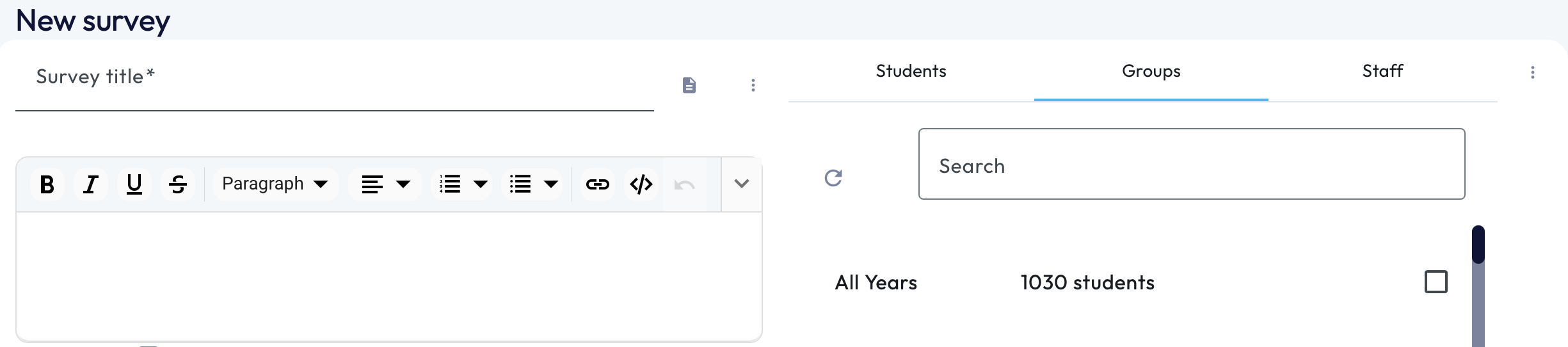 On the left-hand side you can input the description/information relating to the survey, including the title, description and include any attachments to send along with the survey.
4. Once you have written the contents of your message, you'll now need to select the recipients to this email. This can be done by navigating to the right-hand side of your screen.
You can choose to locate your recipients by filtering between the following headings Students (parents/carers), Groups (Year/Tutor Groups or Classes) and Staff.
To assign this to a recipient, you will need to tick the box next to their name/group. If you have assigned recipients you wish not to send the message to, simply untick the box next to their name/group.
You can use the 'Search' function to locate details faster, this is particularly useful when searching for individual students.
5. From here is how you'll now set up your survey.
Each Question will need to be allocated a 'Question Type'. Depending on the 'Question Type' selected, it will auto-populate a structure with information that will need to be inputted.
There are 5 Question Types you can choose from.
- Multiple Choice
- Single Choice
- Yes/No Answers
- Free Text Answers
- Agree/Disagree
For EVERY 'Question Type', you will have the option to 'tick' whether the answer will need to be answered or can it be left empty. 
a. For Multiple Choice:
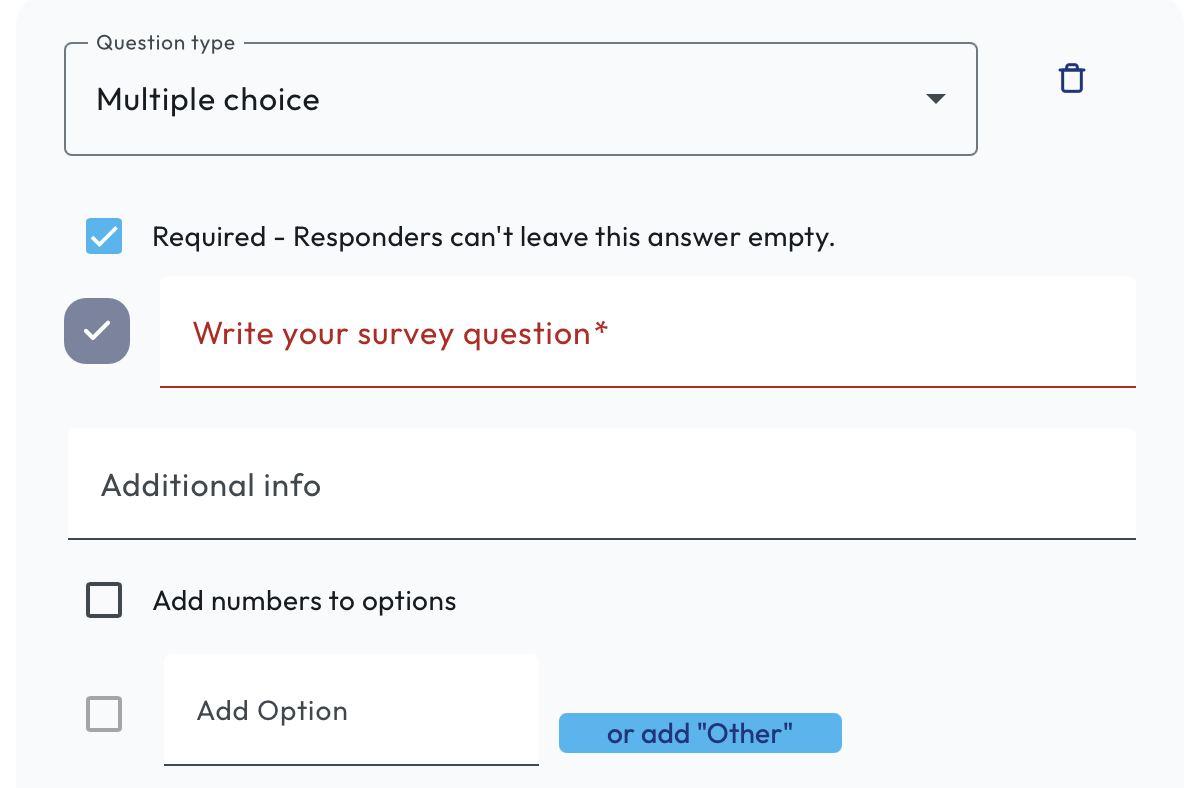
Upon choosing multiple choice as your question type, your options will show as above.
- You will need to type in your 1st survey question where it states 'Write your Survey Question'.
You can choose to provide additional information for this question, if needed.
If you would like to number your questions, you can do this by simply ticking the box 'Add Numbers to Questions'.
- Click on the section that displays 'Add Option' and add your first answer.
- To add an additional answer click on 'Add Option' again – you will be able to do this multiple times.
If you would like an answer to be 'free text' you can click on the 'or add Other' option.
b. Single Choice
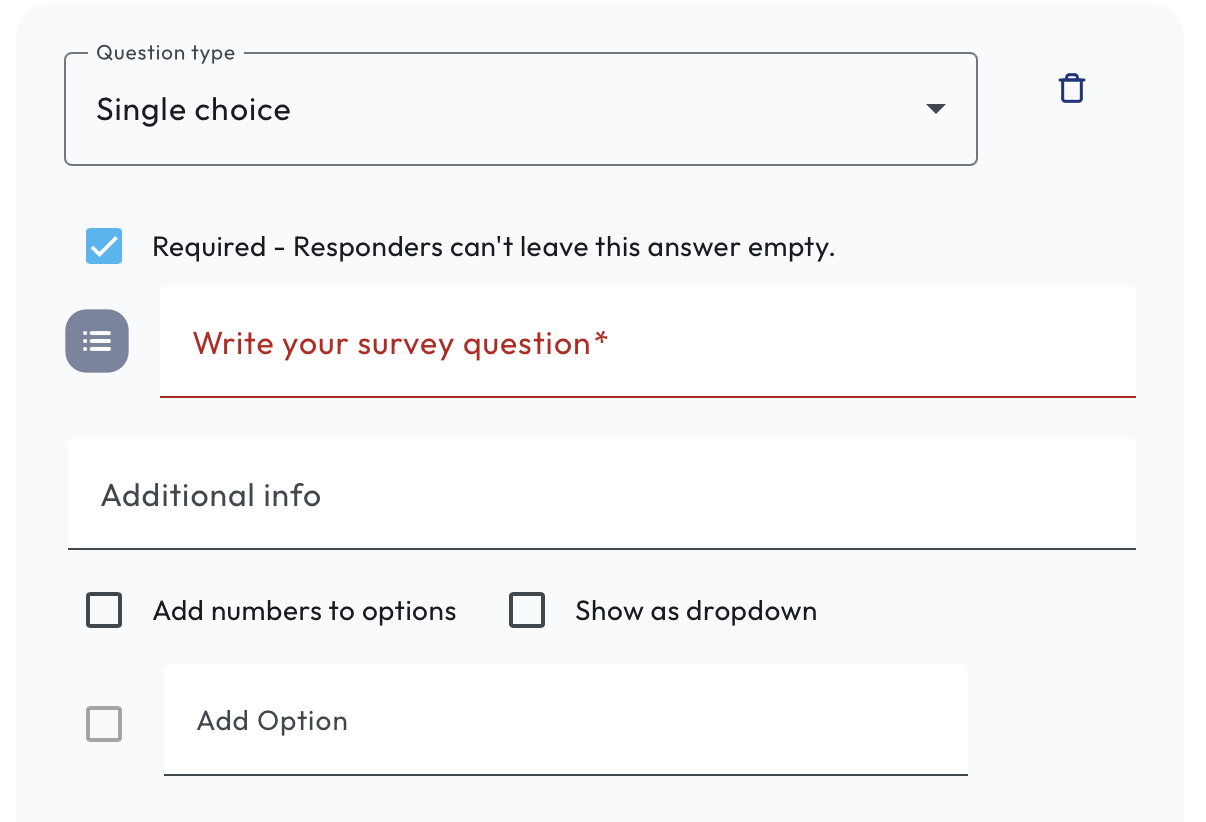 The options required for 'Single Choice' questions will be shown as above.
- You will need to type in your 1st survey question where it states 'Write your Survey Question'.
You can choose to provide additional information for this question, if needed.
If you would like to number your questions, you can do this by simply ticking the box 'Add Numbers to Questions'.
- Unlike the Multiple Choice Question Type, Single Choice allows you to tick whether you'd like the answers to 'Show as Dropdown' .
- Click on the section that displays 'Add Option' and add your first answer.
- To add an additional answer click on 'Add Option' again – you will be able to do this multiple times.
c. Yes/No Answers
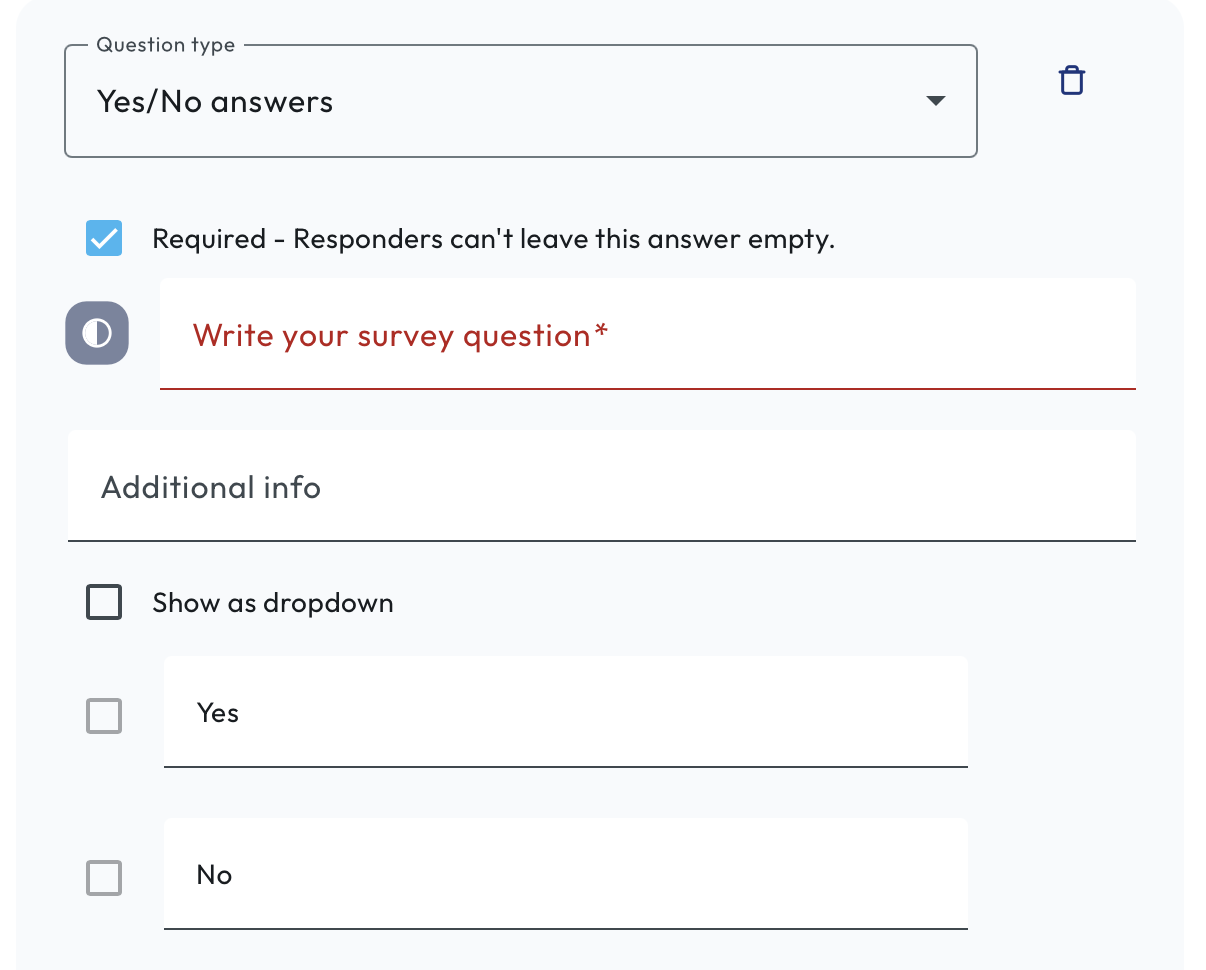
Upon choosing 'Yes/No Answers' as your 'Question Type', it will populate your question with the above.
For 'Yes/No Answers', recipients will only be given those two options as an answer, you will not be able to add any other options. However, the two options can be amended to say something else.
- You will need to type in your 1st survey question where it states 'Write your Survey Question'.
You can choose to provide additional information for this question, if needed. You can also choose to tick the option 'Show as dropdown'.
d. Free Text Answer
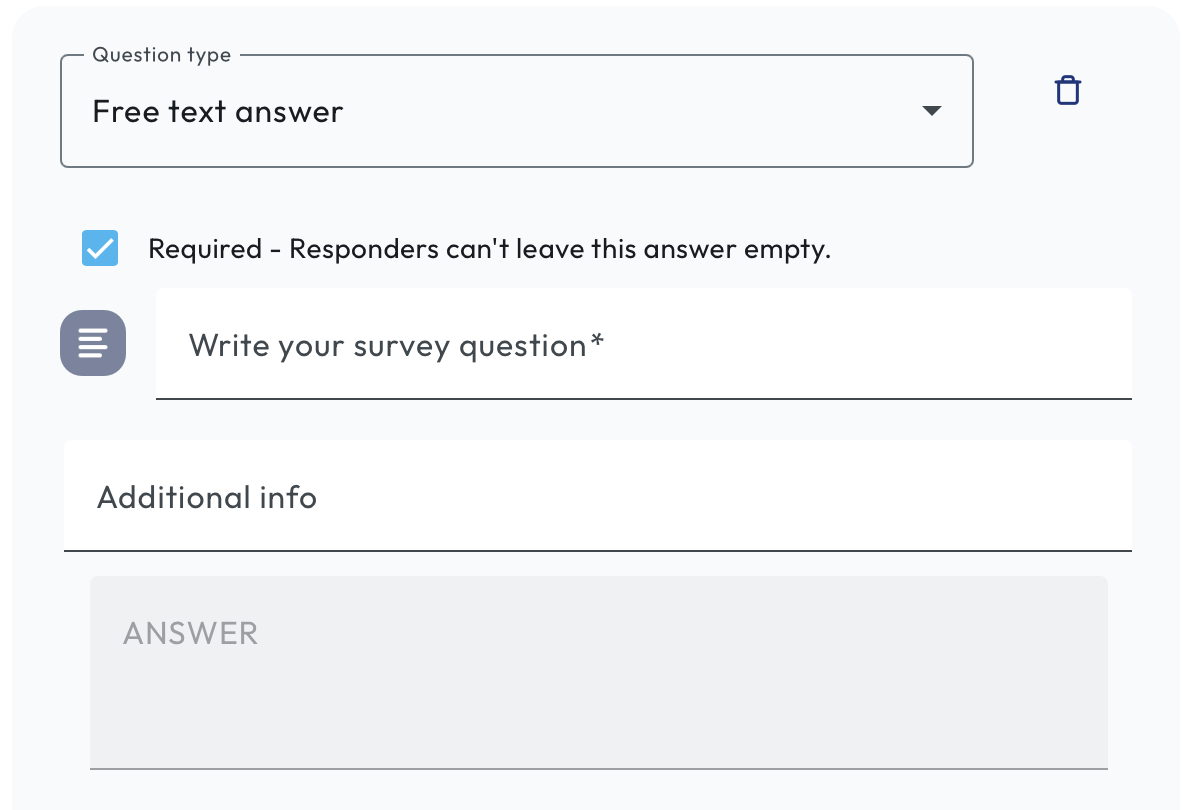
This option can be used when you require your recipients to type in their answers.
- You will need to type in your 1st survey question where it states 'Write your Survey Question'.
You can choose to provide additional information for this question, if needed.
e. Agree/Disagree
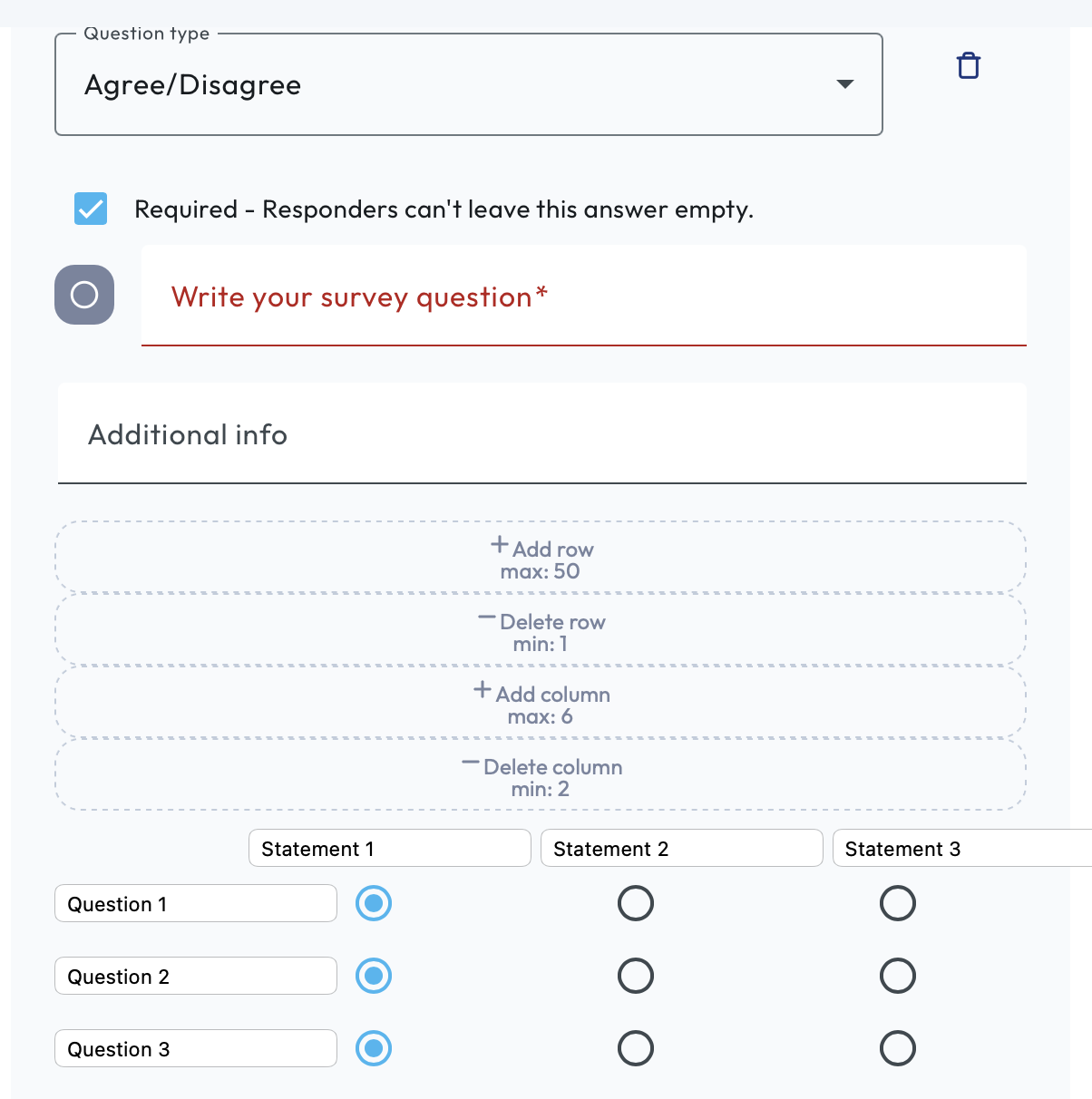 Here you can add up to 50 questions under one 'Question Type'.
- You will need to type in your 1st survey question where it states 'Write your Survey Question'.
- As shown above you can delete and add rows (to add questions) to this particular 'Question Type'.
- To input your questions, you'll need to amend the 'Question 1, Question 2 and Question 3' headings on the left-hand side (these are your rows).
- Where it states: 'Statement 1, Statement 2 and Statement 3' you can input your answer option e.g. Agree, Neutral and Disagree. If you wish to add more options, you can click the '+Add Column, max 6' button.
You can choose to provide additional information for this question, if needed.
For Question Types A-D, if you wish to add another question, you can simply click on the '+Add Another Question' under your first question.

Additionally, if you'd like to save this survey and use it later (possibly as a template) you can click the 'Save Template' button.
If you already have a template, you can re-use this as many times as you like when sending surveys.
NOTE: For every 'Question Type', if you wish to delete any unwanted data see below:
a. Unwanted Questions - click the 'Bin' icon.
b. Unwanted Answers - click the 'X' button.
Once you have completed your questions and the recipients have been assigned: you can click 'Send Message' at the bottom of the page to send your survey.

If you require any further assistance, please contact us by completing this form
Was this article helpful?
That’s Great!
Thank you for your feedback
Sorry! We couldn't be helpful
Thank you for your feedback
Feedback sent
We appreciate your effort and will try to fix the article