Detentions & Exclusions
Click Pupil Support in the left-hand navigation to open the Pupil Support menu, then choose the card you need — Detentions, Exclusions, or Exclusions Dashboard. These are three separate pages.
Detentions
The Detentions page has four tabs: Today's Detentions, Reschedule Queue, Detentions, and Escalation Rules.
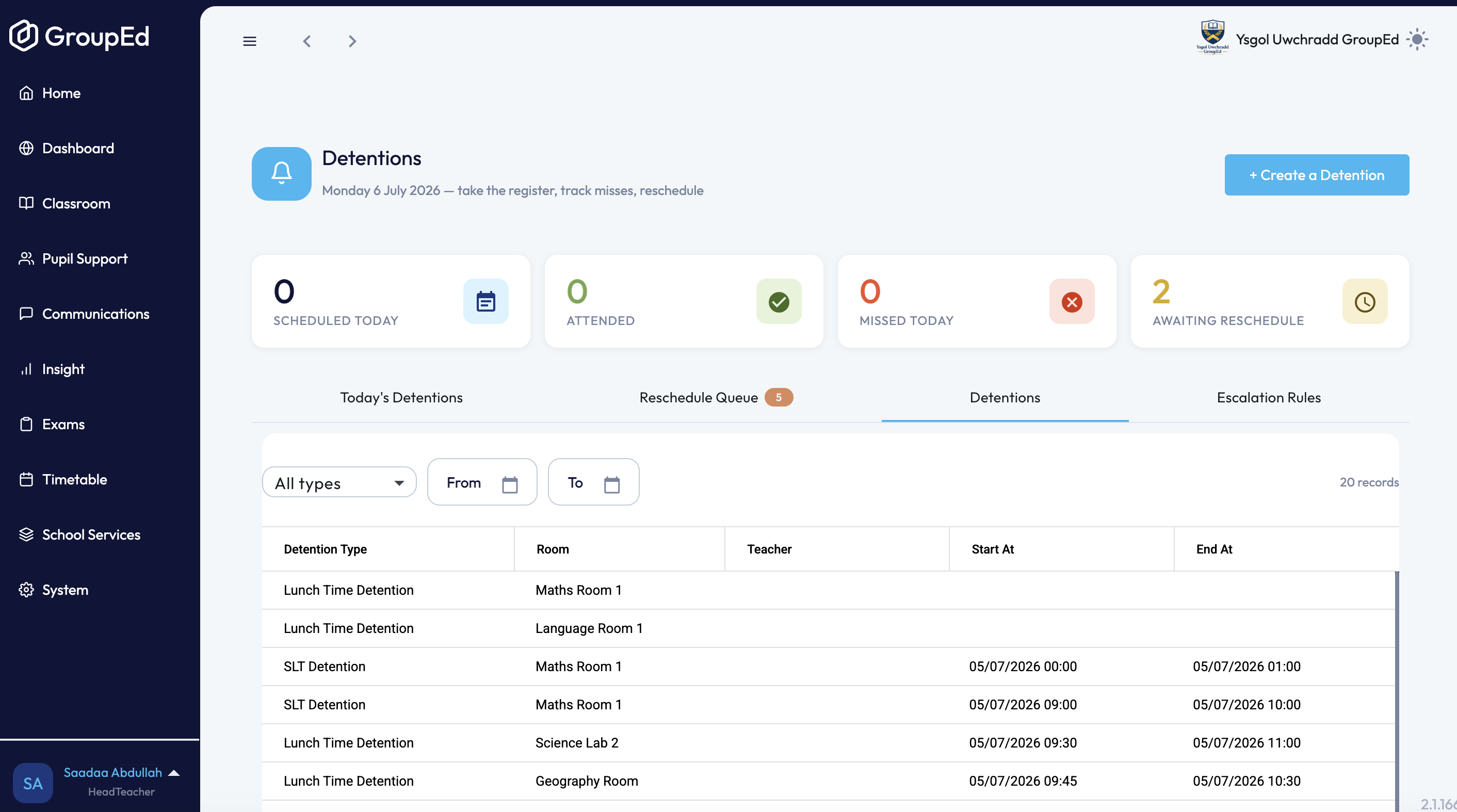
Creating a detention: Click + Create a Detention, select a Type (e.g. SLT Detention, Lunch Time Detention, After-School Detention — or add a new one), select a Room, set the Start time and End time, enter a Reason, and add the students involved. Click Save. 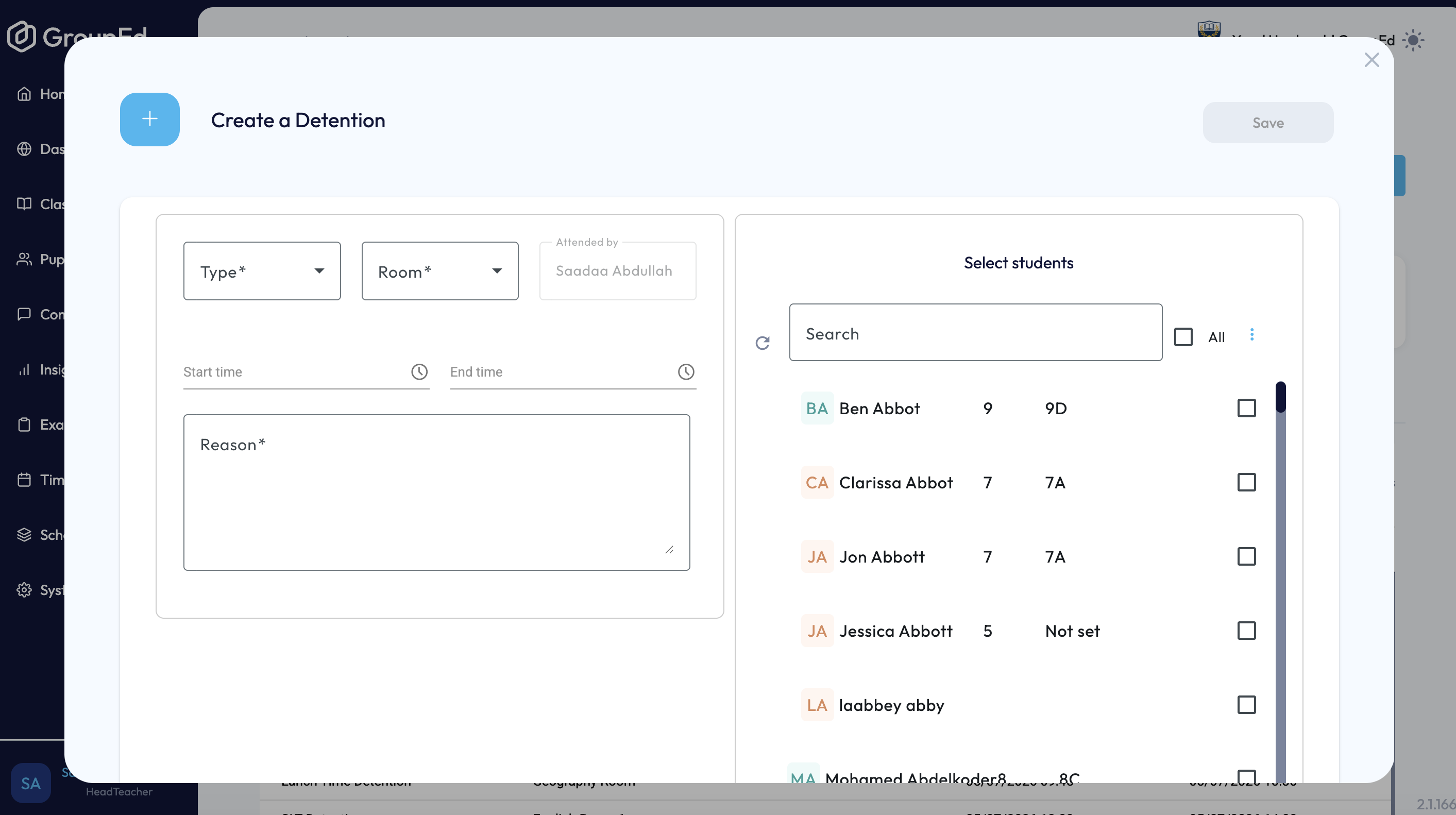
Today's Detentions is the register for the selected date. Use the date picker to move between days. Each detention slot lists its students with their reason, miss count, and status:
Students marked Pending show ✓ Attended and ✗ Missed buttons.
Marking a student Missed on their 1st miss shows a Reschedule button, which opens an inline form (new date, detention type, session time/duration, room, miss reason, and toggles to notify the parent and/or student).
From the 2nd miss onward, an escalation banner appears instead, with a button to create a HoY or SLT detention depending on the miss count.
Filters let you narrow by attendance status, detention type, teacher, or student name search.
Reschedule Queue lists every student currently awaiting a rescheduled detention, showing the original session, new date (if set), parent notification status, and an Open button to jump back into that record.
Detentions is the full list/grid of all detention records (type, room, teacher, start/end time), filterable by type and date range.
Escalation Rules shows your school's missed-detention escalation ladder (e.g. 1st miss → reschedule + notify parent; 2nd miss → HoY detention + phone call; 3rd → SLT + parent meeting; 4th+ → headteacher review). This is read-only here — click Edit in Settings to change it under School Settings → Detentions.
Exclusions
Click + Create a Suspension/Exclusion to open the panel: 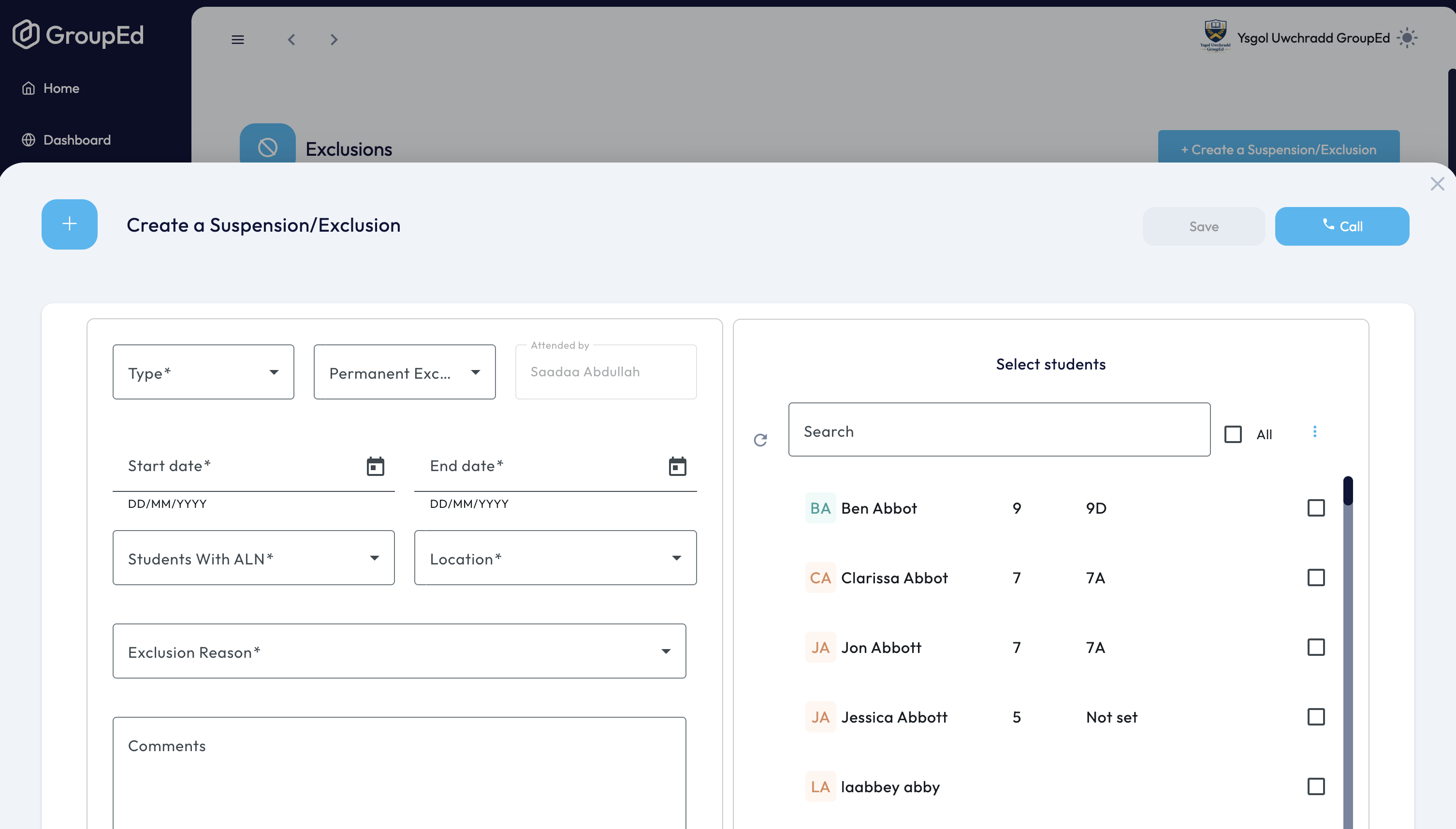
Select a Type (e.g. Fixed-Term Suspension, Permanent Exclusion, Internal Suspension — or add a new one).
Select Permanent Exclusion? — Yes or No.
Set the Start Date, and the End Date if it isn't permanent.
Select whether the student has ALN.
Select a Location (e.g. Isolation Room, Home, Online Remote Learning).
Select an Exclusion Reason from the standard DfE-style list (e.g. Physical assault, Bullying, Persistent rule-breaking).
Add Comments and optionally Attach files.
Tick Notify all contacts with Parental Responsibility to message parents/carers directly — this adds a Send Message button alongside Save. A Call button is also available to ring a parent/carer from the panel.
If the exclusion is permanent, a Notify Local Authority checkbox appears too.
Click Save.
The Exclusions page lists every record (student — with an ALN tag where relevant — type, reason, start/end date, comments). Click any row to open and edit it.
Exclusion data feeds into the PLASC census export — keep records accurate ahead of statutory returns.
Was this article helpful?
That’s Great!
Thank you for your feedback
Sorry! We couldn't be helpful
Thank you for your feedback
Feedback sent
We appreciate your effort and will try to fix the article