The Options feature lets you run a subject-choices process for GCSE or Post-16 students — define subject groups and selection rules, publish to parents for selection, then track and analyse the responses.
Options is found under Exams → Options in the left-hand menu. It's only visible to School Admins.
Creating an Options Record
Go to Exams → Options and click + New options record.
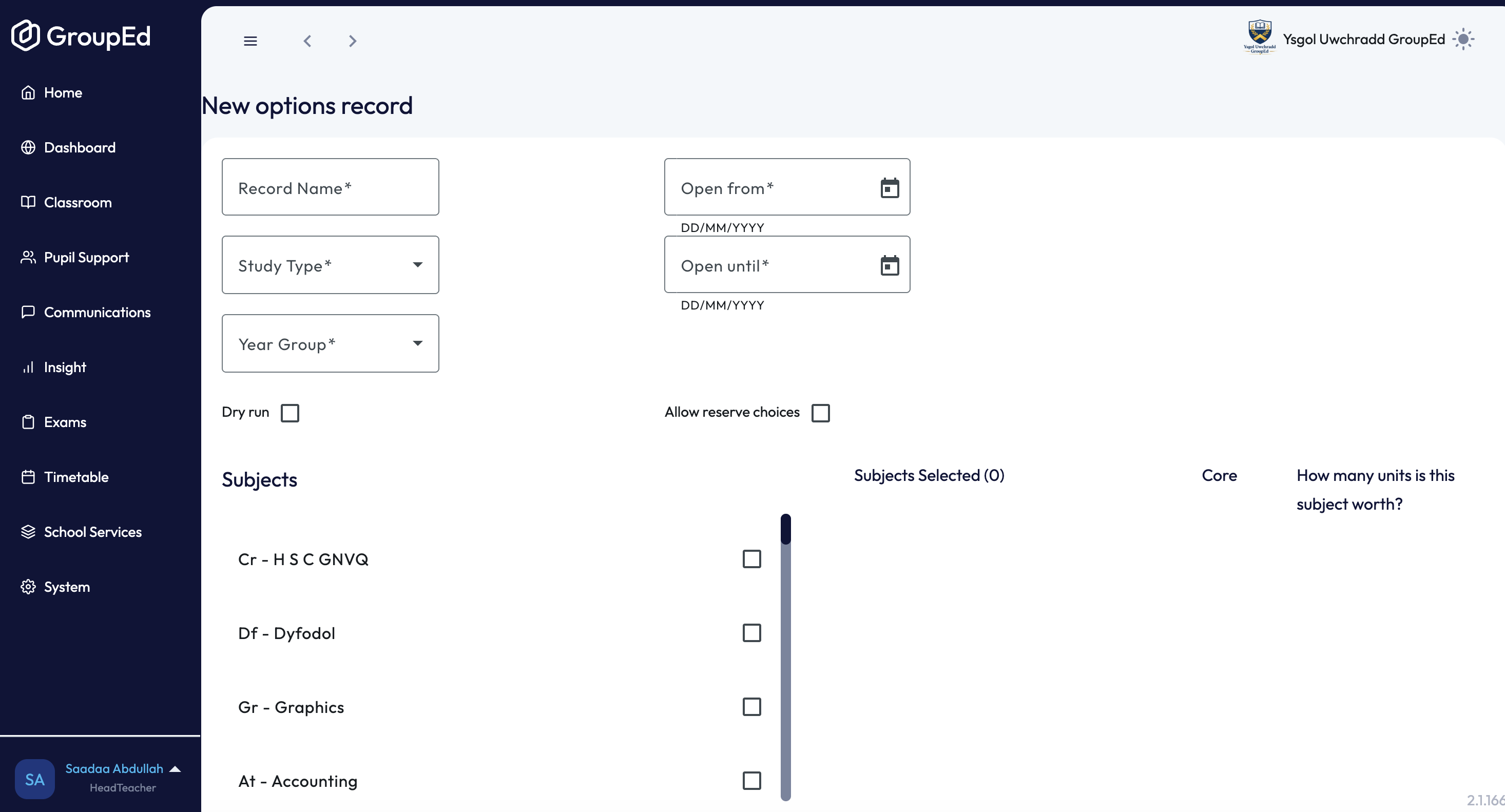
Fill in the record details:
Record name
Study type — GCSE or Post-16
Year group
Open from / Open until — the window parents can submit choices in
Dry run — tick to mark this as a test run
Allow reserve choices — tick to give parents a second, reserve set of choices alongside their first
In the Subjects panel, select the subjects to include from the list on the left. For each subject added, tick Core if it's compulsory, and set how many units it's worth (1–5) — units are what group rules are measured against, not raw subject counts.
Arrange the selected subjects into Subject groups:
Click Add group, name it, and choose a Group rule: Select exactly / Select at least / Select at most / Select between, then enter the unit number(s) the rule applies to.
If this group's rule should be evaluated together with another group (e.g. "pick 1–2 units across these two blocks combined"), tick Is this rule shared with any other groups? and select the group(s) to share it with.
Drag subjects from Ungrouped subjects into Subjects in group, add an optional comment, and click Save.
Repeat for each group. Any subjects left ungrouped are shown separately and aren't subject to a rule.
Click Save on the record once you're happy with the subjects and groups. This keeps it in Draft — nothing is visible to parents yet.
Publishing
Open the draft record and change its status from Draft to Publish using the status selector.
Confirm when prompted — publishing is irreversible while responses exist: "Are you sure you want to publish this options record? You will not be able to make any further changes."
On publish, GroupEd automatically creates a personal copy of the record for every student in the chosen year group, ready for their parent to complete in the parent app.
A published record can still be reverted to Draft using Revert to draft, but only while no parent has submitted a response yet — once responses start coming in, this option disappears.
Tracking and Analysing Responses
From the published record, click Go to responses to open the responses screen:
Response rate — a summary of how many students have responded out of the total, and a list of everyone who hasn't yet.
Send reminder — sends a message (via GroupEd Messages) to the parents/guardians of everyone still on the "yet to respond" list. You can edit the title and message text before sending, and it'll warn you if any students don't have an eligible contact to message.
Subject popularity — a table of first-choice and reserve-choice counts per subject.
Sync students — backfills option records for any students who joined the year group after the record was published (so they aren't missed out).
Download CSV — exports the response data.
Was this article helpful?
That’s Great!
Thank you for your feedback
Sorry! We couldn't be helpful
Thank you for your feedback
Feedback sent
We appreciate your effort and will try to fix the article