You may wish to schedule messages for a certain time or date, here’s how this can be done.
- Compose your message as usual. If you're unsure on how to do this, follow this guide: Sending a Message
- Just before you go to send your message, you'll need to navigate to the bottom of the page.
- You now need to click on the down arrow that's next to the 'Send Message' function.

- Upon clicking this button, it will automatically populate a small box that will give you the options to schedule the send of your message.
You will be given default options for sending the message however you can customise this to your own date and time. - Click on 'Custom Time' and this will allow you to choose a date and time that the message will be sent.
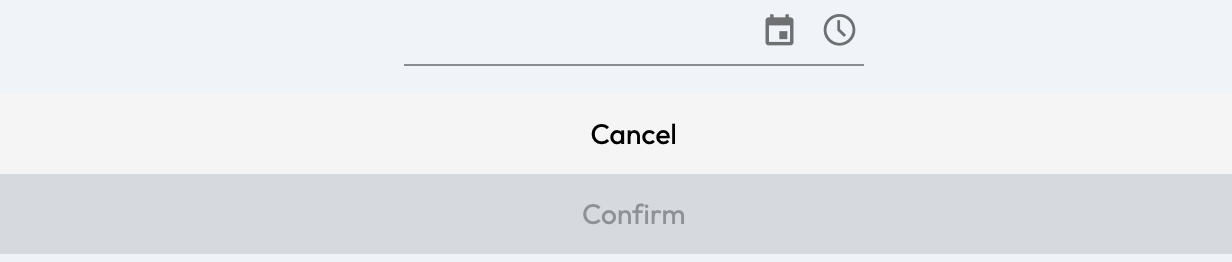 By clicking the calendar icon - you can set the date.
By clicking the clock icon - you can set the time - Click Confirm when you are ready and this will store the message until it’s time to send.
You’ll be able to view/delete any pre schedules messages via the Messages tab on left of the page
If you require any further assistance, please contact us by completing this form
Was this article helpful?
That’s Great!
Thank you for your feedback
Sorry! We couldn't be helpful
Thank you for your feedback
Feedback sent
We appreciate your effort and will try to fix the article