GroupEd's Marksheets and Assessments features let teachers record attainment data for students. Marksheet templates are set up by an administrator and then filled in by teachers for their classes.
Accessing Your Marksheets
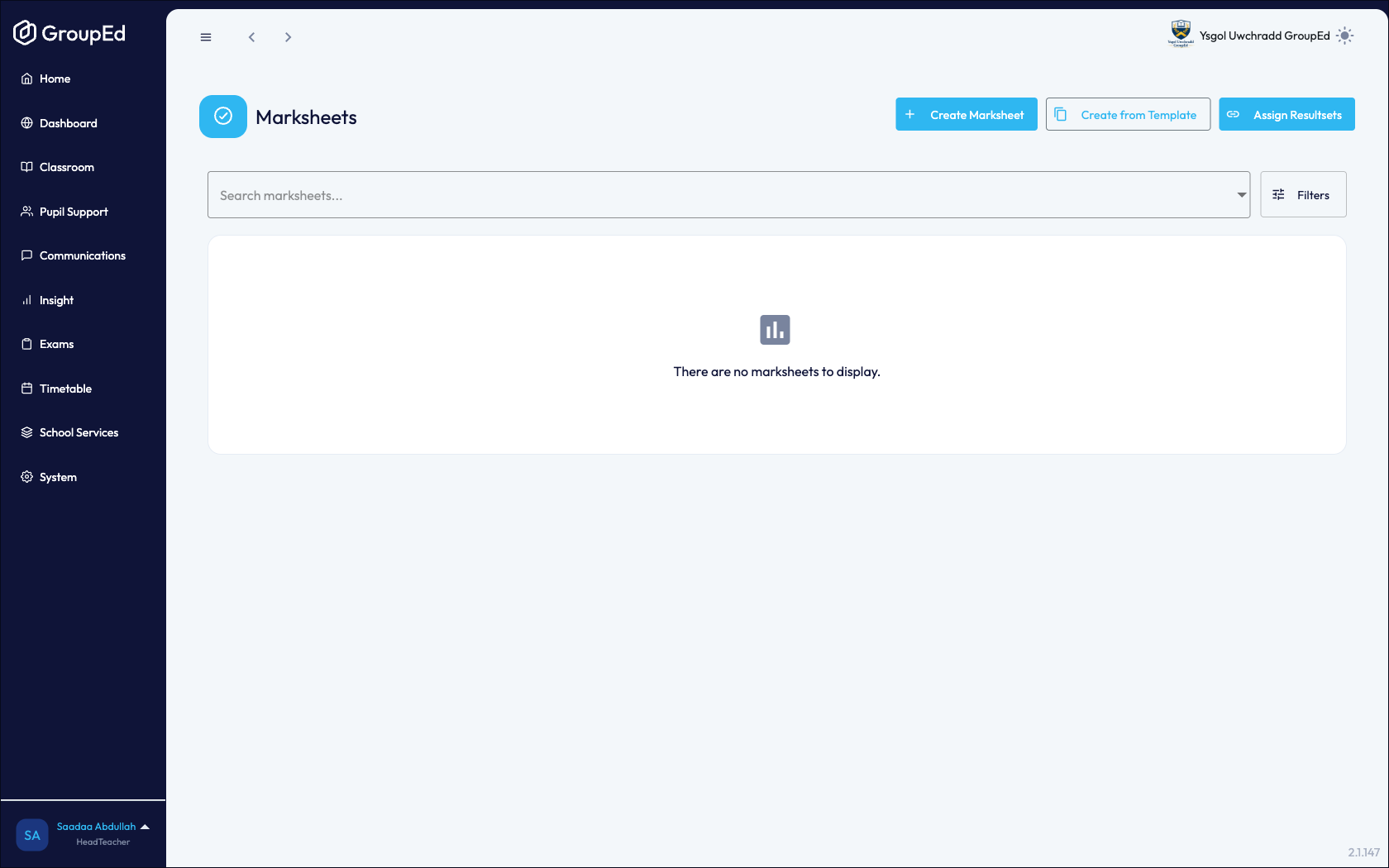
Navigate to Classroom → My Marksheets from the left-hand menu.
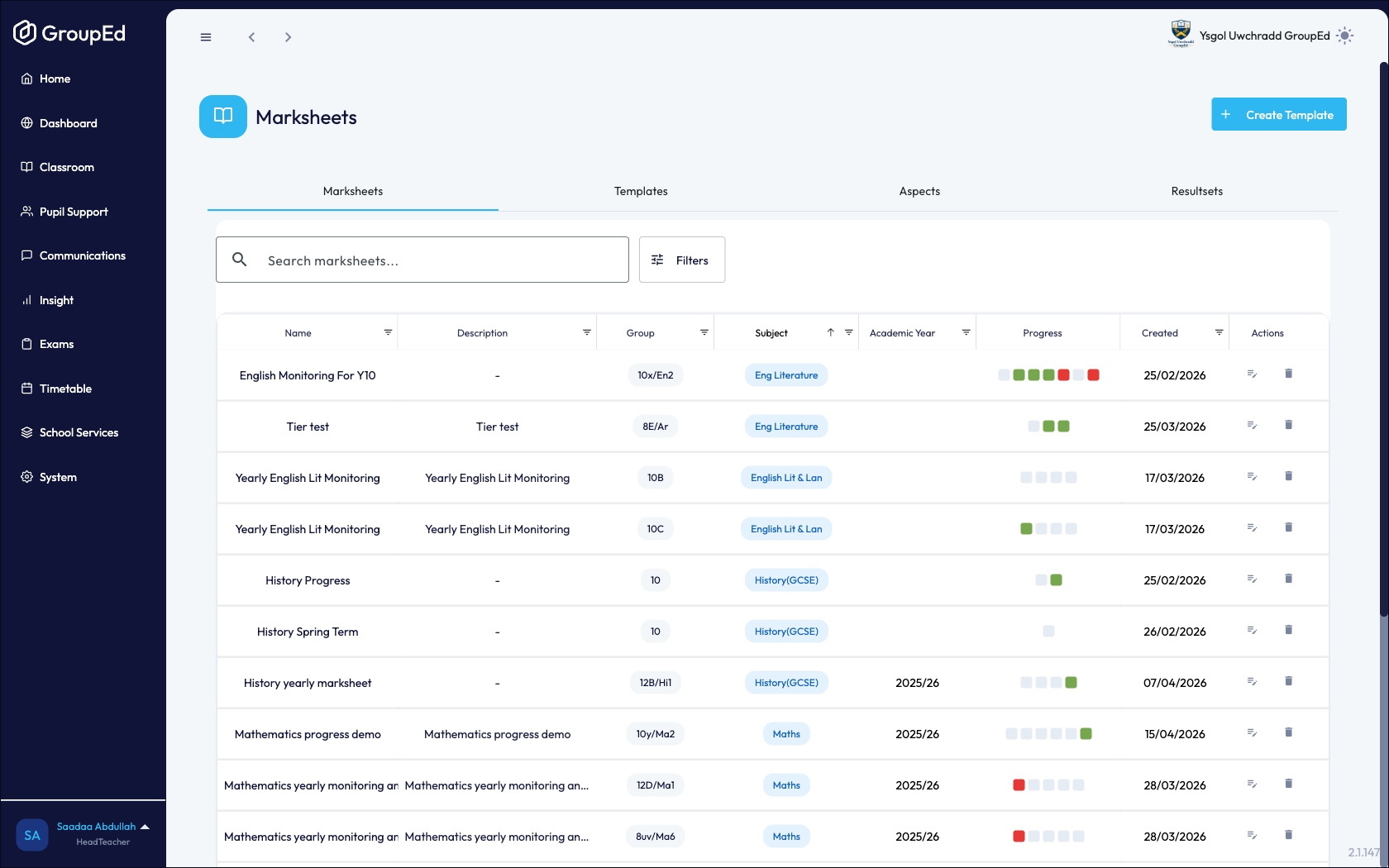
Each row shows a marksheet template, the class it is assigned to, and the subject. Click the pencil icon in the action's column on the marksheet to open it and begin entering grades.
Filling in a Marksheet
Click the pencil icon in the action's column on the marksheet you want to fill in. The marksheet grid opens, showing your students as rows and assessment columns.
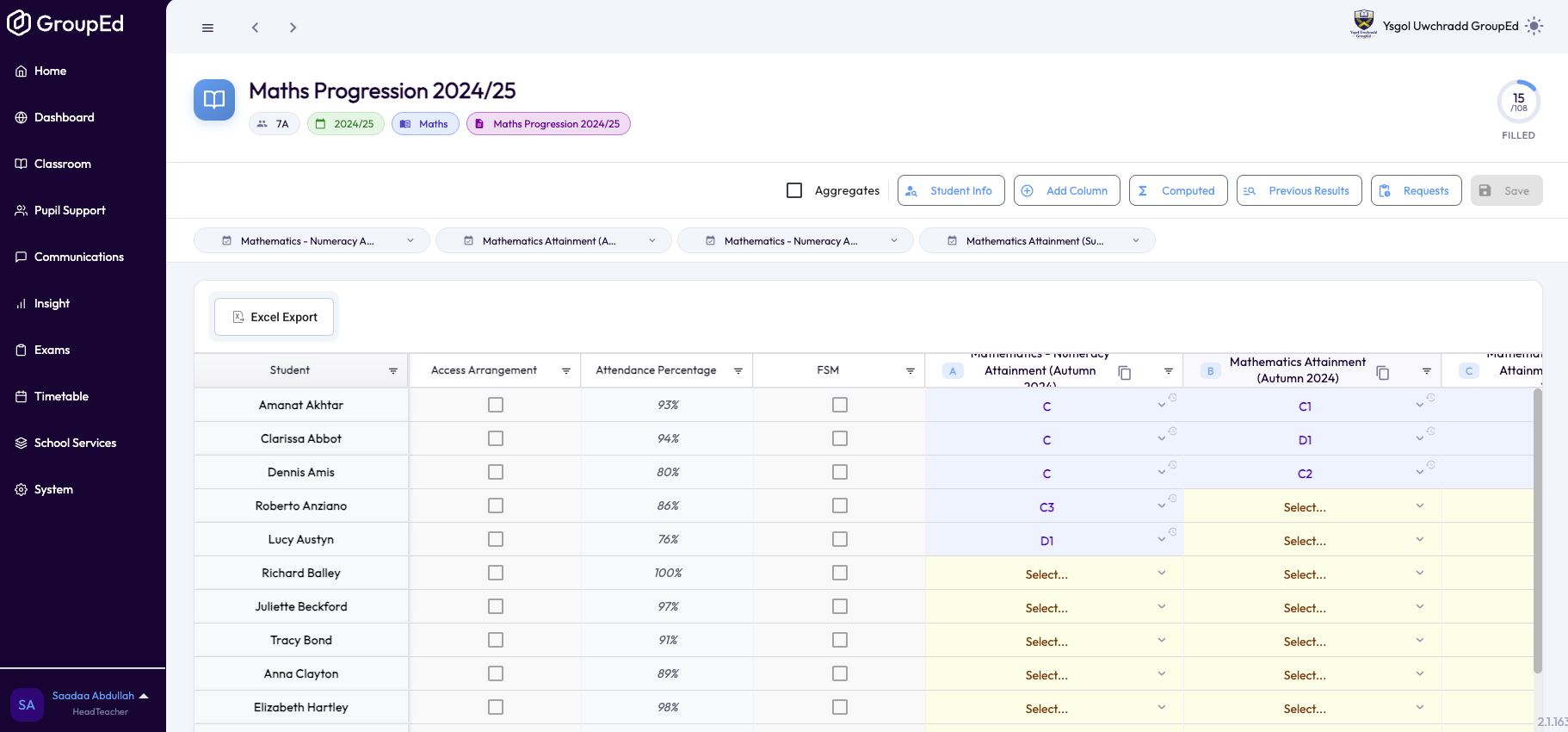
Click on a cell next to a student's name and type or select the grade or score.
Move between cells using the Tab key or by clicking each cell directly.
Once you have entered all grades, click Save. Grades are saved immediately and visible to other staff with access to the marksheet.
Marksheet columns and grade scales are defined by your school administrator. Contact them if you need a different scale or additional columns.
Exam Timetable
Navigate to Exams → Exam Timetable to view scheduled exams for your school.
The Exam Timetable shows upcoming exams with date, time, venue, and the groups sitting each exam. This view is read-only for most staff.
Was this article helpful?
That’s Great!
Thank you for your feedback
Sorry! We couldn't be helpful
Thank you for your feedback
Feedback sent
We appreciate your effort and will try to fix the article