Marksheets in GroupEd let you record and track assessment data for your students. You can build custom assessment frameworks using Aspects (the things you are measuring), Templates (the layout of a marksheet), and Resultsets (how scores are grouped and reported). Once set up, marksheets can be filled in for any class or group.
Getting There
Click Classroom in the left-hand navigation.
Select My Marksheets from the classroom menu tiles.
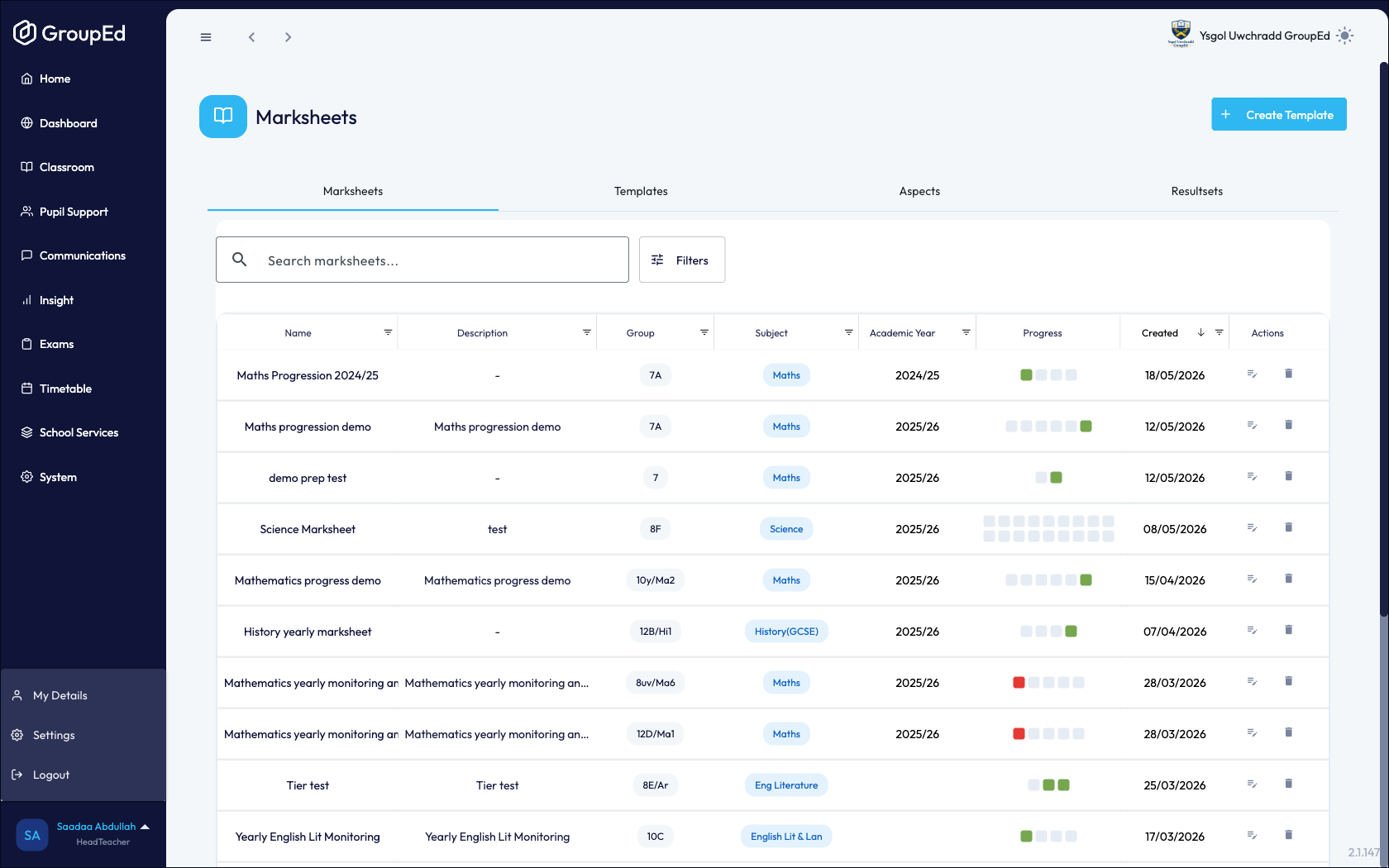
The Marksheets page opens at the Marksheets tab.
URL | #/assessments/marksheets-alternate |
Access | School Admin, Teachers |
The Four Tabs
The Marksheets page is organised into four tabs. They work together — you typically set up Aspects and Templates first, then create marksheets from those templates.
Tab | Purpose |
Marksheets | The list of all marksheets that have been created. Search, filter, and open individual marksheets to enter data. |
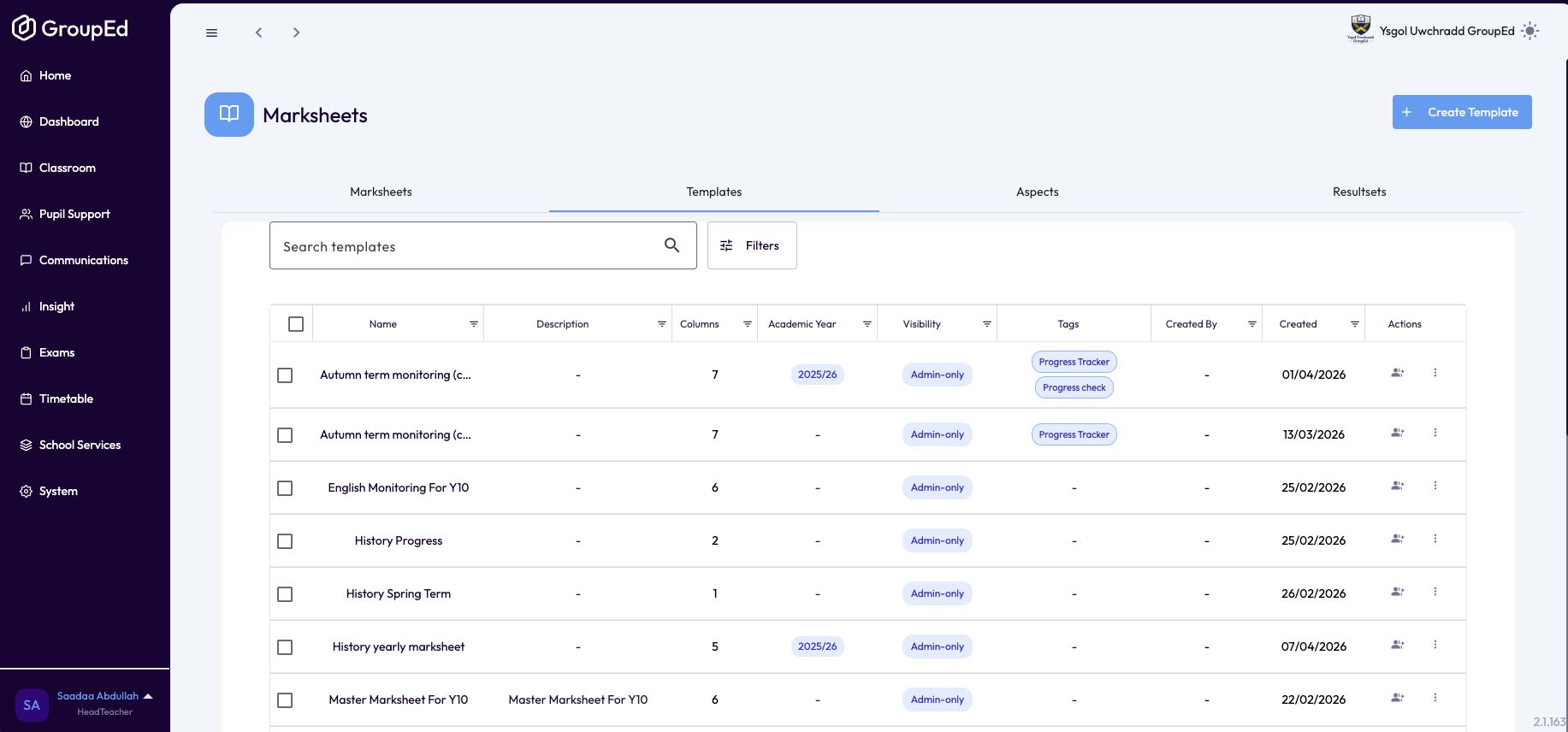
Templates | Define the structure of a marksheet — which aspects are included and how they are arranged. Create a template once and reuse it for multiple classes. |
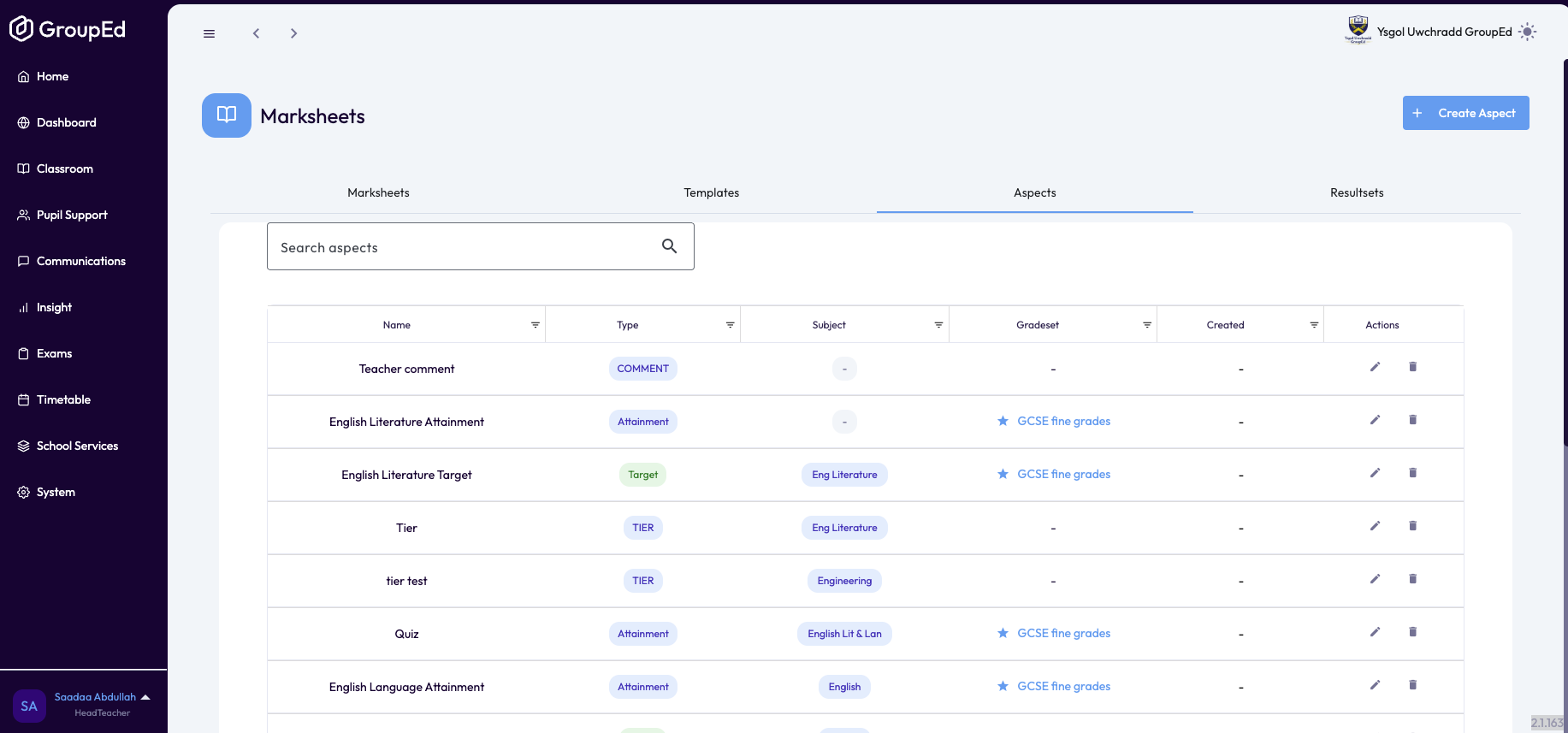
Aspects | The individual items you are assessing (e.g. Reading, Writing, Number). Each aspect has a name and a scoring method. |
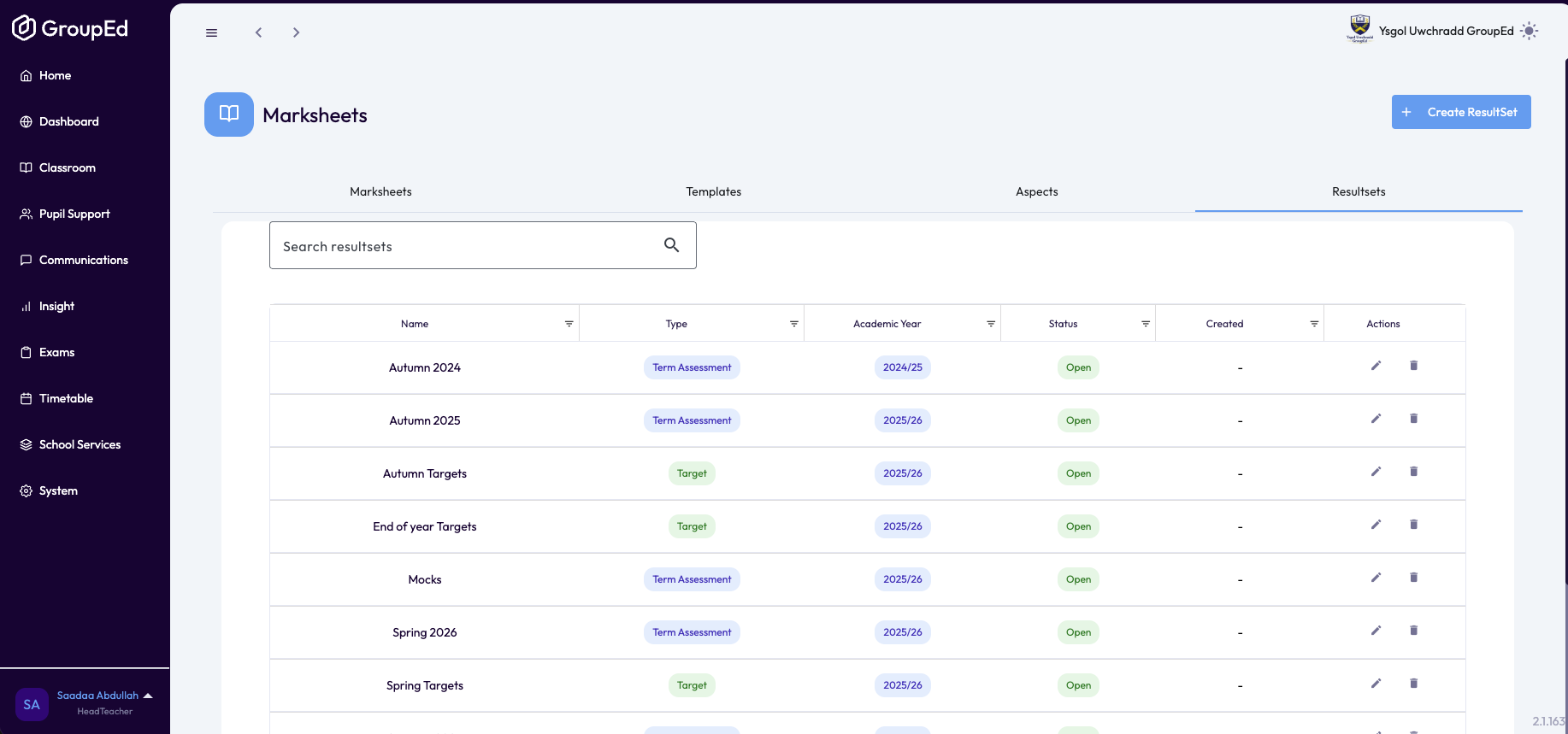
Resultsets | Named groups that collect and summarise assessment results — for example, an end-of-term report or a tracker for a specific year group. |
Marksheets Tab
This tab lists all marksheets that exist in your school. From here you can search, filter, and open a marksheet to view or enter student data.
Searching and Filtering
Use the Search marksheets… box to find a marksheet by name.
Click Filters to reveal four filter controls: Subject, Academic Year, Created from, and Created to.
Set any combination of filters to narrow the list, then clear them by resetting the dropdowns to All or clearing the date fields.
Templates Tab
A template defines the structure of a marksheet — which aspects it measures and how they are laid out. You create a template once and then use it as the basis for individual marksheets for different classes or groups.
Creating a Template
Click the Templates tab.
Click + Create Template (top right), or + Create Your First Template if no templates exist yet.
Give the template a name, select the aspects to include, and configure the layout.
Save the template. It then appears in the Templates list and becomes available when creating a new marksheet.
Finding a Template
Use the Search templates… box to find a template by name.
Click Filters to filter by subject or date range.
Aspects Tab
Aspects are the individual things you assess — for example, Reading, Writing or Numeracy. Each aspect has a name and a method for recording results (such as a grade, a score, or a descriptor).
Creating an Aspect
Click the Aspects tab.
Click + Create Aspect (top right), or + Create First Aspect if none exist yet.
Enter a name for the aspect and configure how it is scored.
Save. The aspect is now available to add to templates.
Finding an Aspect
Use the Search aspects… box to search by name.
Resultsets Tab
A resultset groups a set of assessment results together under a single name — for example, a half-term tracker or an end-of-year summary. Once created, a resultset can be associated with marksheets to organise when and how data is collected.
Creating a Resultset
Click the Resultsets tab.
Click + Create ResultSet (top right), or + Create First ResultSet if none exist yet.
Enter a name and configure the resultset.
Save. The resultset is now available to use when setting up marksheets.
Finding a Resultset
Use the Search resultsets… box to search by name.
Recommended Setup Order
If you are setting up Marksheets for the first time, work through the tabs in this order:
Aspects — create the individual things you want to assess.
Resultsets — create any named result groups you need (e.g. Autumn Term Assessment).
Templates — build a template from your aspects.
Marksheets — create marksheets from your template for each class or group.
The + Create Template button is available on all tabs as a quick shortcut, even before you have set up aspects and resultsets.
Was this article helpful?
That’s Great!
Thank you for your feedback
Sorry! We couldn't be helpful
Thank you for your feedback
Feedback sent
We appreciate your effort and will try to fix the article