Your account settings let you manage your personal profile, login credentials, security options, and app preferences. All settings are accessible from the profile menu in the bottom-left corner of the screen.
Opening the Account Menu
The account menu is located at the bottom of the left-hand navigation panel. It shows your name and role.
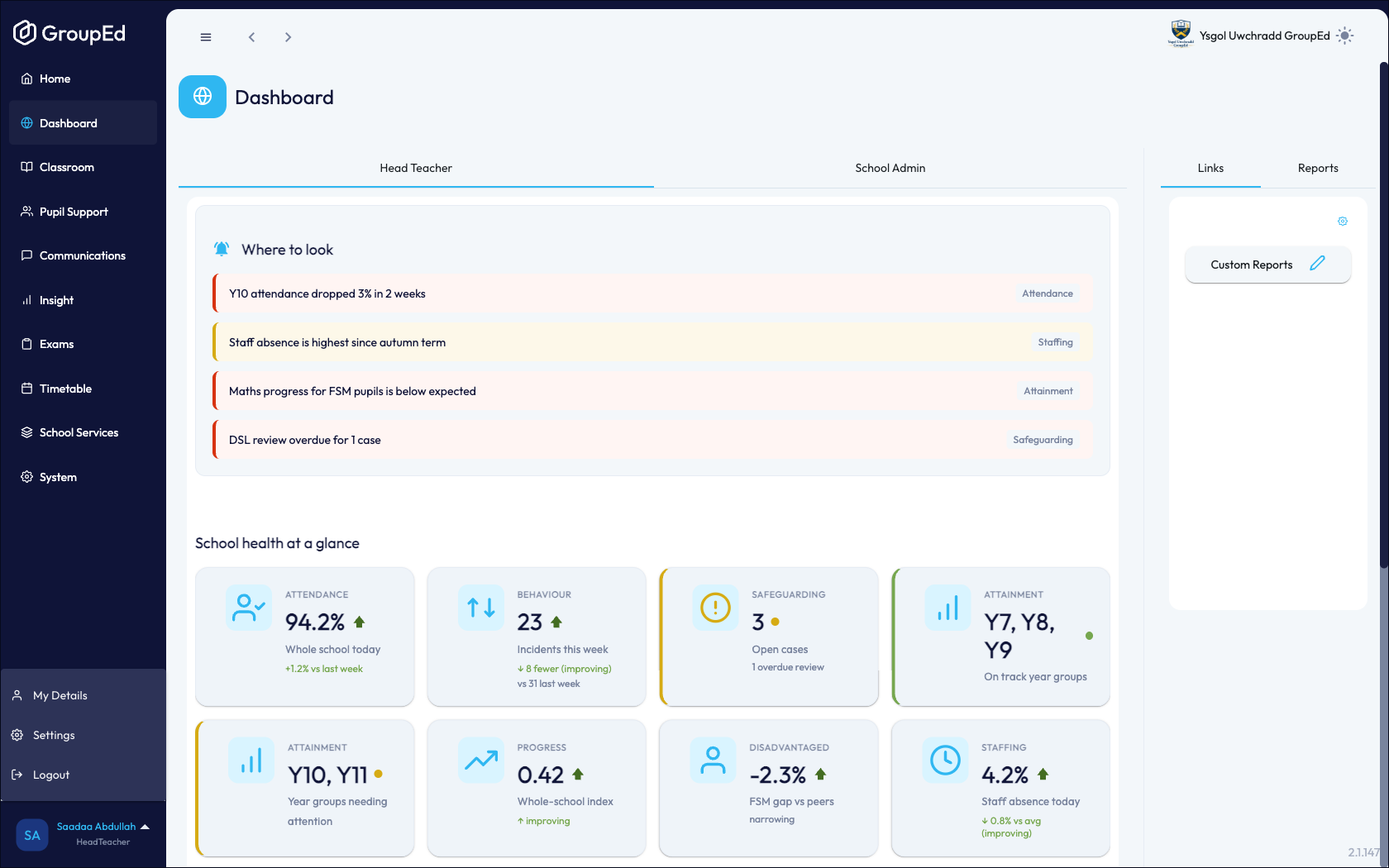
Click your name at the bottom-left of the screen. The menu expands to show three options: My Details, Settings, and Logout.
Click My Details to view and edit your staff profile record.
Click Settings to manage login credentials and app preferences.
My Details
My Details opens your full staff profile record. This page contains several tabs:
Personal — legal name, date of birth, gender, and demographics.
Contact Details — phone numbers and address.
Professional — role, qualifications, and professional details.
Employment — contract type, start date, and employment history.
Absences — absence records for this staff member.
Account — login email and account status.
Workforce Profile — workforce census data.
To edit any section, click the Edit button in the top-right corner of the page.
Settings
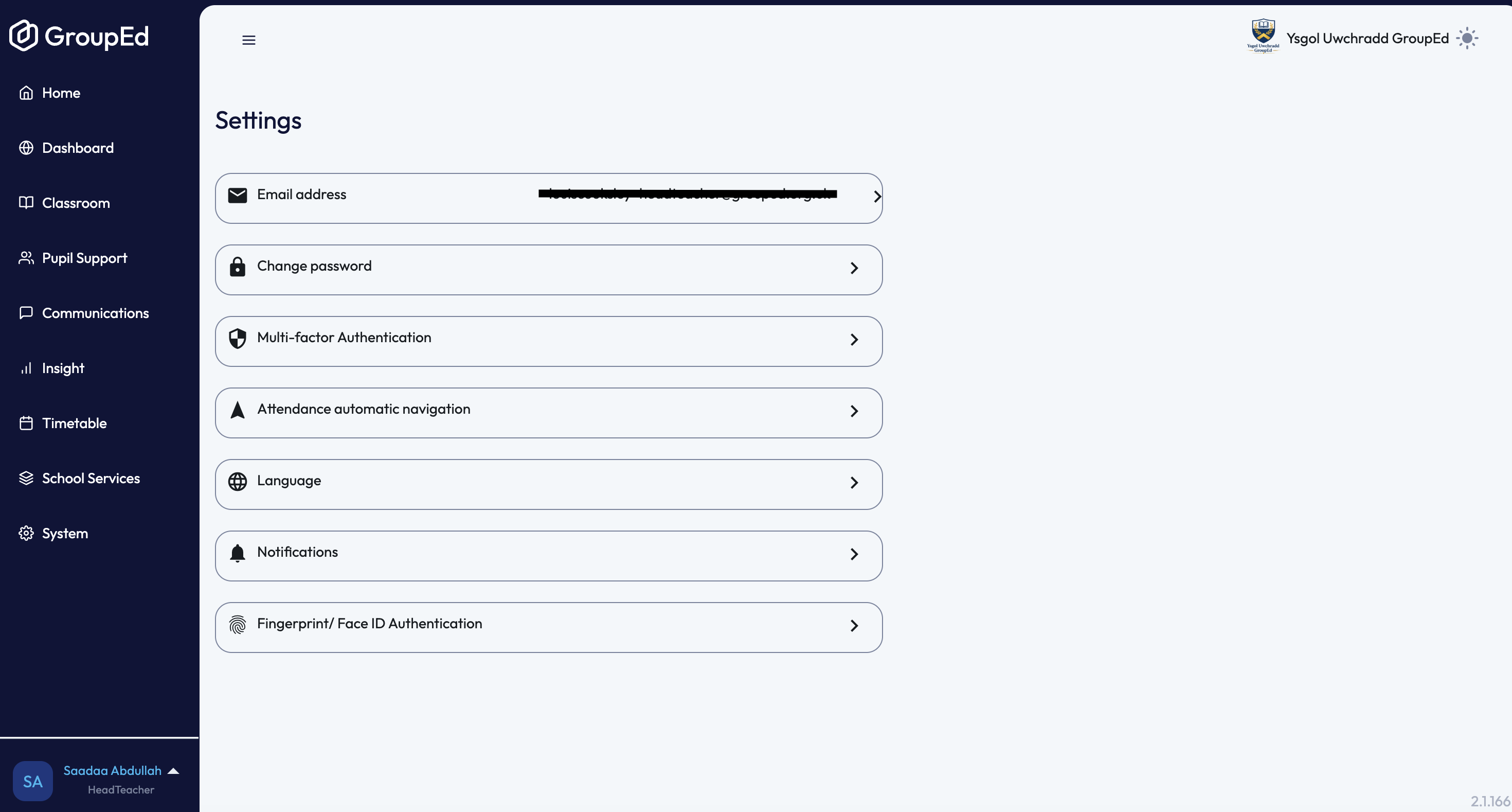
The Settings page contains the following options. Click any row to open it.
Email Address
View and update the email address used to log in to GroupEd. You will receive a verification email to the new address before the change takes effect.
Change Password
Update your GroupEd login password. You will need to enter your current password before setting a new one.
Multi-factor Authentication
Enable or manage multi-factor authentication (MFA) for your account. When enabled, you will be asked for a verification code each time you log in, in addition to your password.
Attendance Automatic Navigation
When enabled, GroupEd will automatically navigate to the register for your next class at the start of each lesson. This is a time-saving preference for teachers who regularly take registers.
Language
Change the display language of the GroupEd app. Available options include English and Welsh (Cymraeg).
Notifications
Manage which notifications you receive from GroupEd. You can control push notifications and in-app alerts for messages, attendance, behaviour, and other activity.
Fingerprint / Face ID Authentication
Enable biometric login on supported mobile devices. Once set up, you can log in to the GroupEd app using your fingerprint or Face ID instead of your password.
Logging Out
To log out, click your name at the bottom-left of the screen to open the account menu, then click Logout. You will be returned to the login page.
Was this article helpful?
That’s Great!
Thank you for your feedback
Sorry! We couldn't be helpful
Thank you for your feedback
Feedback sent
We appreciate your effort and will try to fix the article