Our shop function will allow you to sell numerous items across the school, making purchasing for parents easier.
1. You'll first need to navigate to the 'Shop' section on the left-hand side of your screen.
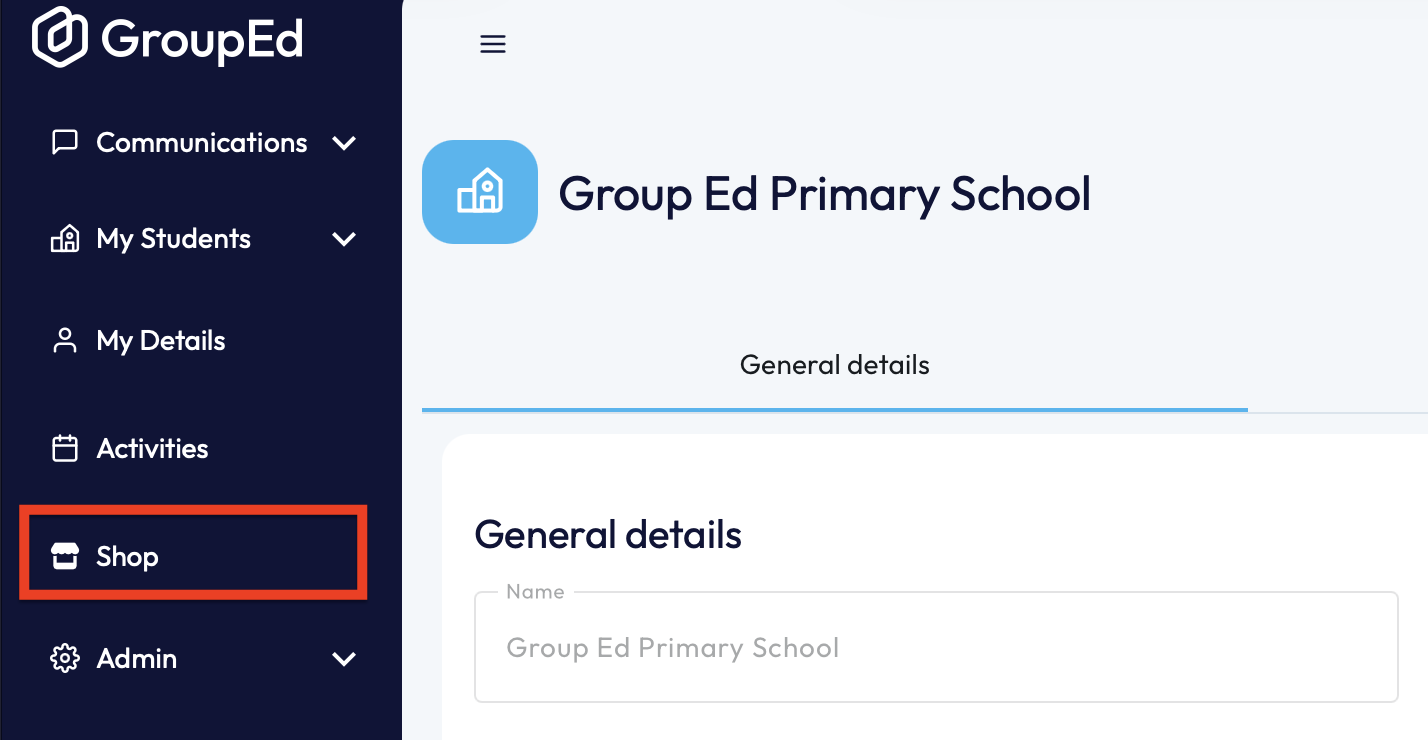
This will open up your shop, showing all the active items that are currently available.
2. To add a new item, you will need to click the button in the top right corner '+ Add New Item'.

3. Firstly, you'll need to upload a picture of your item, by clicking the 'Upload A New Picture' button on the left.
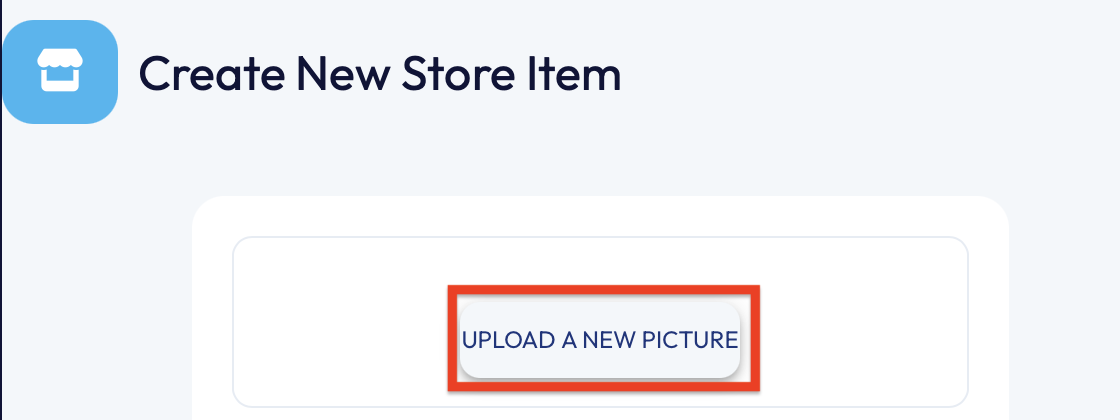
You don't need to have a photo assigned to the item, however it is useful to have one.
4. Next on the right hand side you'll need to give your item a name in the 'Name' field.
5. In the box, you'll need to provide a description of the item.
6. In the 'Price' field, you'll need to allocate your item a price.
7. In the 'Quantity' field, you'll need to state the number of these items you have in stock.
NOTE: you now have the option to customise your item further. If you do not wish to provide any further customisation/detail, you can skip to STEP 11.
8. To provide more customisation to your product e.g. colour and/or size options, you'll need to scroll to the bottom of the page and click the 'Use Custom Options' slider. Once selected, more options will appear and the slider will turn blue:
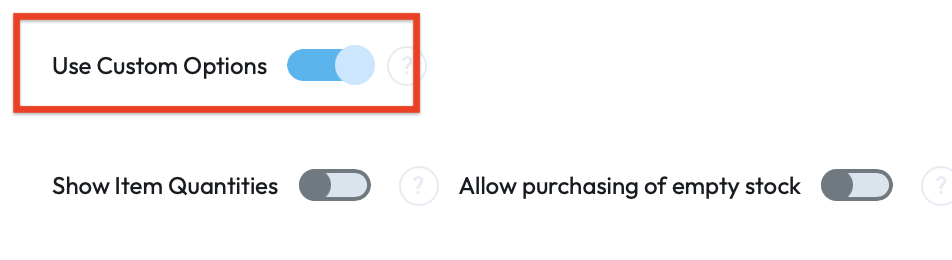
If you wish to 'Show Item Quantities' to parents and Allow Purchasing of Empty Stock', you can click on the sliders as shown in the screenshot above. (You'll know they're active when they turn blue).
9. To add the customisation options, you'll need to press the button '+ Add Option'. This will then automatically populate the following:
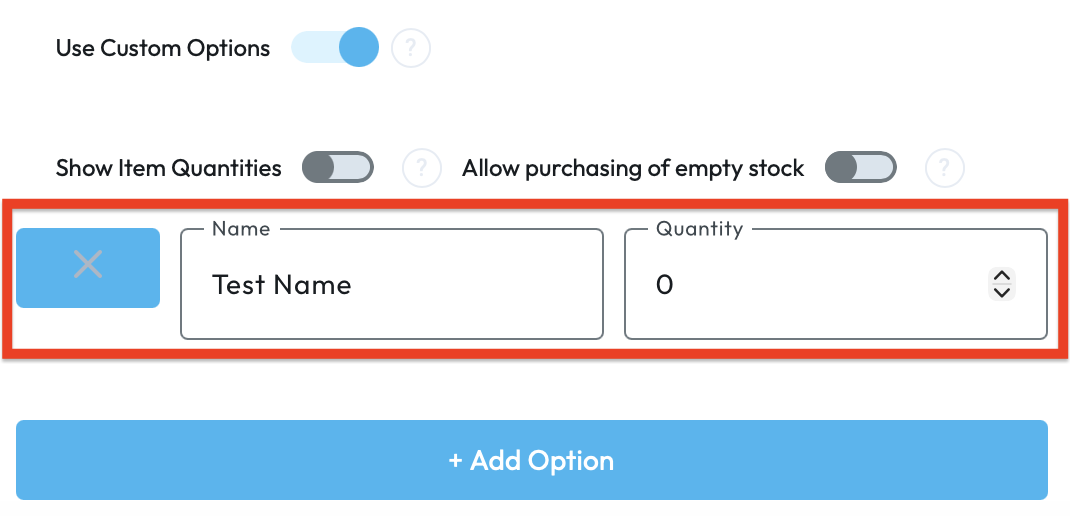 You can add more than one customisation option.
NOTE: if you need to delete a custom option, simply click the 'X' button on the left hand side of it.
10. You will need to make sure you provide the custom option a name and a quantity in the new fields which have appeared.
11. Once you have set up your item with any custom options, you can now move onto Create the Item. If all required fields are completed, you will now be able to click the 'Create Item' button in the top right corner.

12. Creating the item won't make the item active and available to purchase. Upon clicking 'Create Item' the item will appear in the 'Inactive Items' list, so you'll need to manually active the item.
13. To Activate the Item, you'll need to navigate to the 'Inactive Items' section of the Shop.
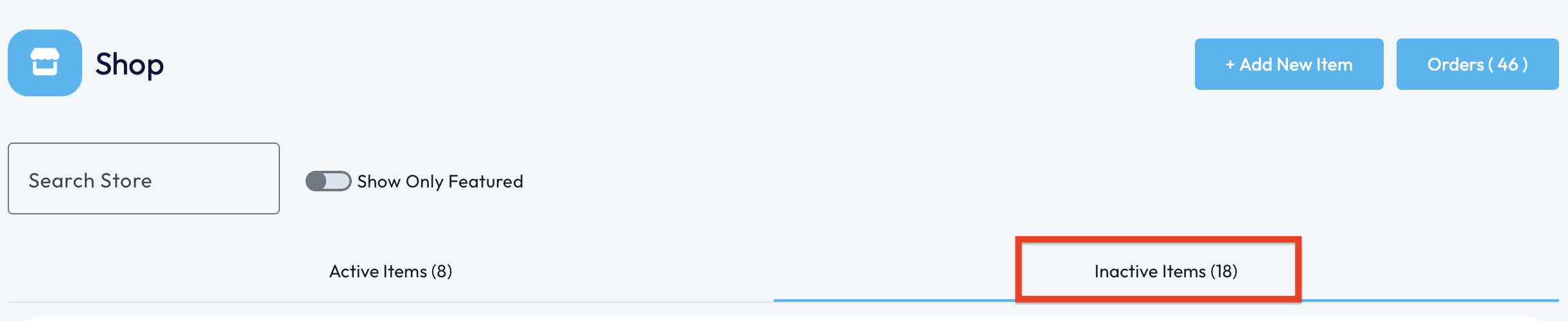
14. Locate the item you'd like to make active and click into it.
15. This will load the page with all details associated to this item, including name, price, description and any custom options.
16. To activate the item, you will need to click the slider 'Active in Store'.
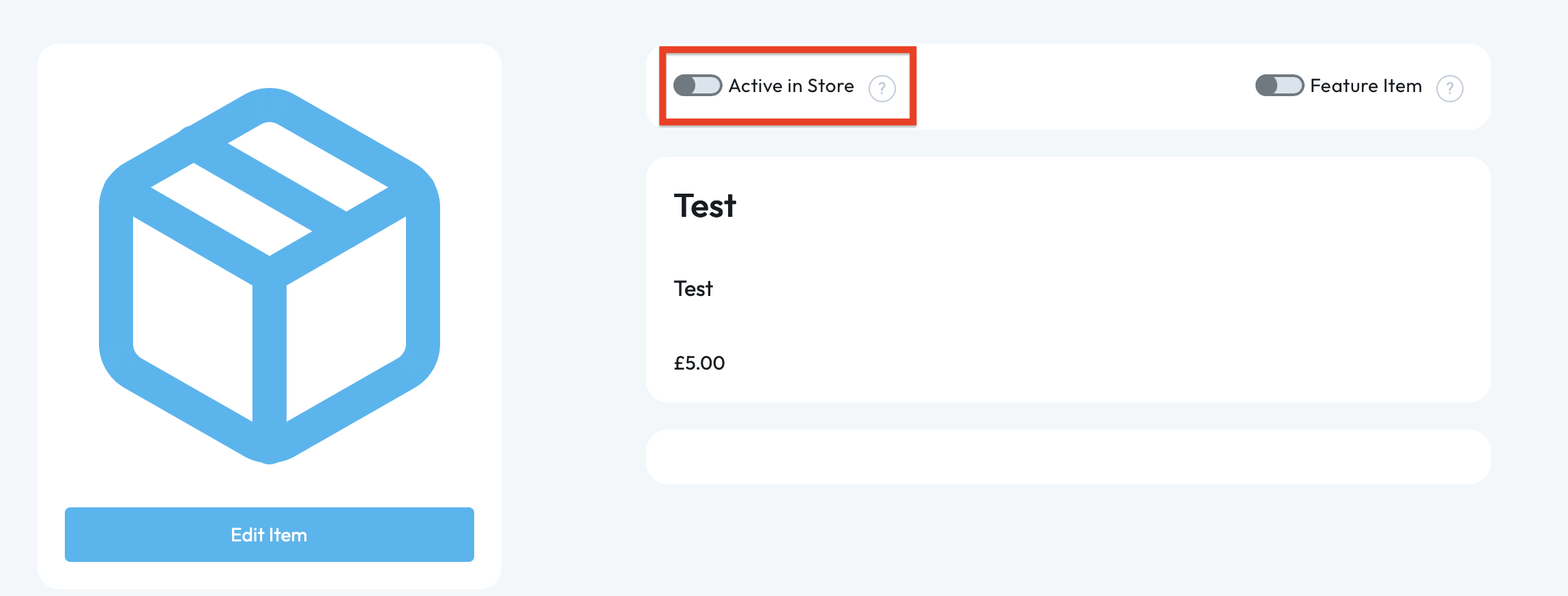
NOTE: You can also edit the item here.
Your item is now active and available to purchase,
If you require any further assistance, please contact us by completing this form
Was this article helpful?
That’s Great!
Thank you for your feedback
Sorry! We couldn't be helpful
Thank you for your feedback
Feedback sent
We appreciate your effort and will try to fix the article