Only the School Admin will be notified of a new order, however both the School Admin and Headteacher will be able to view all orders and either complete or cancel them.
1. You'll first need to navigate to the 'Shop' section on the left-hand side of your screen.
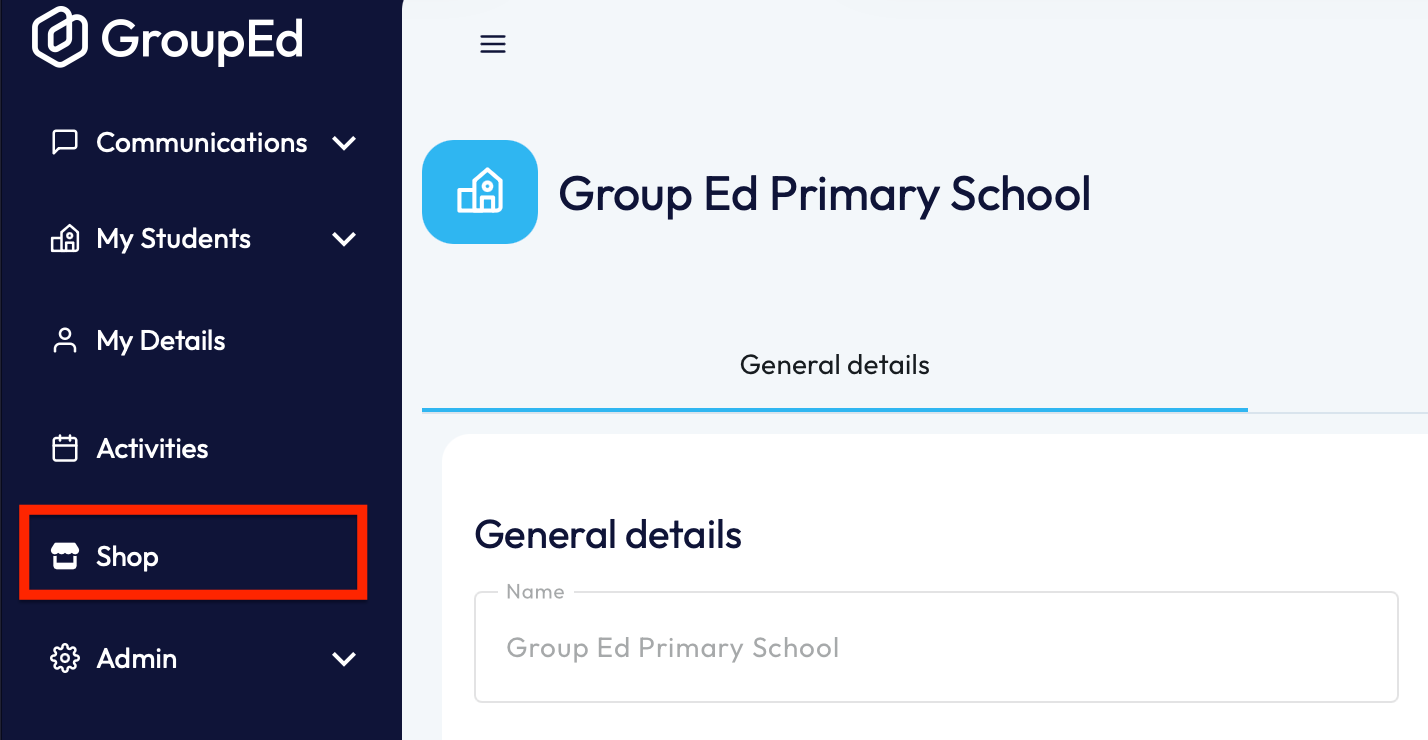
This will open up your shop, showing all the active items that are currently available.
2. You'll now need to click on the 'Orders' button in the top right. 
3. It'll automatically load onto the 'Pending Orders' section. Here it will list all of your pending orders with the order date, item purchased, who has purchased and the student they're associated to.
4. Orders can be filtered at the top for convenience.

Once you've found an item, it will state who it's for, the item purchased and the quantity that's been bought.
If you require any further assistance, please contact us by completing this form
Was this article helpful?
That’s Great!
Thank you for your feedback
Sorry! We couldn't be helpful
Thank you for your feedback
Feedback sent
We appreciate your effort and will try to fix the article