1. You'll first need to navigate to the 'Shop' section on the left-hand side of your screen.
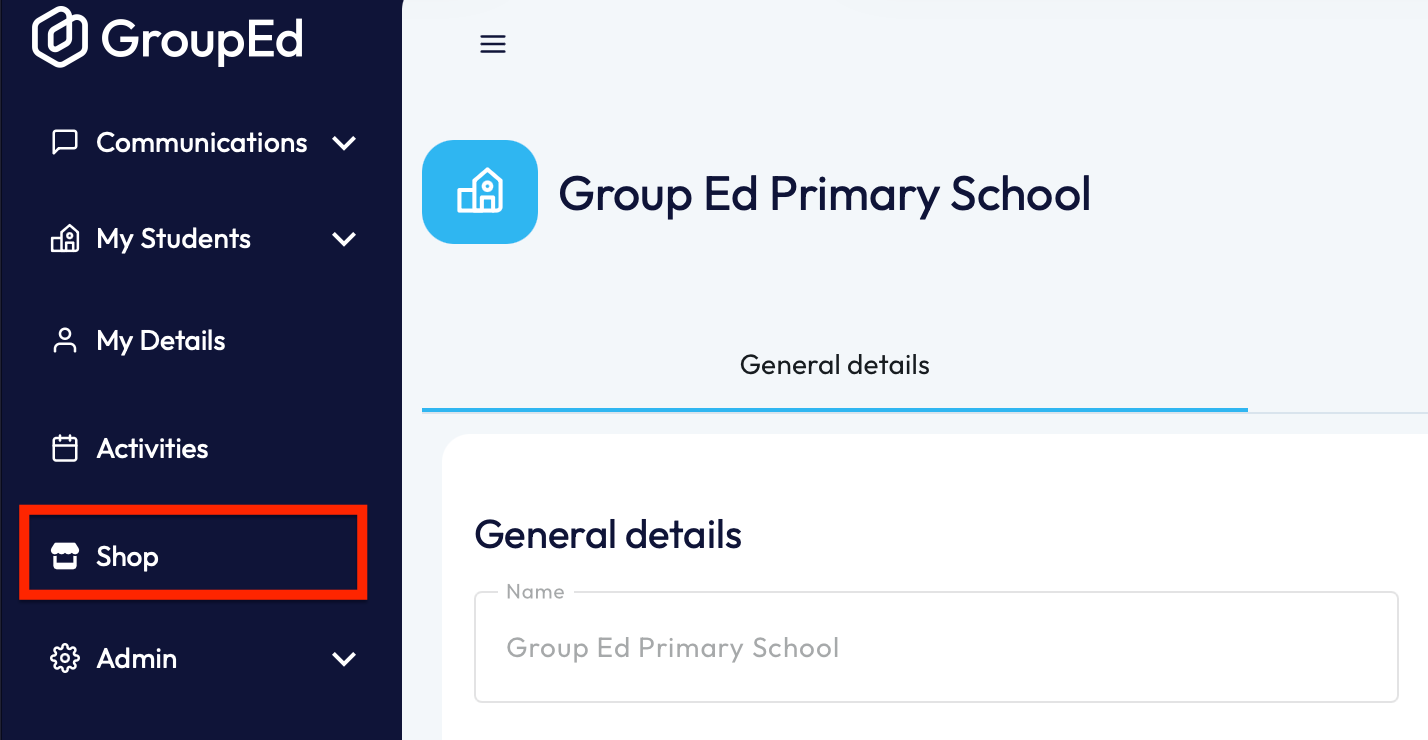
This will open up your shop, showing all the active items that are currently available.
2. Locate the item you'd like to remove from your active shop and click into it.
3. This will load the page with all details associated to this item, including name, price, description and any custom options.
4. You will now need to click the slider that's turned on against 'Active in Store'. 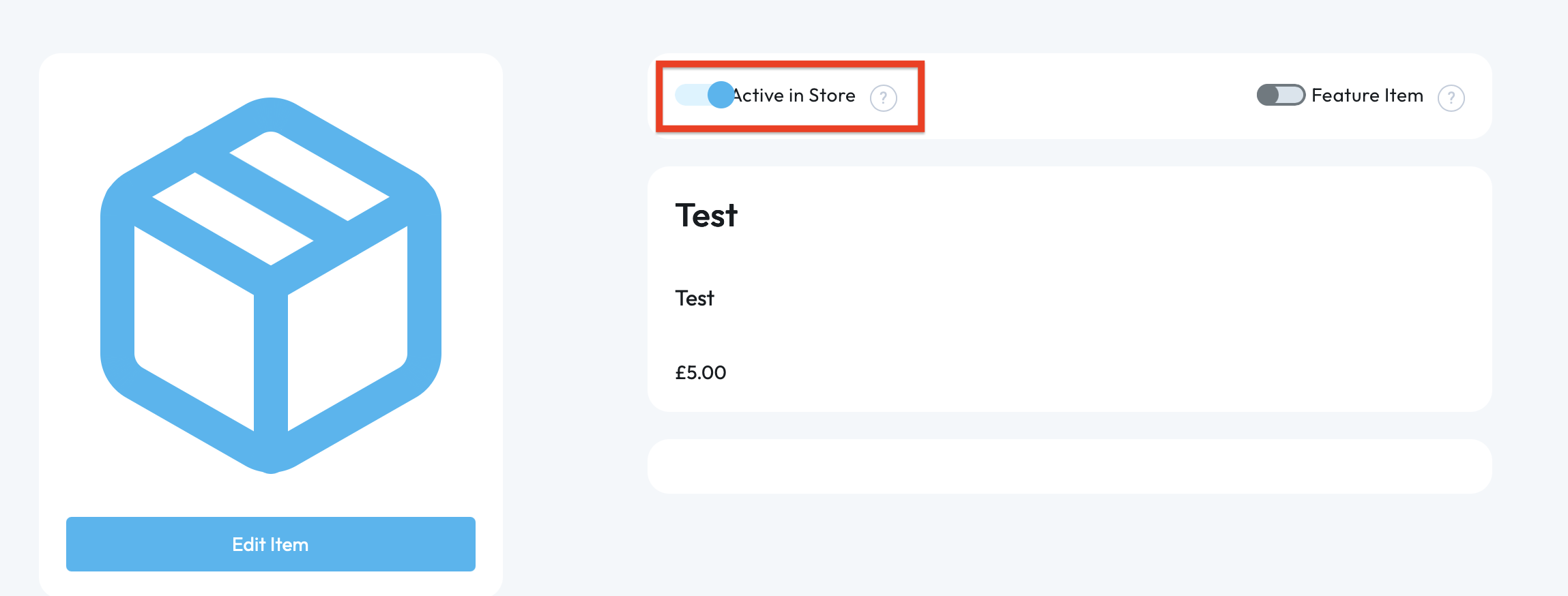
The slider will grey out once it has been disabled.
Your item has now been removed from the shop, meaning it can no longer be purchased unless it is re-activated.
The item will now move to the 'Inactive Items' list, and can be re-activated when necessary.
If you require any further assistance, please contact us by completing this form
Was this article helpful?
That’s Great!
Thank you for your feedback
Sorry! We couldn't be helpful
Thank you for your feedback
Feedback sent
We appreciate your effort and will try to fix the article