GroupEd has a feature that allows parents to contact the school directly regarding any absences relating to their child.
If you would like to access this feature, please get in touch and we can arrange for this to be activated.
1. Any message received from a parent will show in your Messages tab. However there are two ways in which you can view absence messages:
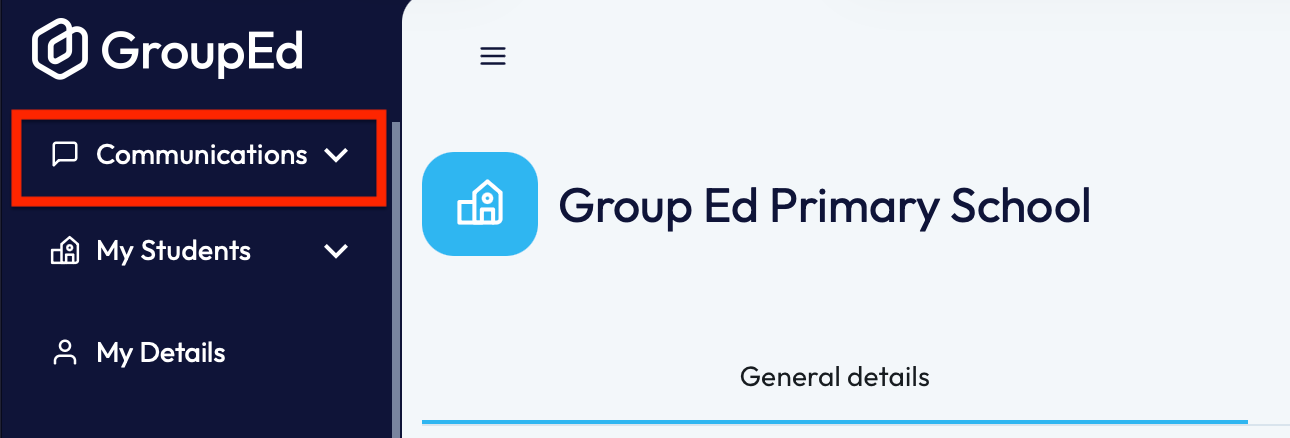
a. You'll first need to navigate to the 'Communications' drop down on the left-hand side and then select the heading for 'Messages'.
You'll then be able to locate the message through either the 'School' or 'Attendance' heading. 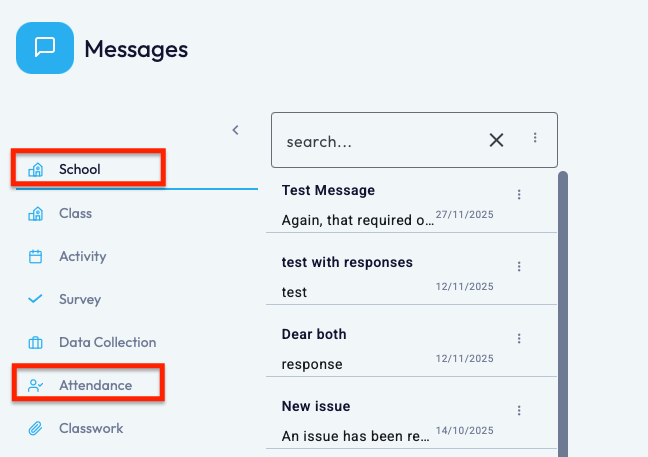
b. Alternatively, you can navigate to the 'My Students' drop down on the left-hand side and then select the 'Attendance' heading. 
You'll then need to select the 'Messages' heading from the options at the top of your screen.

2. Once you have located the absence message, you'll need to click into it to view more information and mark attendance for the pupil.
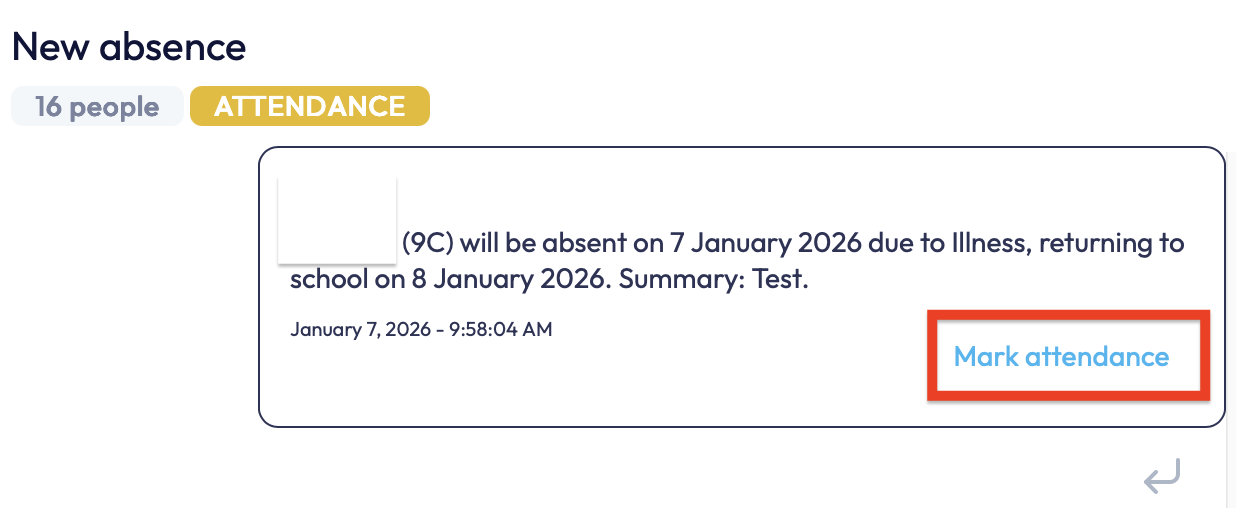
3. When you've clicked into the message it will open on the right-hand side of your screen and you'll be able to see exactly who this message relates to: it contains, the pupils name, class, reason for absence, the expected return to school date and which parent sent this message.
4. To mark attendance from the message, you'll need to select the 'Mark Attendance' button in the contents of the message:
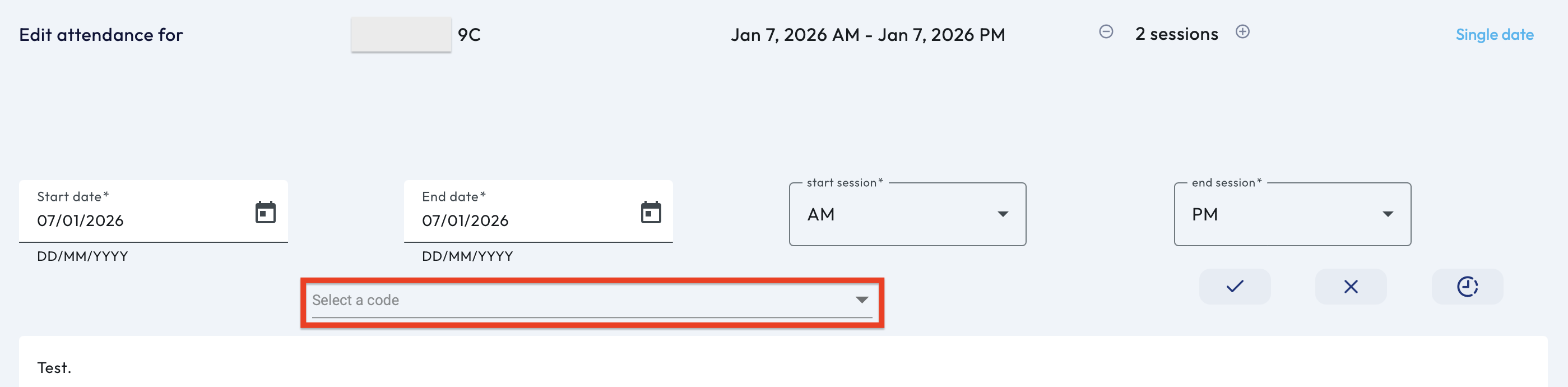
5. An attendance marking screen will pop up.
This screen will auto fill the absence start and end date, how many sessions the pupil will be away for and the parent’s reason for absence.
6. You will need to select a code (either from the drop down or start typing the code).
7. Once you're happy with the information inputted, you can scroll to the bottom of the page and either 'Preview' or 'Confirm'. By confirming, this will update your class attendance register for the pupil.
If you require any further assistance, please contact us by completing this form
Was this article helpful?
That’s Great!
Thank you for your feedback
Sorry! We couldn't be helpful
Thank you for your feedback
Feedback sent
We appreciate your effort and will try to fix the article