Please NOTE: if you are unsure on how to send a message, it is worth reading the following article first: How to Send a Message
First we need to start a New Message, please follow the guidance below:
1. To send a message, you'll first need to navigate to the 'Communications' drop down on the left-hand side and then select the heading for 'Messages'.
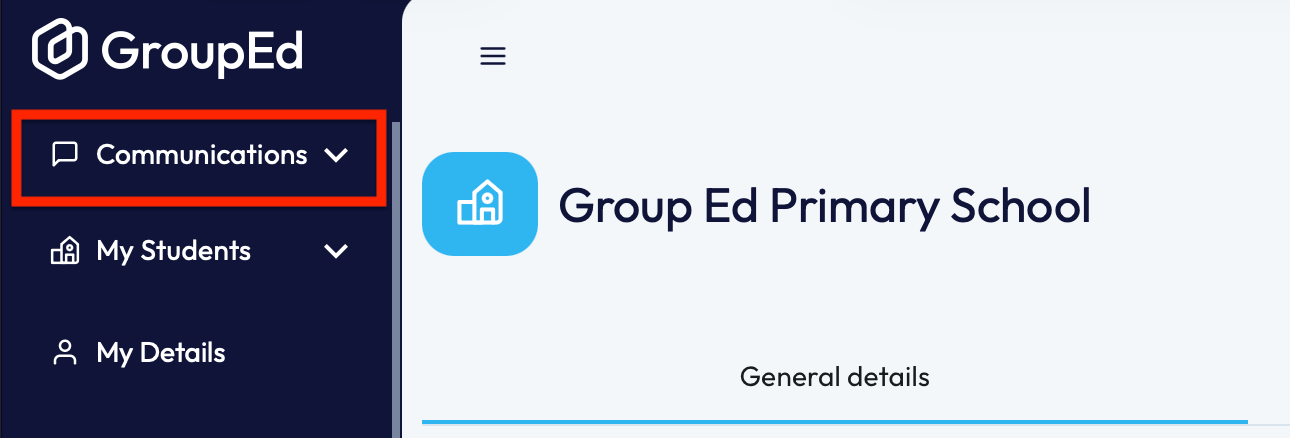
Upon opening the Messages page, you will automatically be greeted with the school message history.
2. To send a message, you will need to navigate to the button on the right-hand side and press it 'New Message'. 
3. Selecting to create a 'New Message' will automatically open the following page:
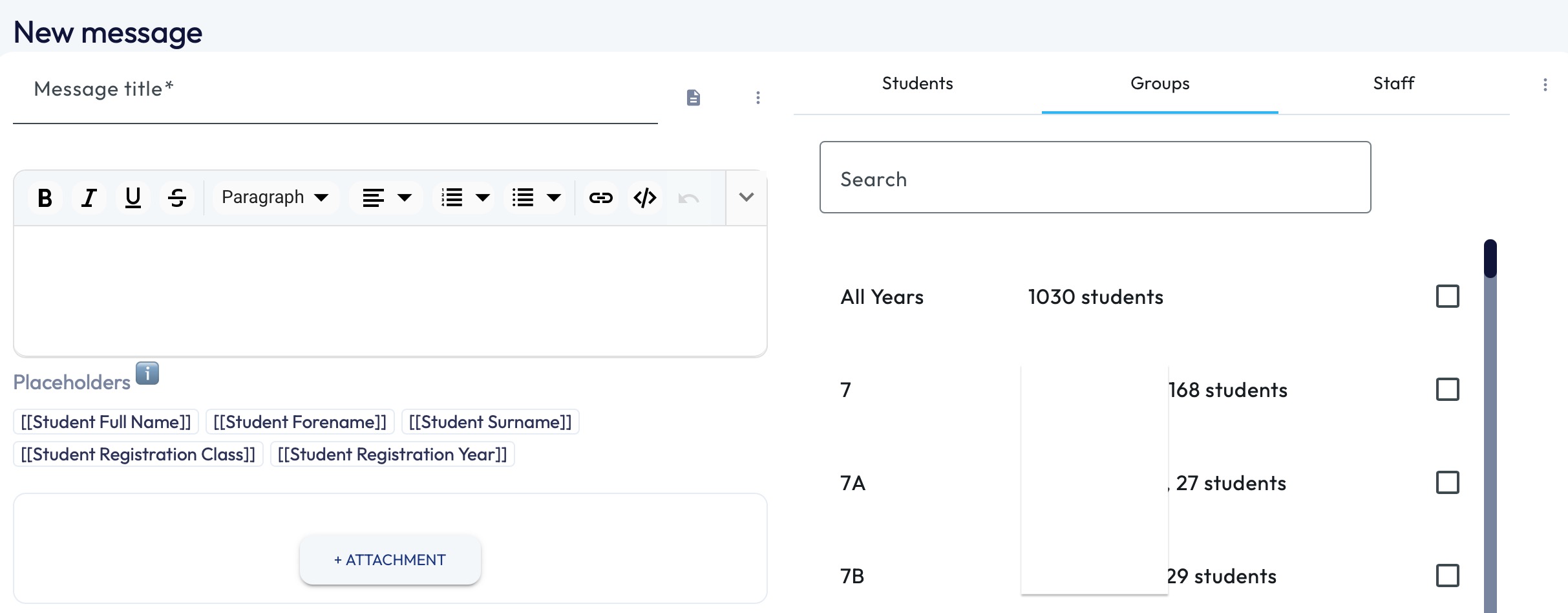
How to add an Attachment:
There are two ways you can add an attachment to the message:
1. You can navigate to the drop down option on the message itself: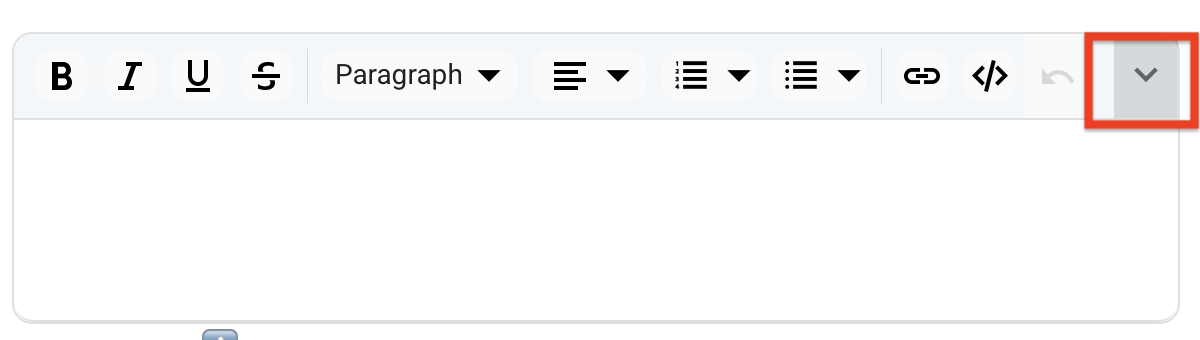
You'll then be able to select the Picture Icon that will allow you to upload pictures/attachments to this message.
2. The other way of adding an attachment would be to click the greyed out button at the bottom of the message (under Placeholders):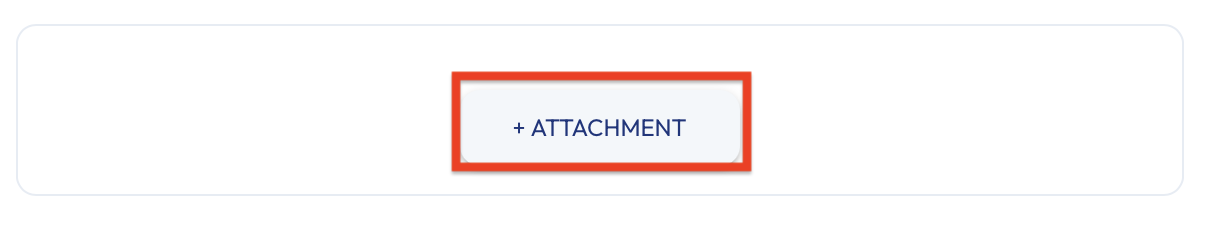
Once you have selected an attachment, it will populate the name underneath the attachment button - this will show you that the attachments have successfully been added to this message.
You can attach PNGs, PDFs and Word Documents, that add up to no more than 300mb.
How to add a Hyperlink:
Hyperlinks can be used to effectively share data quickly. They can be added to your message in one of two ways:
1. You can simply copy and paste your link/URL directly into the message contents. You will know the hyperlink is working once the text highlights in blue.
2. Alternatively, you can click the icon shown in red below: 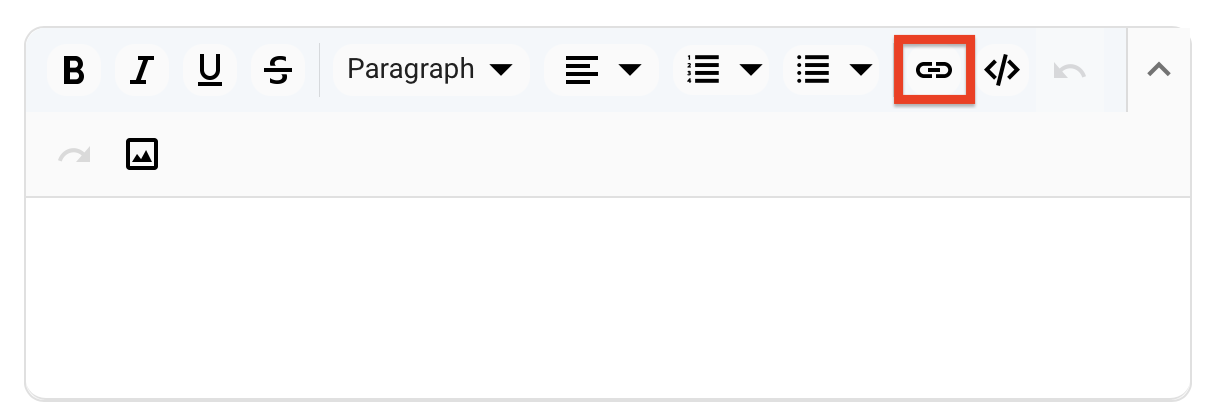
By clicking on the icon, the following pop-up will appear:
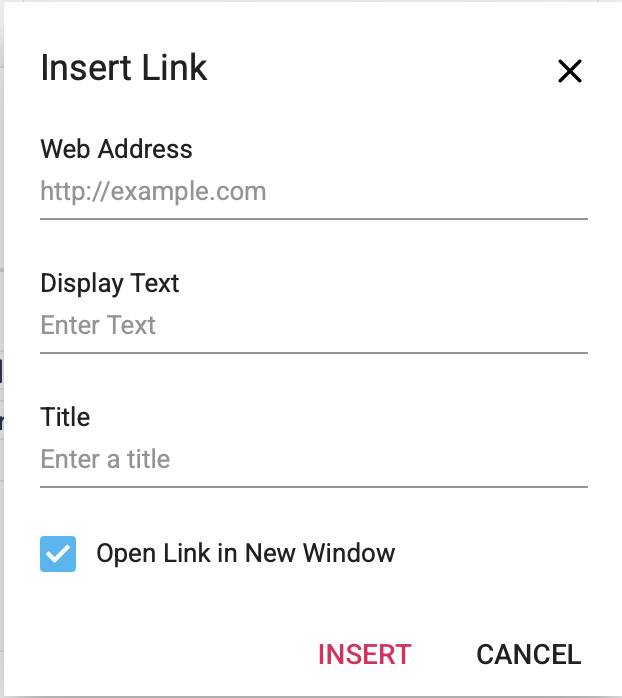 You will need to ensure the link/URL to your website is inputted against 'Web Address' and then you can name this however you like within your message.
You don't need to include a 'Title'.
To make sure the link/URL is correct, you can leave the 'Open Link in New Window' option ticket, however if you don't wish for this to open the link in a new tab, you can simply un-tick this.
Make sure to press 'Insert' once you have filled in the details.
Your Hyperlink should now be visible within the contents of your message.
If you require any further assistance, please contact us by completing this form
Was this article helpful?
That’s Great!
Thank you for your feedback
Sorry! We couldn't be helpful
Thank you for your feedback
Feedback sent
We appreciate your effort and will try to fix the article