There are two ways to allow Contact replies on the messages that have been sent" either by doing so before sending the message or after the message has been sent.
While Setting up the Message
If you're unsure on how to send a message, please follow this guidance first Sending a Message.
To enable contact replies, you'll need to create your message, up to just before you want to send it.
If you scroll down to the bottom of your page, just above the 'Preview Message' button, you'll be able to enable contact replies by clicking on the slider (this will turn blue once enabled).
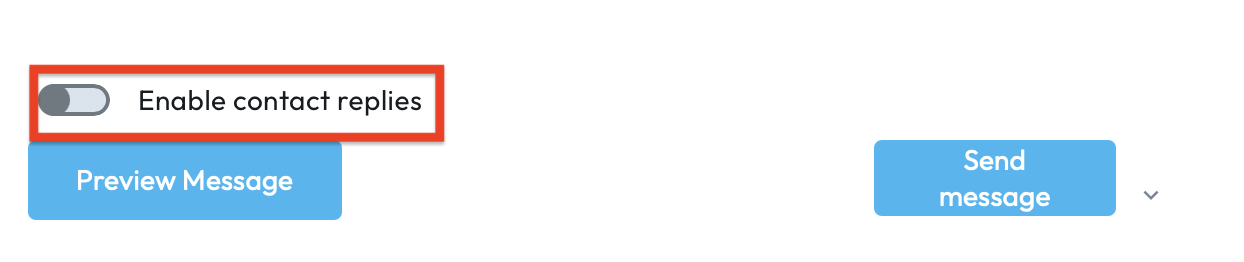
You can then send your message.
After the Message has been Sent
You'' need to locate the message you'd like to enable contact replies on, in your message history. Once found, click into the message - this will load the message on the right-hand side of your screen. You'll then need to navigate to the 3 dots in the right-hand corner of the message.
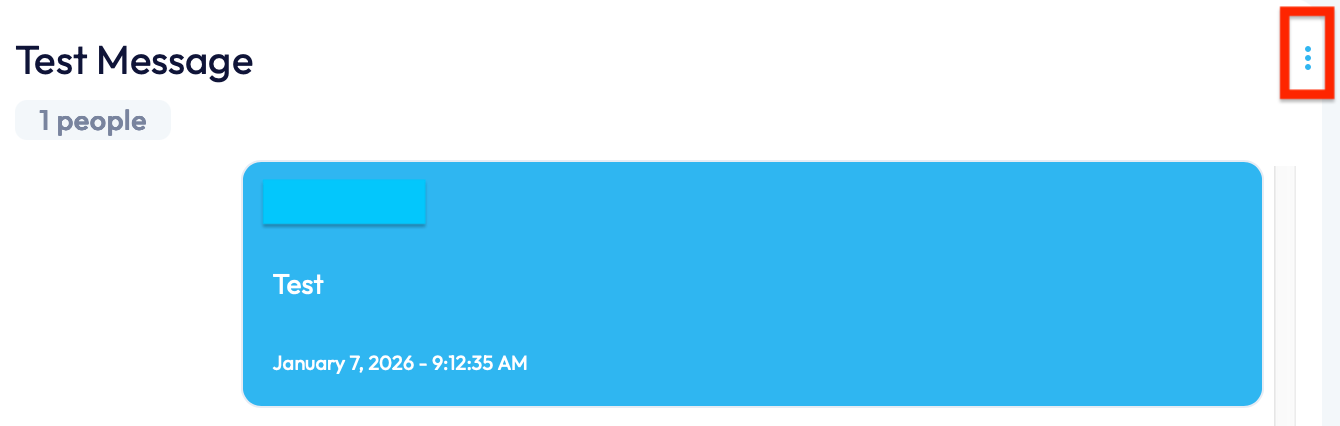
This will list the following options:
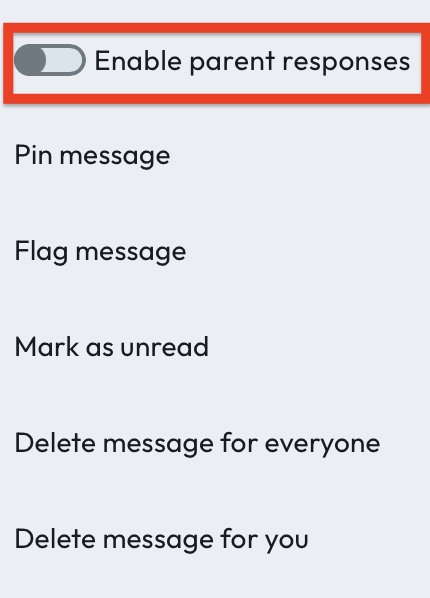
If you select the option highlighted in red, this will enable contact replies (the slider will turn blue once enabled).
NOTE: With this feature, parents will be able to reply to any message sent by the school. They will not be able to see any other parent replies.
As an admin or headteacher, you’ll be able to see all replies and if needed reply to parents as a group or individually.
If you require any further assistance, please contact us by completing this form
Was this article helpful?
That’s Great!
Thank you for your feedback
Sorry! We couldn't be helpful
Thank you for your feedback
Feedback sent
We appreciate your effort and will try to fix the article