Messages Overview
GroupEd's messaging system lets school staff communicate directly with parents and carers through the Parent & Carer app. Messages can be sent to individual students' contacts, whole classes, or the entire school. You can also send surveys, schedule messages, and track delivery and read receipts.
Getting to Messages
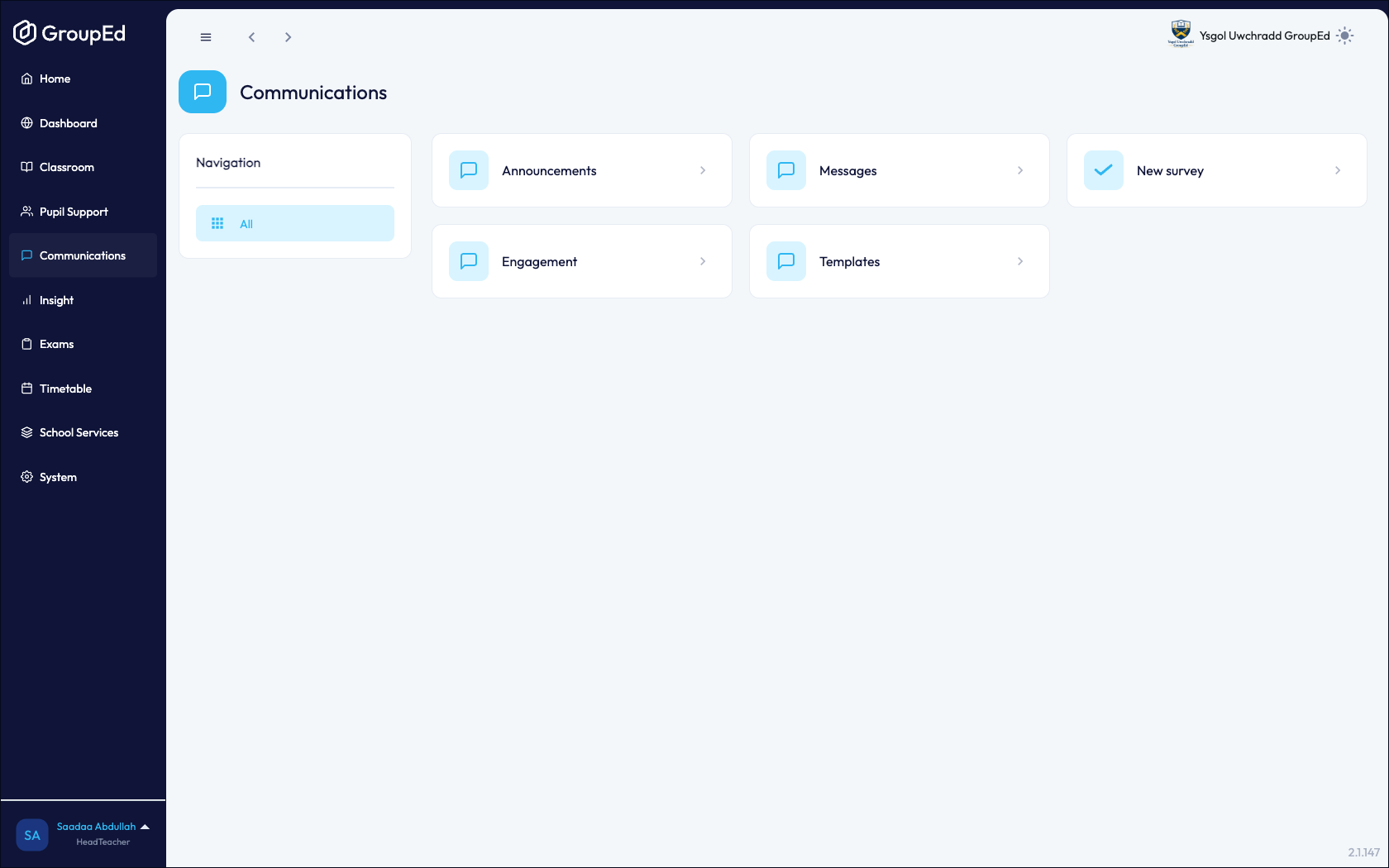
Navigate to Communications in the left-hand menu, then click the Messages card. This opens your messages inbox.
The Messages Inbox
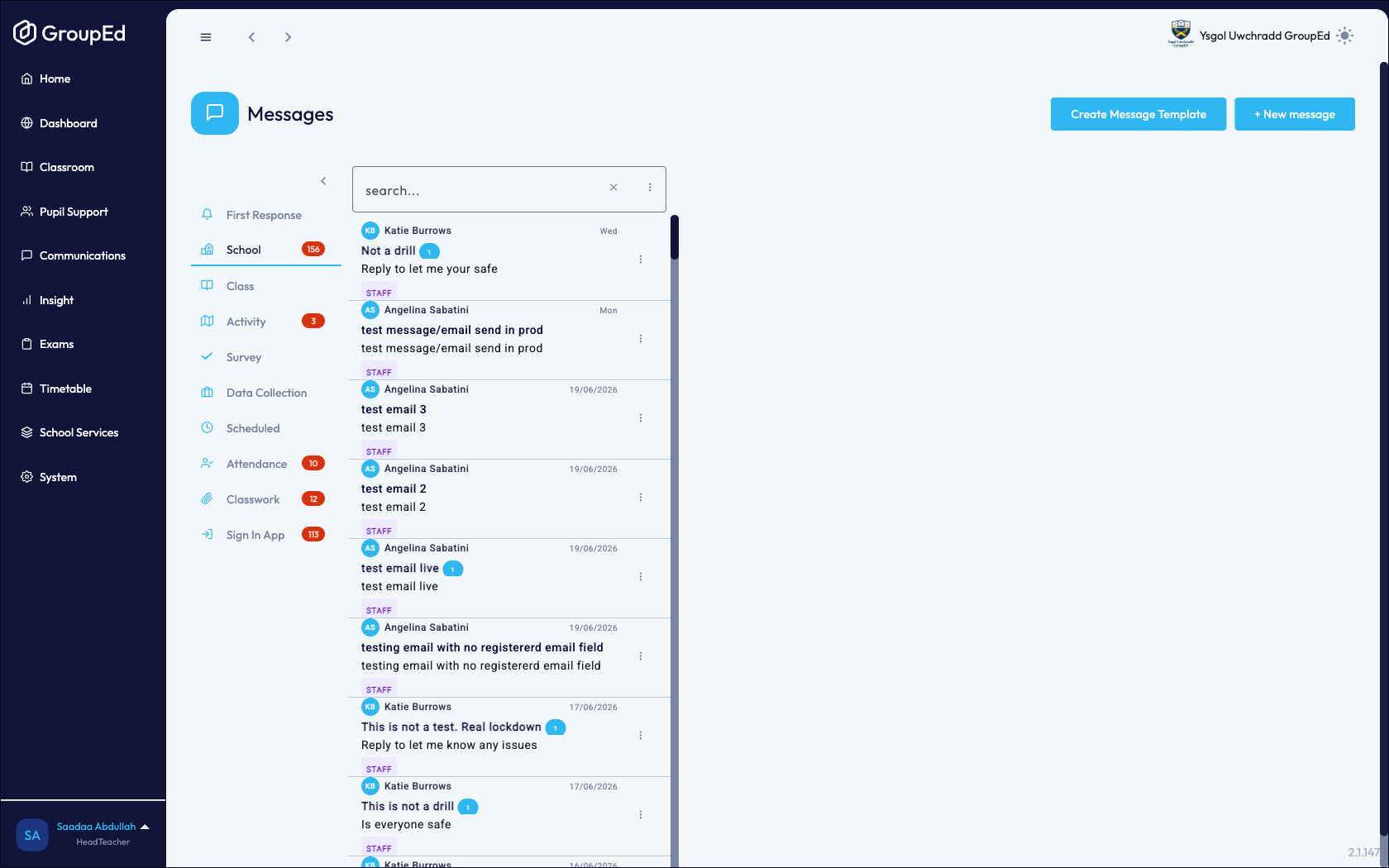
The Messages inbox shows all messages sent by you and your school. On the left-hand side you will see filter tabs to narrow the list:
All — every message in your school's sent history.
Mine — messages sent by you.
Drafts — messages saved but not yet sent.
Scheduled — messages that have been queued to send at a future date and time.
Each message in the list shows the subject, the recipients group, the date sent, and a delivery/read status summary. Click any message to open it and view the full thread including replies.
New Message and Message Types
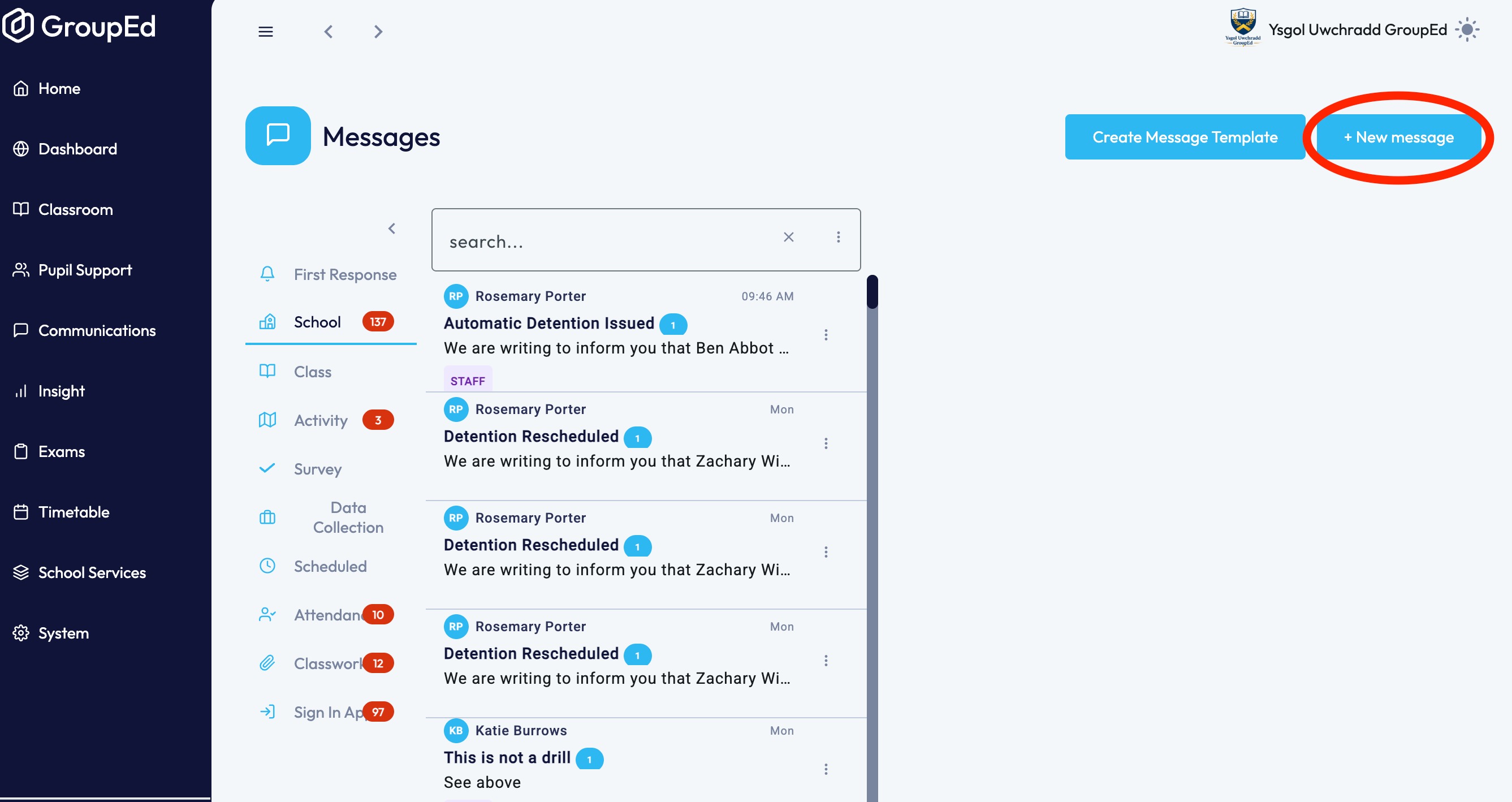
When composing a new message, you can choose from several message types:
Standard Message
A regular message with a title, body text, and optional file attachments. Delivered to the parent or carer app as a push notification.
Template Message
A message created from a saved template. Useful for frequently repeated communications such as trip reminders or attendance letters. See the Message Templates guide for details.
Survey
A message that includes one or more questions for parents and carers to answer. Responses are collected and viewable in the Engagement section.
Activity Message
A message linked to a specific activity or trip, sent to the parents of students attending that activity.
Scheduled Message
Any message type can be scheduled to send at a specific date and time in the future.
Recipients
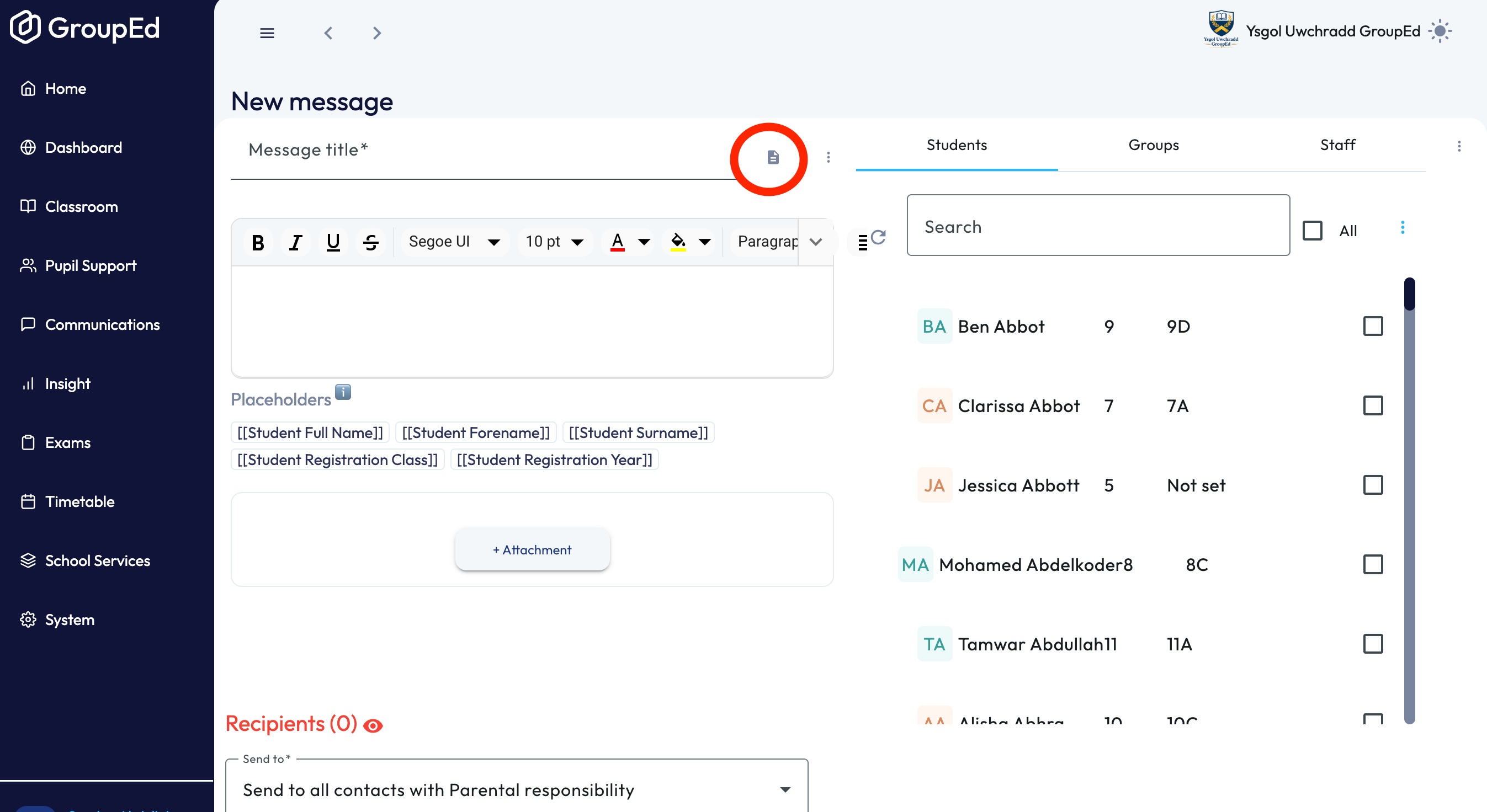
When composing a message you select recipients from three tabs on the right-hand panel:
Students tab — select individual students. The message is delivered to their registered parent/carer contacts.
Groups tab — select a class, registration group, or year group to message all linked contacts at once.
Staff tab - select staff members.
You can also choose which contact type receives the message using the Send to dropdown, for example sending only to contacts with parental responsibility.
Delivery and Read Receipts
GroupEd tracks whether messages have been delivered and read. In the message detail view, you can see a per-recipient breakdown showing:
Delivered — the message reached the parent or carer's device.
Read — the parent or carer opened the message.
Not delivered — the message could not be delivered (for example, if the parent has not registered).
Delivery and read receipt data is updated in near real-time as parents and carers interact with their app.
Was this article helpful?
That’s Great!
Thank you for your feedback
Sorry! We couldn't be helpful
Thank you for your feedback
Feedback sent
We appreciate your effort and will try to fix the article