GroupEd has a digital register for the morning and afternoon sessions. Teachers mark each pupil as present, absent, or late directly in the app. Marks are saved immediately — there is no separate "submit" step.
## Step-by-step: Opening the register
## Step-by-step: Opening the register
1. Select **Classroom** from the left-hand navigation, then tap **Lesson Attendance**. This opens the Attendance page at `/#/attendance`.
2. The Attendance page opens. You will see two tabs at the top if you are a primary school: **Morning register** and **Afternoon register**.
3. Tap the tab for the session you want to mark.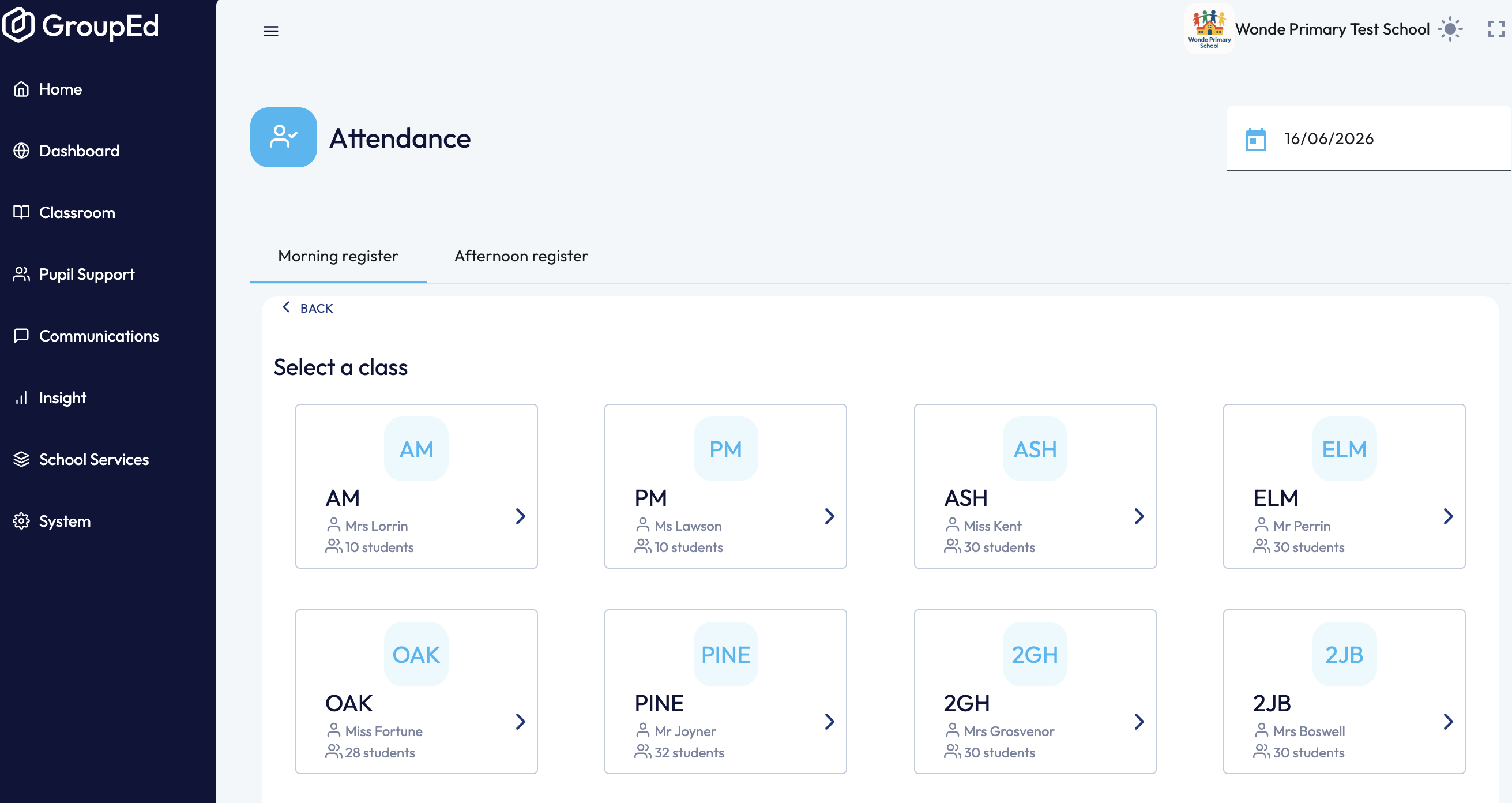
4. A grid of **class tiles** appears under "Select a class". Each tile shows the class name, teacher, and number of students. Tap the tile for the class you want to register.
5. The register for that class opens. At the top you will see a summary: **Students / Pending / Missing / Present / Absent / Late** counts. Pupils not yet marked show as **Missing**.
## Step-by-step: Marking pupils
For each pupil, you will see a row of **attendance buttons**:
- **Present (✓)** — pupil is in school- **Absent (✗)** — pupil is not in school- **Late** — pupil arrived after the register closed.
Tap the relevant button for each pupil. The button fills with colour to confirm the mark has been saved.
Each pupil row also shows an **Add comment** option — use this to record a note against an individual mark (for example, a reason provided by a parent).
> ? _Screenshot: Pupil register row with Present button active_
## Marking a pupil in late
1. Find the pupil in the register.
2. Tap the **Late** button on their row.
3. A **minutes late** field appears on the row. Enter how many minutes late the pupil arrived (default is 5 minutes).
4. Submit again
**Attendance code:** Under 30 minutes late uses code **L** (late before register); 30 minutes or more uses code **U** (late after register). GroupEd sets this automatically based on the minutes entered.
## Marking attendance from a parent absence message
If a parent has sent an absence message through GroupEd, you can mark the pupil's attendance directly from that message without opening the register separately. See [Marking attendance from a parent message](mark-from-message.md) for details.
## Tips
The Morning register is typically taken first thing in the morning; the Afternoon register after lunch.- Unmarked pupils remain grey — the register is not considered complete until all pupils have been marked.- Attendance figures on the Dashboard update as soon as marks are saved.
## Bulk Marking
For bulk marking, please see https://grouped.freshdesk.com/a/solutions/articles/101000586090
Was this article helpful?
That’s Great!
Thank you for your feedback
Sorry! We couldn't be helpful
Thank you for your feedback
Feedback sent
We appreciate your effort and will try to fix the article