You can give a student an achievement (positive behaviour) directly from their student profile. This records the event against the student and, if configured, can notify their parent or carer via the GroupEd Parent & Carer app.
How to Give an Achievement
Navigate to Classroom from the left-hand navigation menu.
Click the Students card.
Search for the student by name using the search bar, then click their name to open their profile.
Click the Behaviour tab on the student profile page.
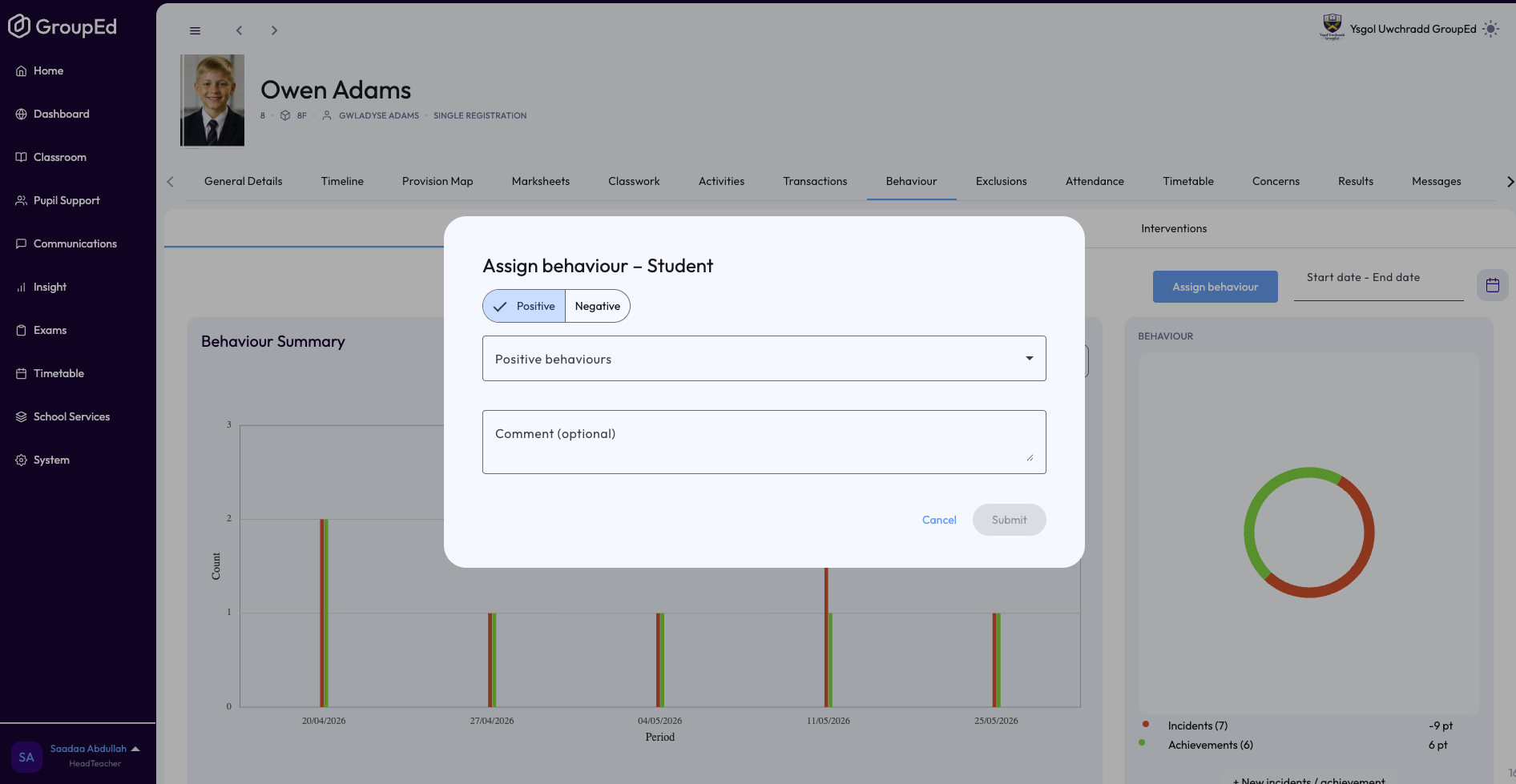
Click the Assign behaviour button at the top of the Behaviour tab. The Assign behaviour dialog opens.
In the dialog, make sure Positive is selected in the behaviour type toggle at the top. (It is selected by default.)
Use the dropdown to select the achievement category, such as Excellent work or Outstanding effort. Your selected option will appear as a chip below the dropdown.
Optionally, add a comment in the Comment field to give more context about the achievement.
Click Submit. The achievement is saved and a confirmation toast appears. The dialog closes automatically.
After Saving
Once saved, the achievement appears in the student's Behaviour tab history. If your school has behaviour-triggered messaging enabled, the student's parent or carer may automatically receive a notification.
? The Submit button is disabled until you select at least one behaviour category. You must make a selection before the button becomes active.
Giving an Achievement from a Lesson Register
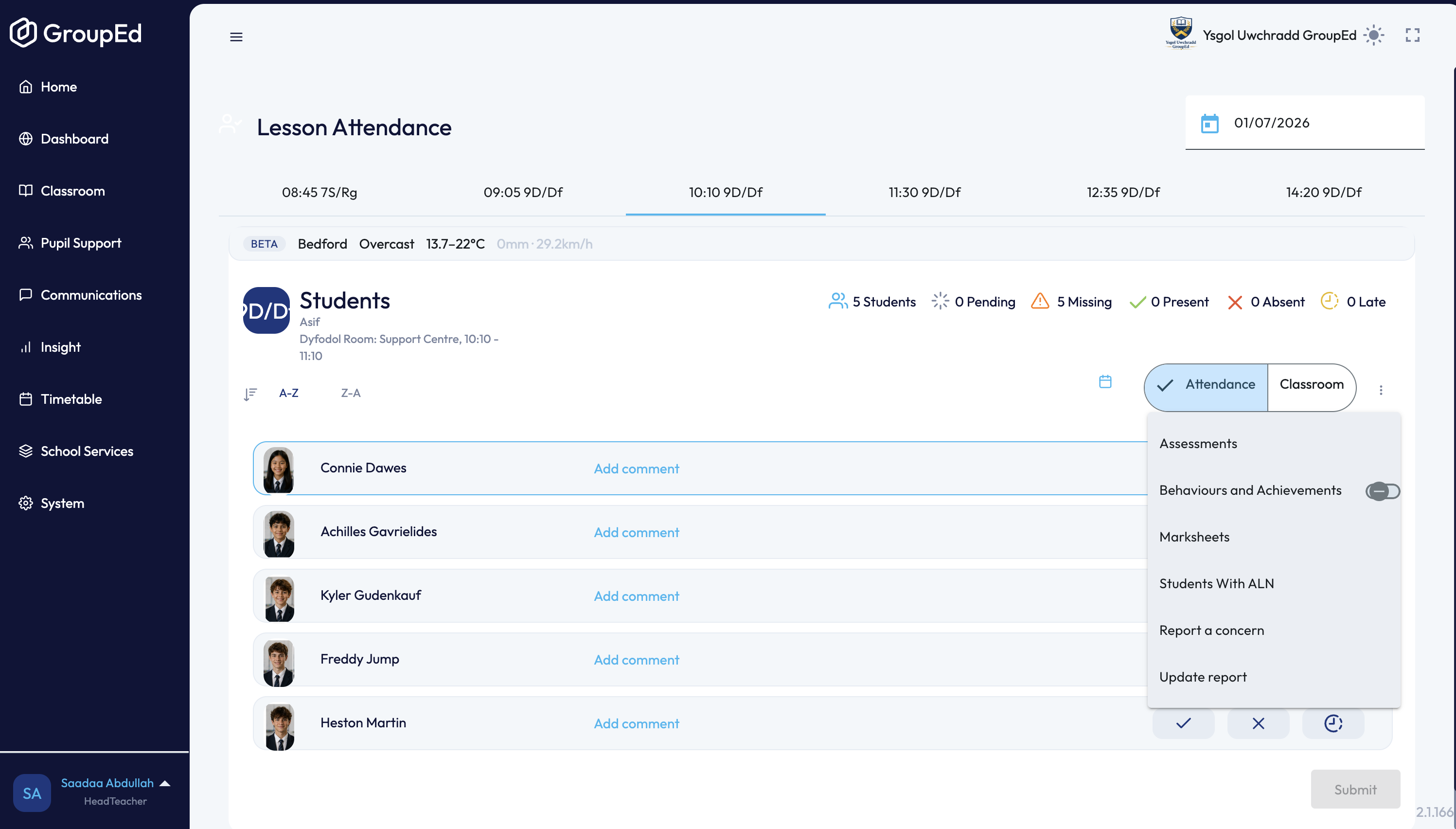
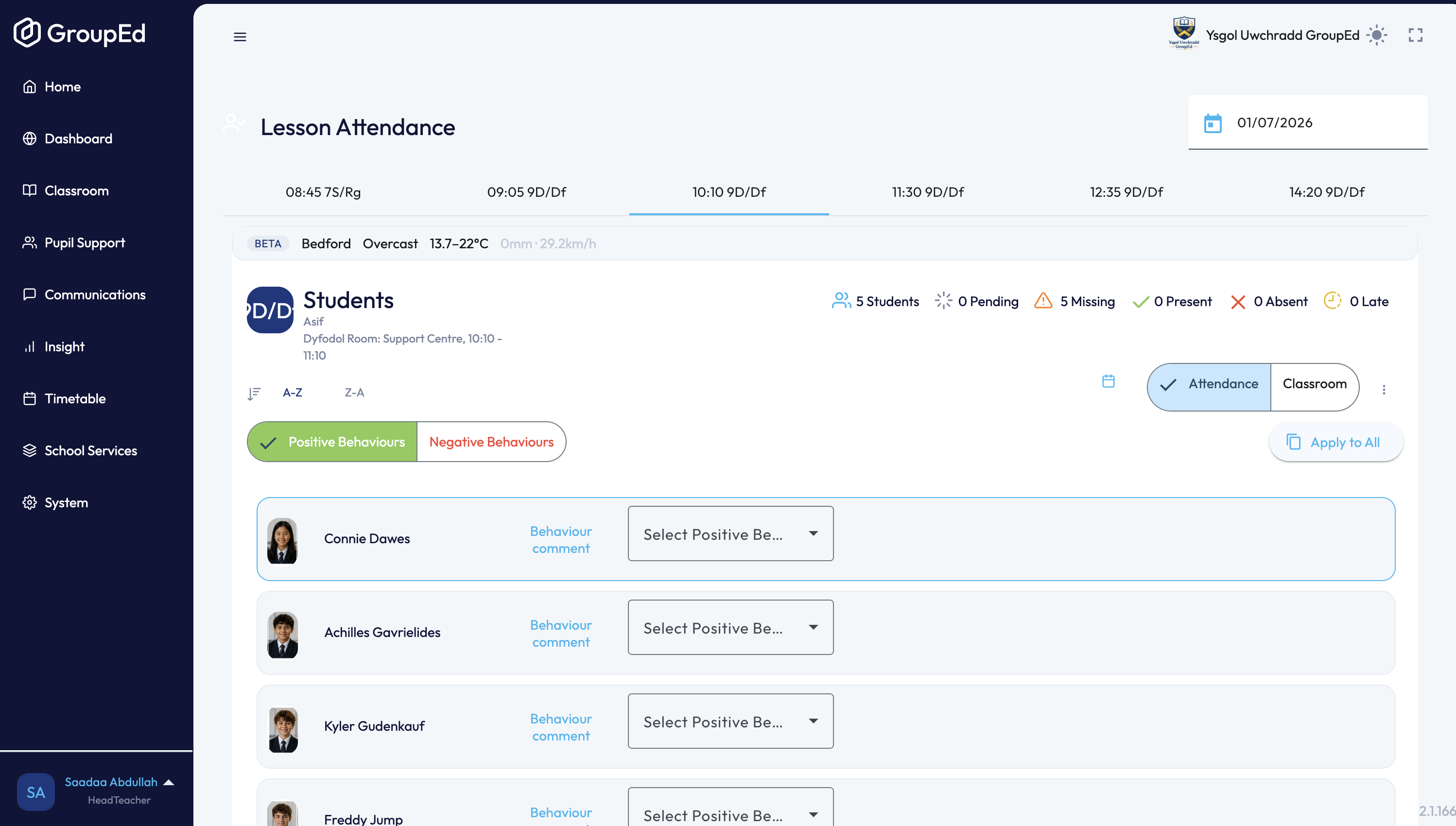
You can also give an achievement directly from a lesson register. In Classroom → Lesson Attendance, open the lesson, click the three-dots menu (⋮) next to the student, and choose to record an achievement. Select the achievement category, add a comment, and save.
Was this article helpful?
That’s Great!
Thank you for your feedback
Sorry! We couldn't be helpful
Thank you for your feedback
Feedback sent
We appreciate your effort and will try to fix the article