This guide explains how to compose and send a message to parents and carers. Messages are delivered as push notifications to the GroupEd Parent & Carer app. Recipients can reply, and you can track delivery and read receipts.
How to Send a Message
Navigate to Communications from the left-hand menu.
Click the Messages card.
Click the + New message button in the top-right corner. The message composer opens.
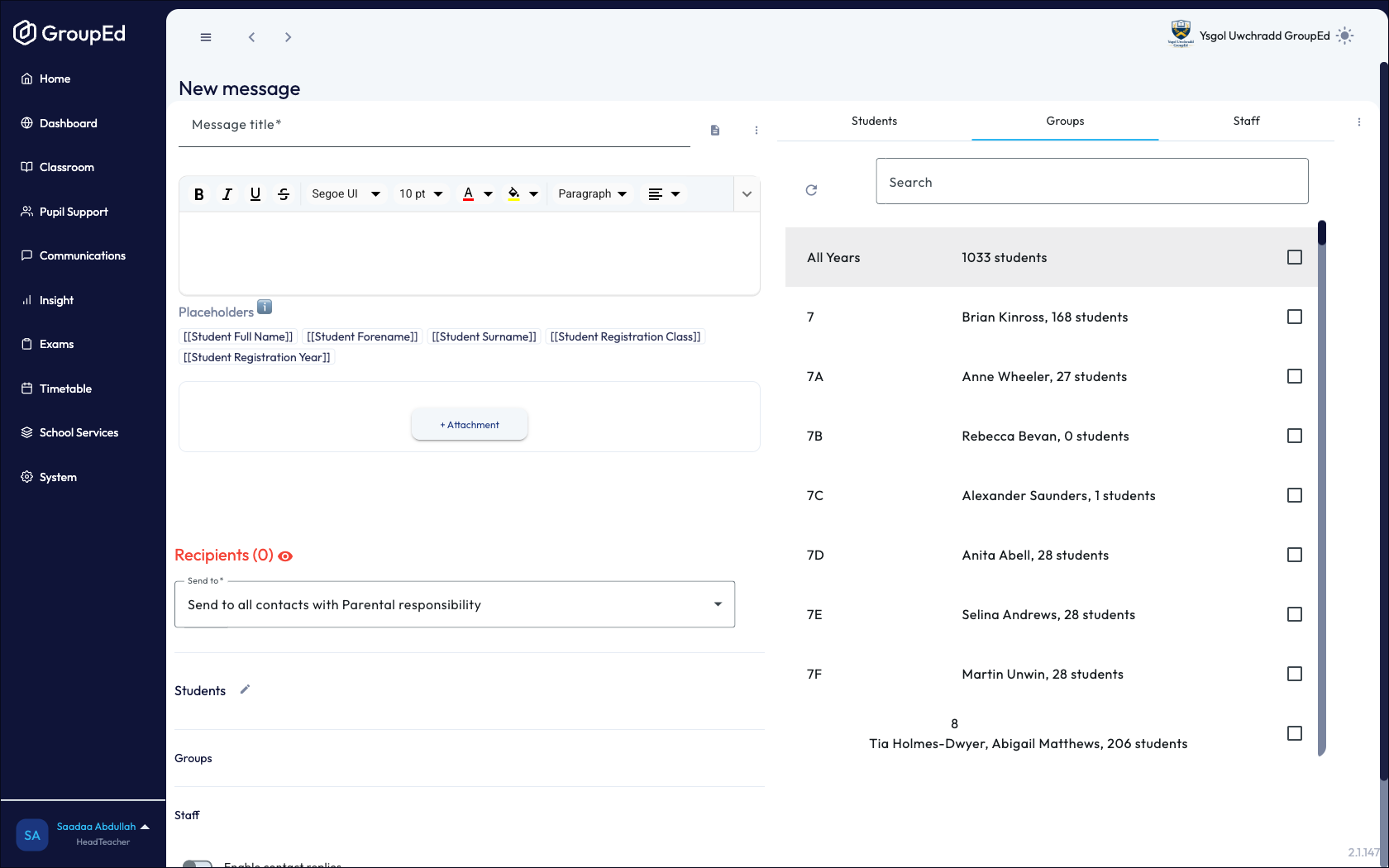
Enter a Title for your message. This is what parents and carers will see as the subject line.
Type your message in the body text area. You can use the formatting toolbar to add bold, italic, bullet lists, and links.
On the right-hand panel, select your recipients. Use the Students tab to select individual students, or the Groups tab to select a class or year group.
Use the Send to dropdown to choose which type of contact receives the message, for example Send to all contacts with Parental responsibility.
When you are ready, click Send message. The message is sent immediately and appears in your inbox.
Scheduling a Message
To send a message at a specific date and time in the future:
Compose your message and select recipients as normal.
Click the dropdown arrow next to Send message, then choose Schedule send. Pick a preset (for example Tomorrow at 9:00 AM) or Custom time to open a date and time picker.
Choose a preset time, or select Custom time and pick a date and time. The message will be held and sent automatically at the chosen time.
Scheduled messages appear in your inbox under the Scheduled filter until they are sent.
Sending to the Entire School
To message all parents and carers in the school at once:
Open the Groups tab in the recipient panel.
Tick the All Years checkbox at the top of the Groups list to include every year group. The recipients counter updates to show the total number of contacts.
Click Send message.
Sending to the entire school will message all registered parent and carer contacts. Review your recipient count before sending.
Replies
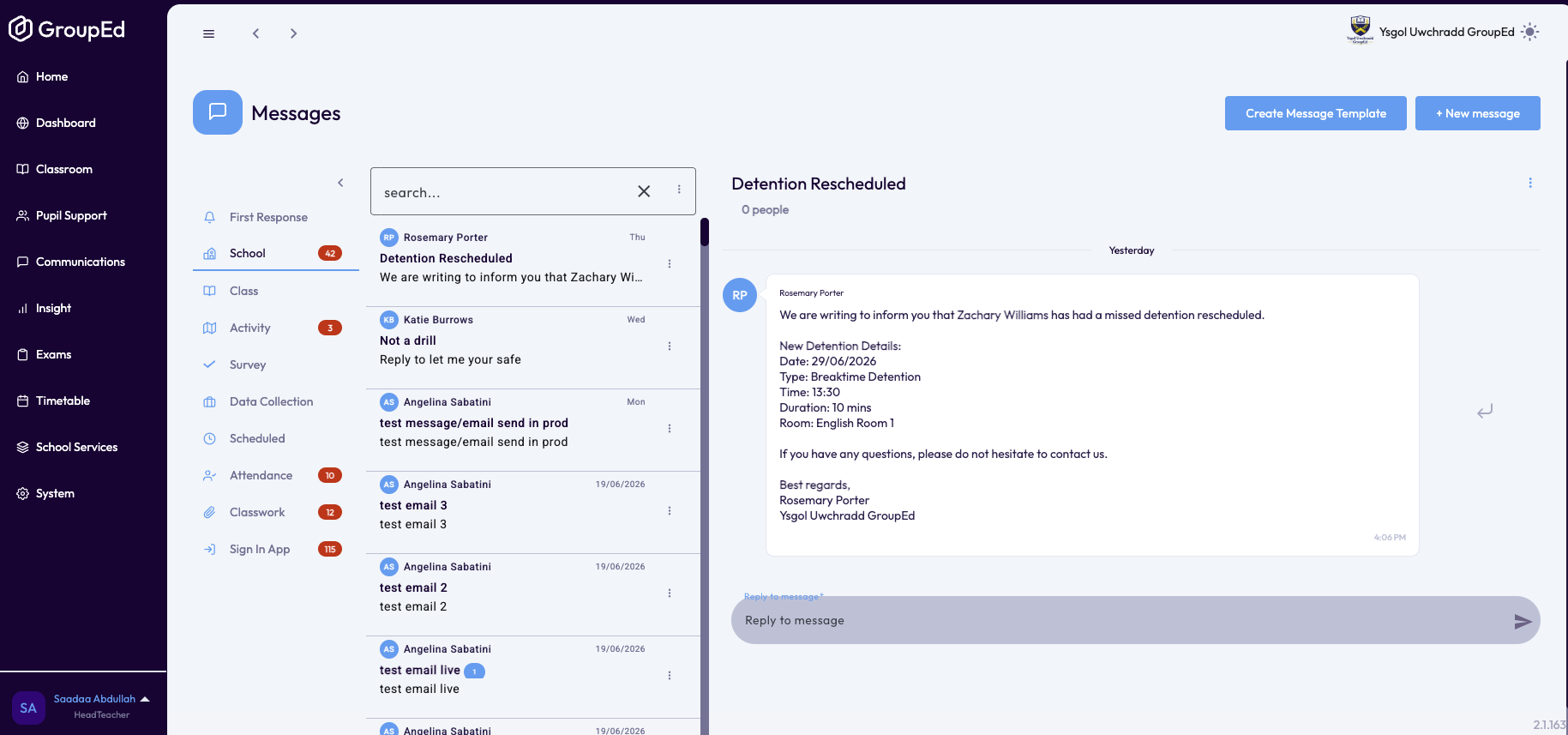
When a parent or carer replies to a message, their reply appears in the message thread. You can reply back from within GroupEd. Unread replies are highlighted in the messages inbox.
Was this article helpful?
That’s Great!
Thank you for your feedback
Sorry! We couldn't be helpful
Thank you for your feedback
Feedback sent
We appreciate your effort and will try to fix the article