GroupEd is accessed through your web browser. This guide explains how to log in to your school's GroupEd account.
Accessing GroupEd
Open your web browser and go to:
GroupEd works on all modern browsers including Google Chrome, Microsoft Edge, Safari, and Firefox. Google Chrome is recommended for the best experience.
Logging In
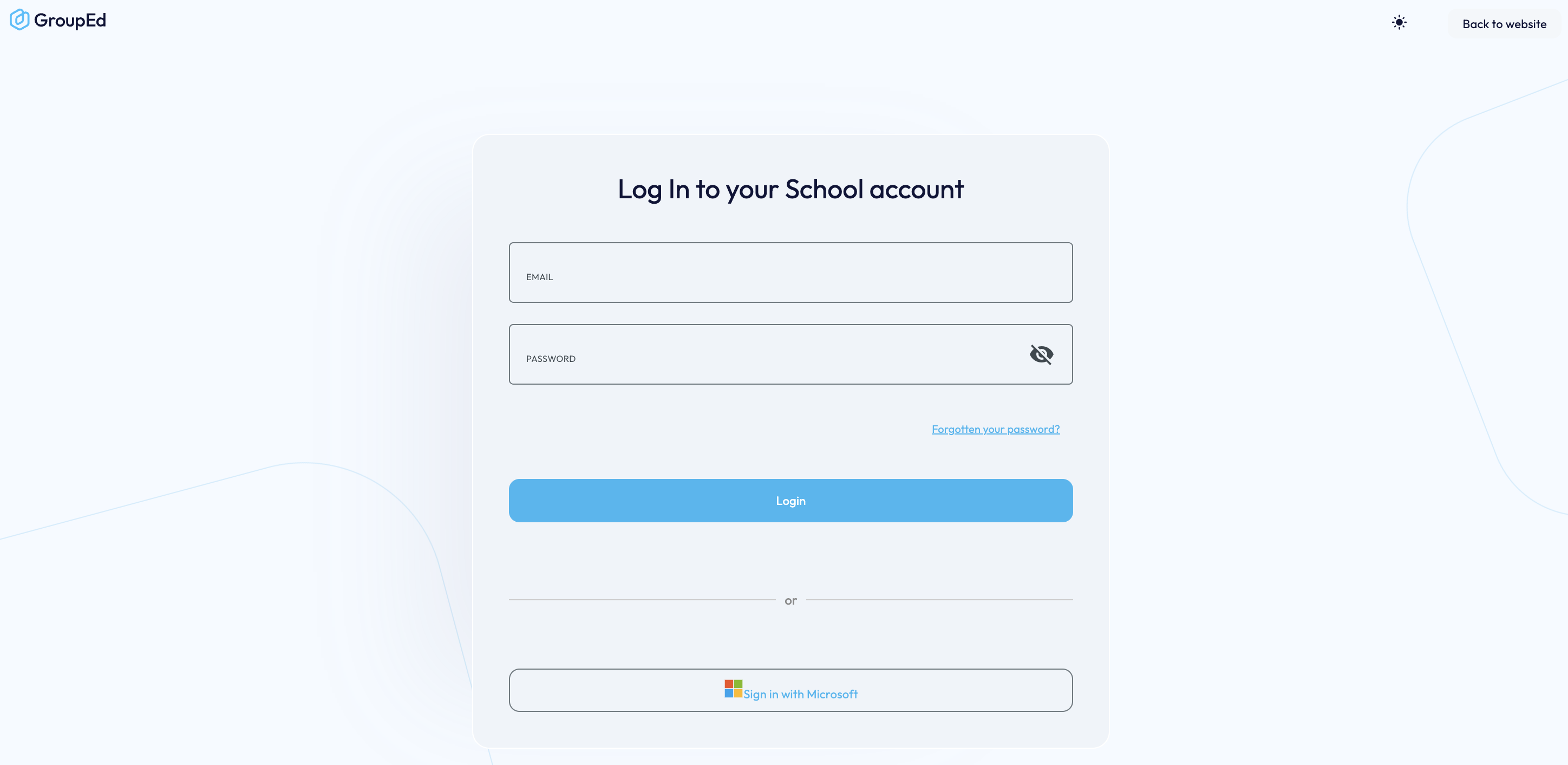
On the login page you will see a form with two fields:
Email — enter the email address associated with your GroupEd account. This is the address you were invited on.
Password — enter your password. Click the eye icon on the right of the field to show or hide your password.
Click the Login button.
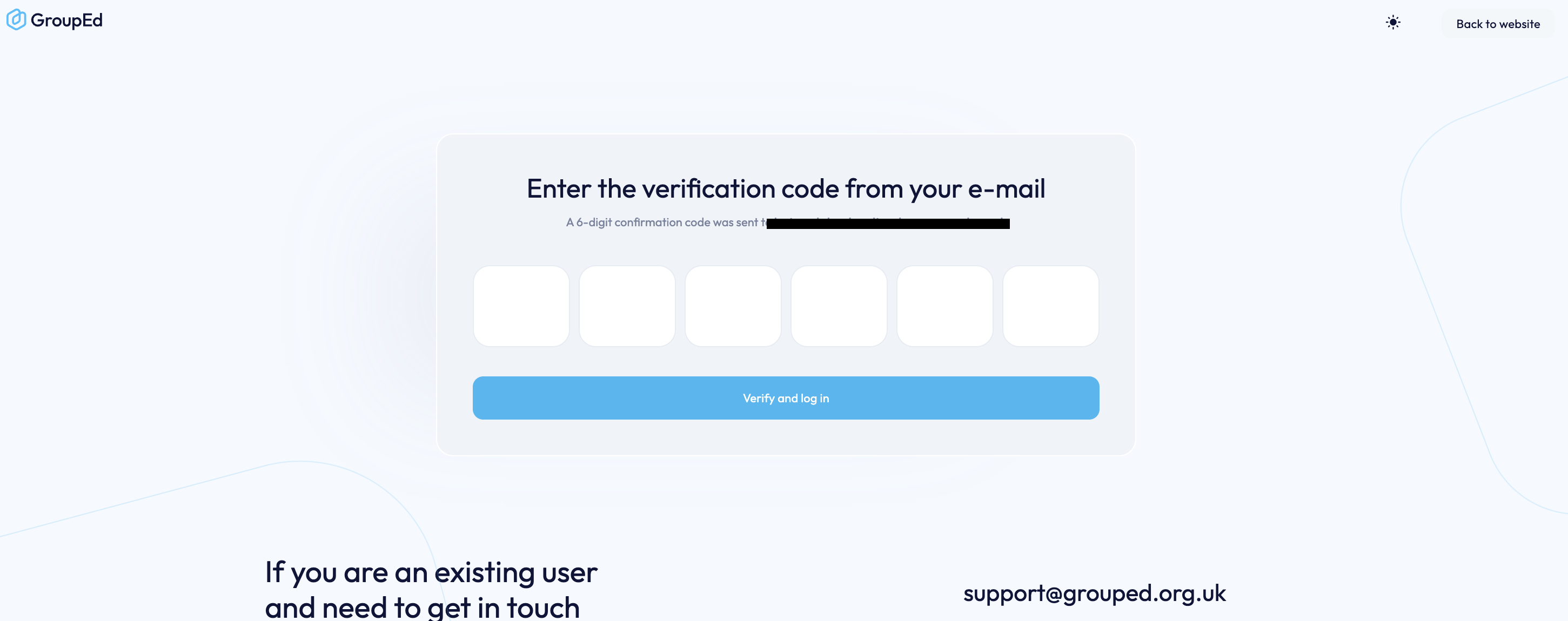
Enter the 6-digit MFA code which is sent to the registered email
Forgotten Your Password?
If you have forgotten your password:
Click the Forgotten your password? link below the password field.
Enter your email address and submit the form.
Check your inbox for a password reset email and follow the link inside.
Dark Mode
The login page includes a light/dark mode toggle in the top-right corner. Click the sun or moon icon to switch between modes.
Troubleshooting
| Issue | Action |
| "Invalid email or password" | Check your email address is correct and that Caps Lock is off |
| Code not arriving | Check your spam/junk folder; make sure the email address on your account is correct |
| Code expired | Go back to the login page and log in again to trigger a new code |
| Account locked | Contact your School Admin — repeated failed attempts may lock your account |
| Password reset email not arriving | Check spam/junk; contact your School Admin if the address needs updating |
First-time login
If you have been invited to GroupEd for the first time, you will receive an **invitation email** with a link to set your password. Click the link, set a password, then log in with those credentials. The invitation link expires after 7 days — if it has expired, ask your School Admin to resend the invitation.
Was this article helpful?
That’s Great!
Thank you for your feedback
Sorry! We couldn't be helpful
Thank you for your feedback
Feedback sent
We appreciate your effort and will try to fix the article