Message templates let you save a pre-written message — including formatting and placeholder variables — so you can reuse it when composing new messages. Templates are useful for recurring communications such as attendance reminders, trip information requests, or end-of-term letters.
## Navigating to Templates
From the Communications menu (`/#/menu-pages/communications-menu`), tap the **Messages** card.
## Navigating to Templates
From the Communications menu (`/#/menu-pages/communications-menu`), tap the **Messages** card.
## Creating a new template
1. Tap **Create New Template**
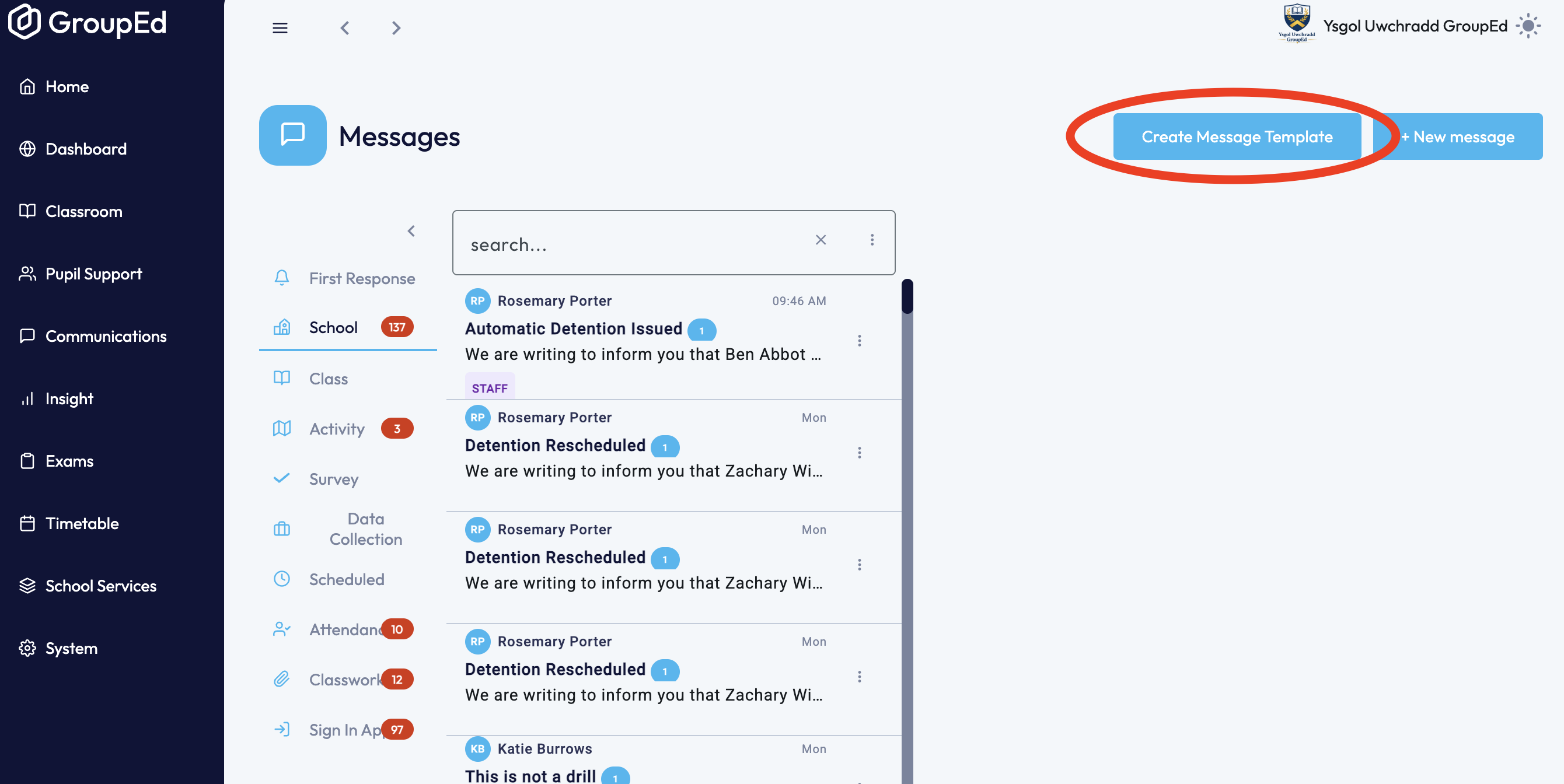
2. The template editor opens
### Template Name (required)
Enter a short name to identify this template in the list (e.g. "Attendance reminder – morning", "Trip consent reminder").
### Template Description
Optionally add a description to give more context about when to use the template.
### Message Title (required)
Enter the title that will pre-fill the **Message Title** field when this template is loaded into the compose screen.
Enter the title that will pre-fill the **Message Title** field when this template is loaded into the compose screen.
### Message body
Use the rich text editor to write your template content. The toolbar supports:
Bold, Italic, Underline, Strikethrough, Font name, Font size, Font colour, Background colour, Paragraph format, Alignment, Numbered list, Bullet list, Insert link, HTML source view, Undo, Redo, Insert image
### Placeholders
| Placeholder | Replaced With |
| [[Student Full Name]] | Pupil's full name |
| [[Student Forename]] | Pupil's first name |
| [[Student Surname]] | Pupil's last name |
| [[Student Registration Class]] | Pupil's registration class |
| [[Student Registration Year]] | Pupil's year group |
Placeholders are filled in automatically for each recipient when the message is sent from the compose screen. Use **Preview Message** in the compose screen to verify the output before sending.
## Saving the template
Tap **Save Template** to save. The button is disabled until both the template name and message title are filled in.
The template will now appear in the template list and can be loaded into any new message by tapping the **document icon** next to the title field on the compose screen.
## Loading a template when composing a message
1. Open the compose screen (**+ New Message**)
1. Open the compose screen (**+ New Message**)
2. Tap the **document icon** (Load Template) next to the message title field
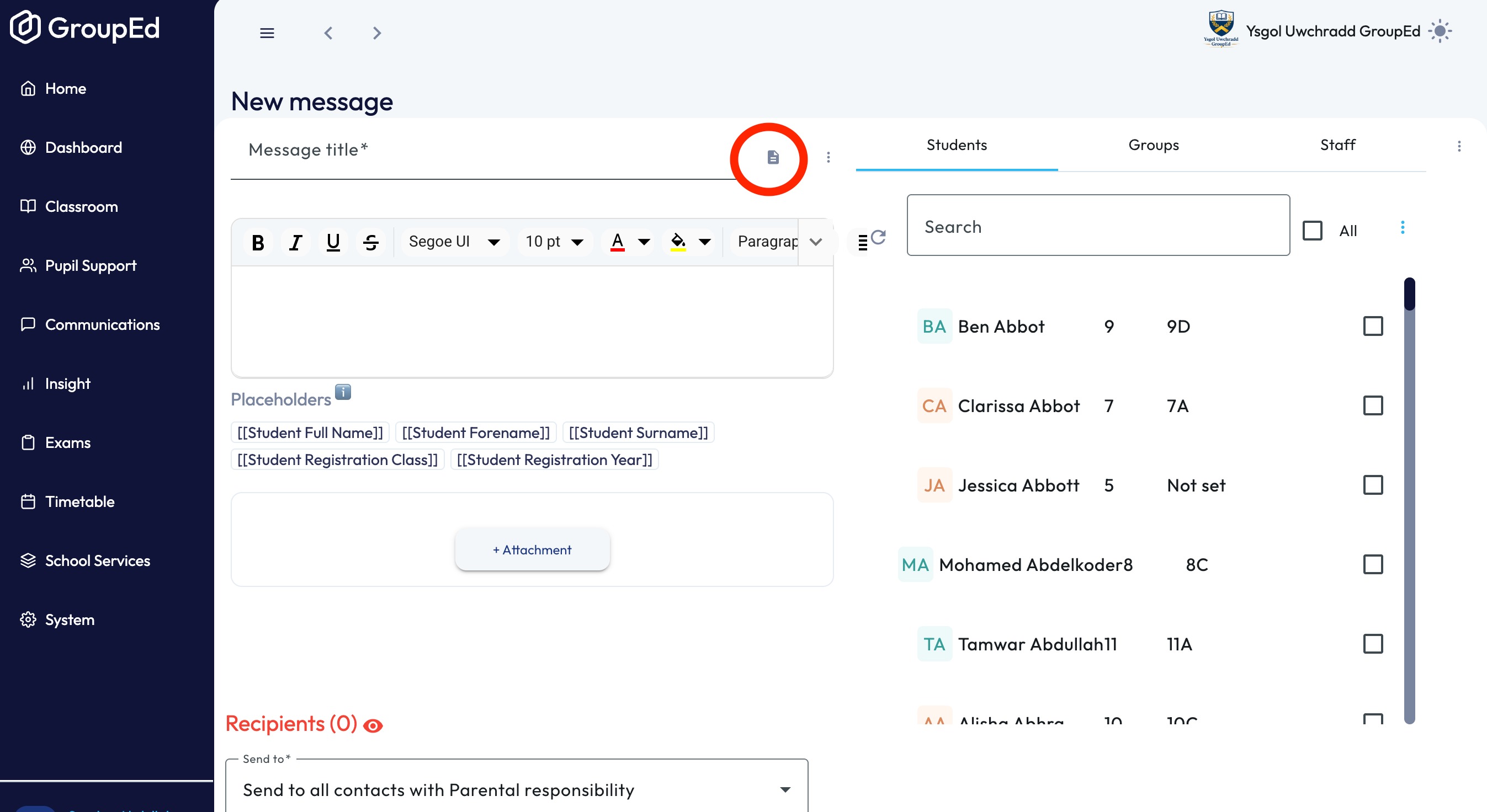
3. Select the template you want to use
4. The template's title and body content are inserted into the compose screen. You can then edit the content before sending.
Was this article helpful?
That’s Great!
Thank you for your feedback
Sorry! We couldn't be helpful
Thank you for your feedback
Feedback sent
We appreciate your effort and will try to fix the article