1. You'll first need to navigate to the 'Communications' drop down on the left-hand side and then select the heading for 'Messages'.
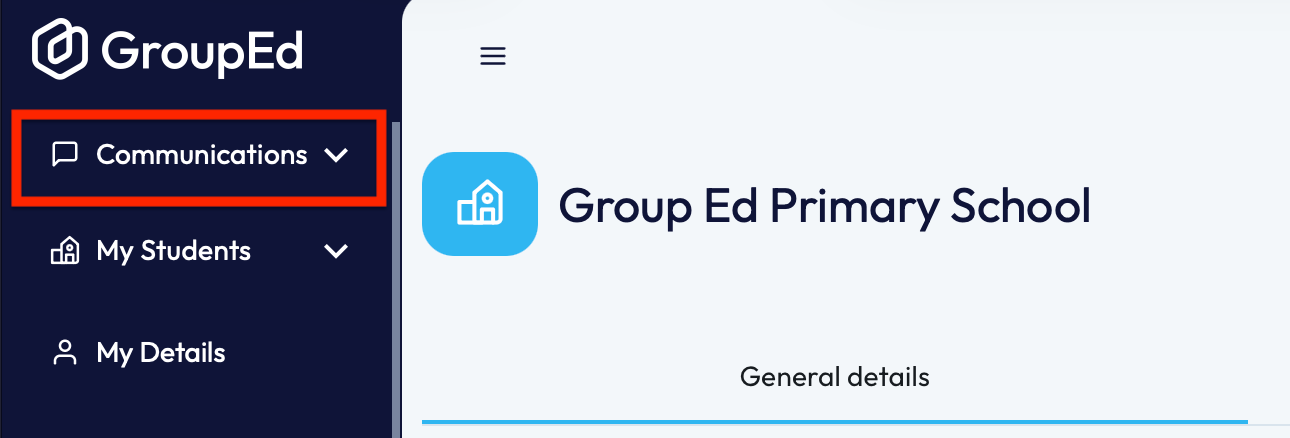
Upon opening the Messages page, you will automatically be greeted with the school message history.
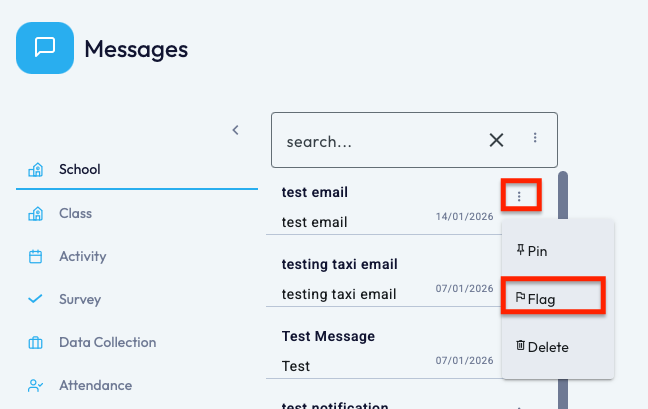
2. You now need to locate the message you'd like to 'Flag' and there are two ways you can do this.
a. Click the 3 dots on the right hand corner of the message you'd like to 'Flag'. This will then load a pop up that will give you the option to 'Flag' the message just by clicking it.
b. The other way would be to click into the message you'd like to flag - this will load the message on the right-hand side of your screen. You'll then need to navigate to the 3 dots in the right-hand corner of the message.
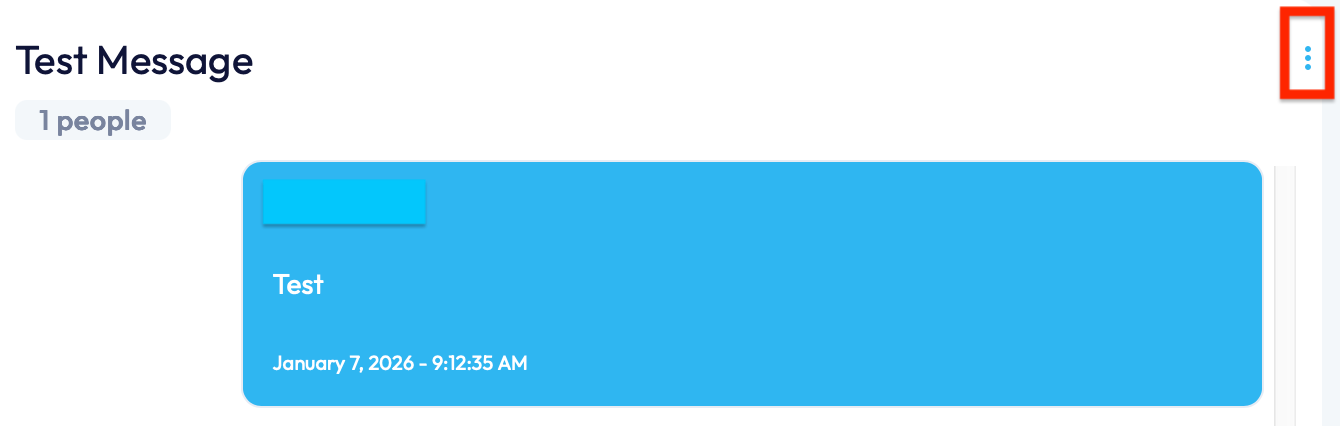
This will list the following options:
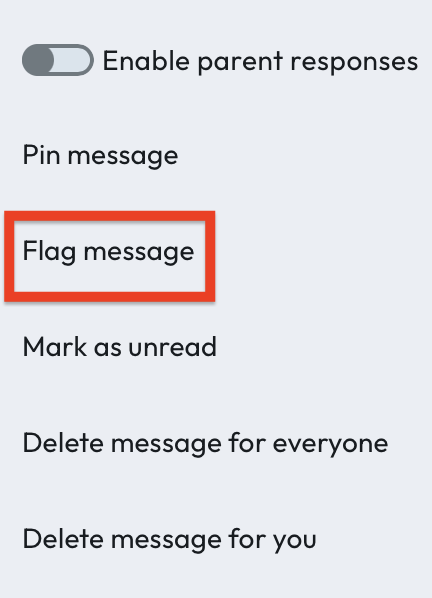
To flag the message, you'll need to click the option highlighted in red, above.
NOTE: You can 'unflag' the message at any point by following the points above and selecting 'Unflag Message'.
If you require any further assistance, please contact us by completing this form
Was this article helpful?
That’s Great!
Thank you for your feedback
Sorry! We couldn't be helpful
Thank you for your feedback
Feedback sent
We appreciate your effort and will try to fix the article