The Classwork section is where students' submitted work is reviewed and managed. Parents and carers submit classwork through the GroupEd parent app — teachers and admins can then view submissions, approve them for parent visibility, and manage them from this page.
Getting There
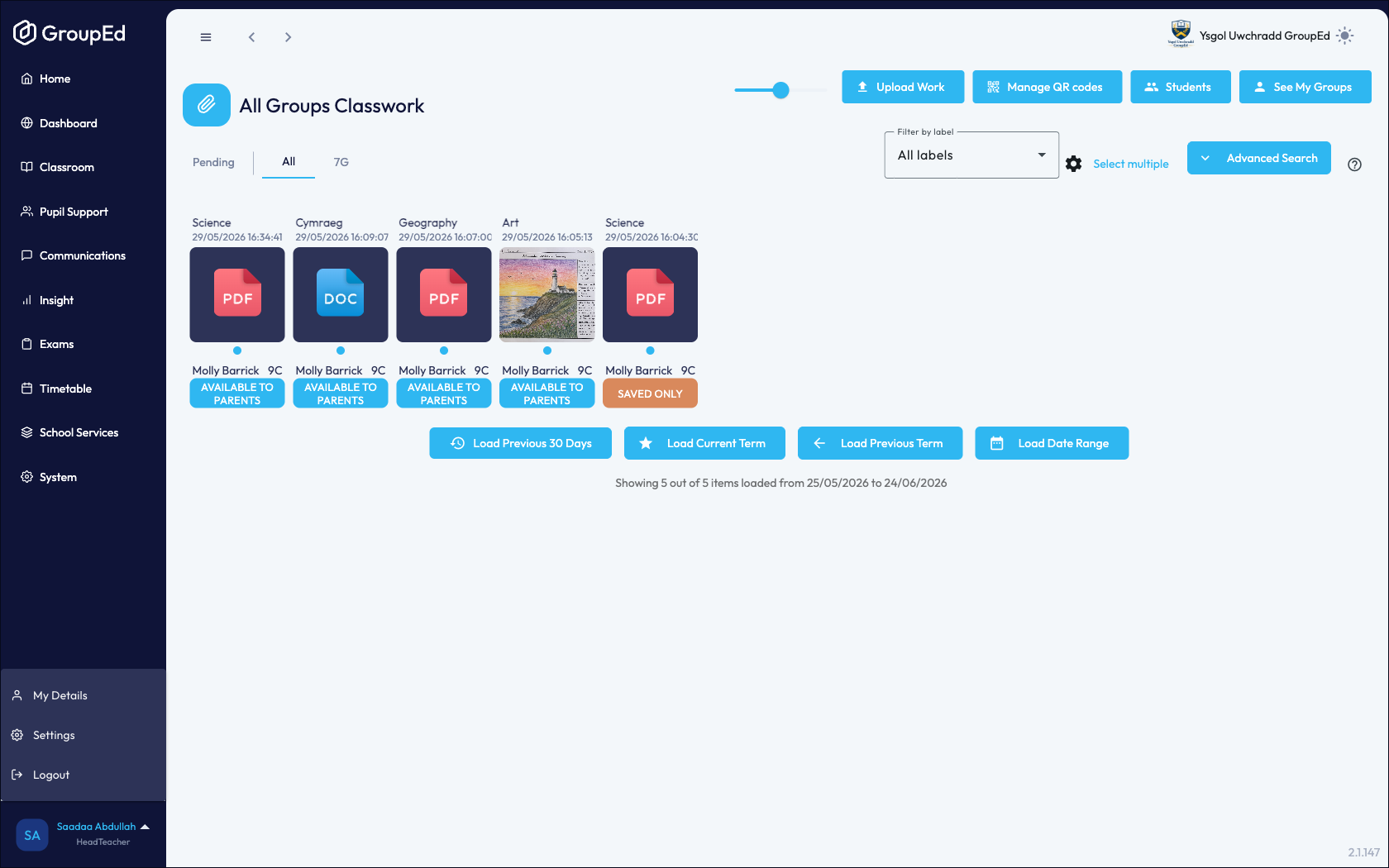
Click Classroom in the left-hand sidebar, then click the Classwork tile. The Classwork page opens showing All Groups Classwork — a feed of all work submitted across the school.
The Classwork Feed
Submitted work appears as cards in a grid. Each card shows:
The title of the work and the date and time it was submitted
A thumbnail preview of the submitted image or media (with navigation arrows if multiple files were submitted)
The student's name and class code
A status badge — either Available to Parents (blue, visible in the parent app) or Pending (orange, not yet approved)
Viewing a Submission
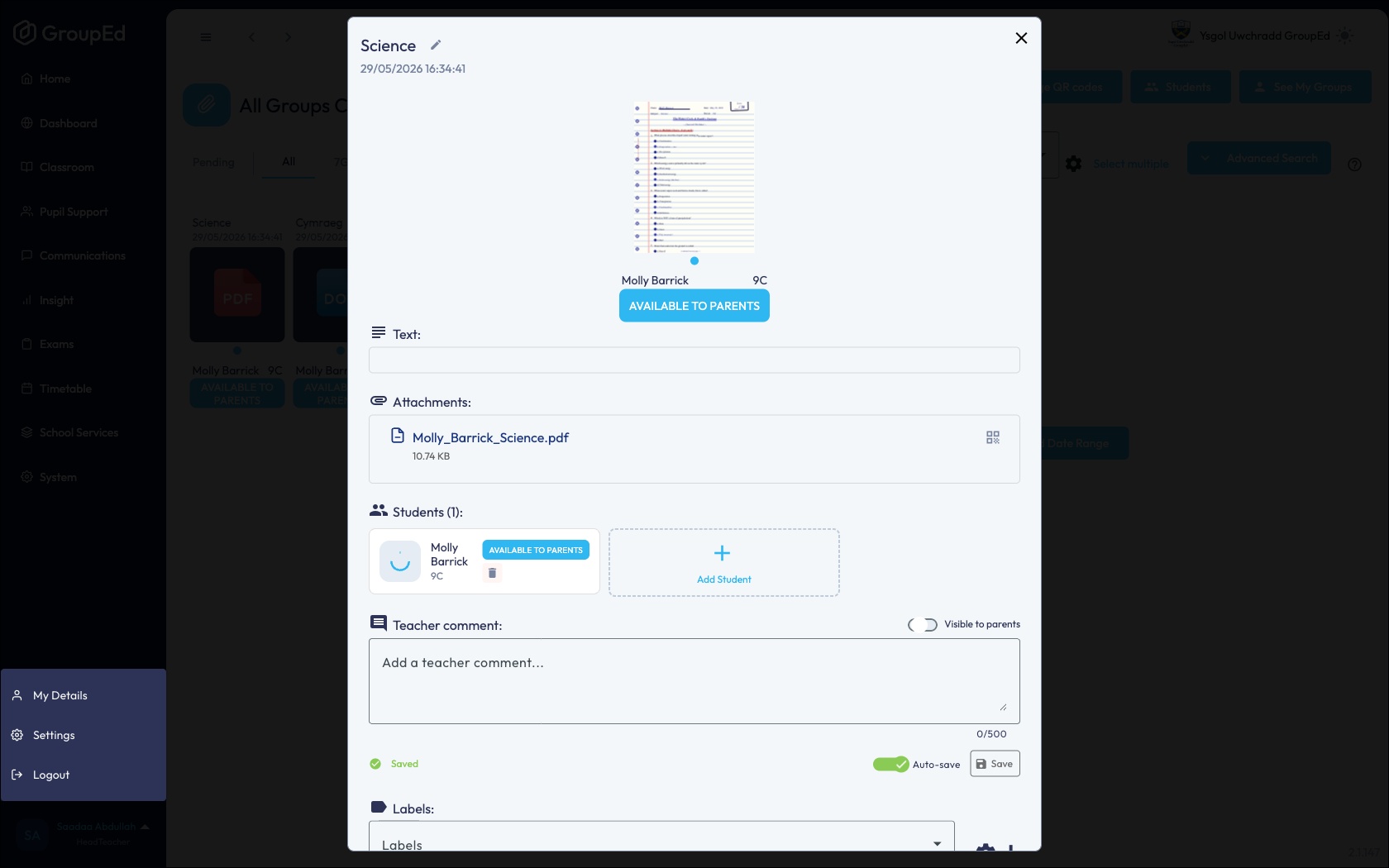
Click any card to open the submission in a full-screen viewer. The viewer shows:
The submitted image or media at full size
An image counter (e.g. 1/2) if multiple files were submitted — use the left and right arrows to navigate between them
The submission title, date/time, student name and class at the bottom of the screen
Controls in the top-right corner of the viewer:
Control | What it does |
QR code | Generate a QR code for this submission |
Download | Download the image or media file to your device |
Close (×) | Return to the classwork feed |
Filtering and Searching
Several tools are available at the top of the page to narrow down what you see:
Filter by label — use the dropdown to filter submissions by a specific label (e.g. a subject or task type).
Advanced Search — click to expand additional search and filter options.
Select multiple — enables bulk selection of submissions so you can apply actions to several at once.
Loading More Submissions
By default, the feed shows submissions from the current 30-day period. Use the buttons at the bottom of the page to load more:
Load Previous 30 Days — adds the preceding 30-day window to the feed
Load Current Term — loads all submissions from the current term
Load Previous Term — loads submissions from the previous term
Load Date Range — choose a custom start and end date
A counter below the buttons shows how many items are currently loaded and which date range they cover.
Uploading Work
Staff can also upload classwork directly from the web app. Click Upload Work in the top-right corner to submit a file on behalf of a student.
Other Actions
Two further buttons appear in the top-right corner of the Classwork page:
Manage QR codes — create and manage QR codes that students or parents can scan to submit classwork directly.
Students — view the list of students and their classwork submission status.
Tip: Submissions with a Pending badge have not yet been made visible to parents. Review and approve them so that parents can see the work in their app.
Was this article helpful?
That’s Great!
Thank you for your feedback
Sorry! We couldn't be helpful
Thank you for your feedback
Feedback sent
We appreciate your effort and will try to fix the article