A school may set up a “Club” for numerous reasons, such as offering after-school lessons, music sessions, or other enrichment activities. Clubs help extend learning beyond the classroom, support student interests, and encourage engagement in a positive and structured way.
GroupEd provides the function to set up clubs using the 'Activities section.
Setting up the Club
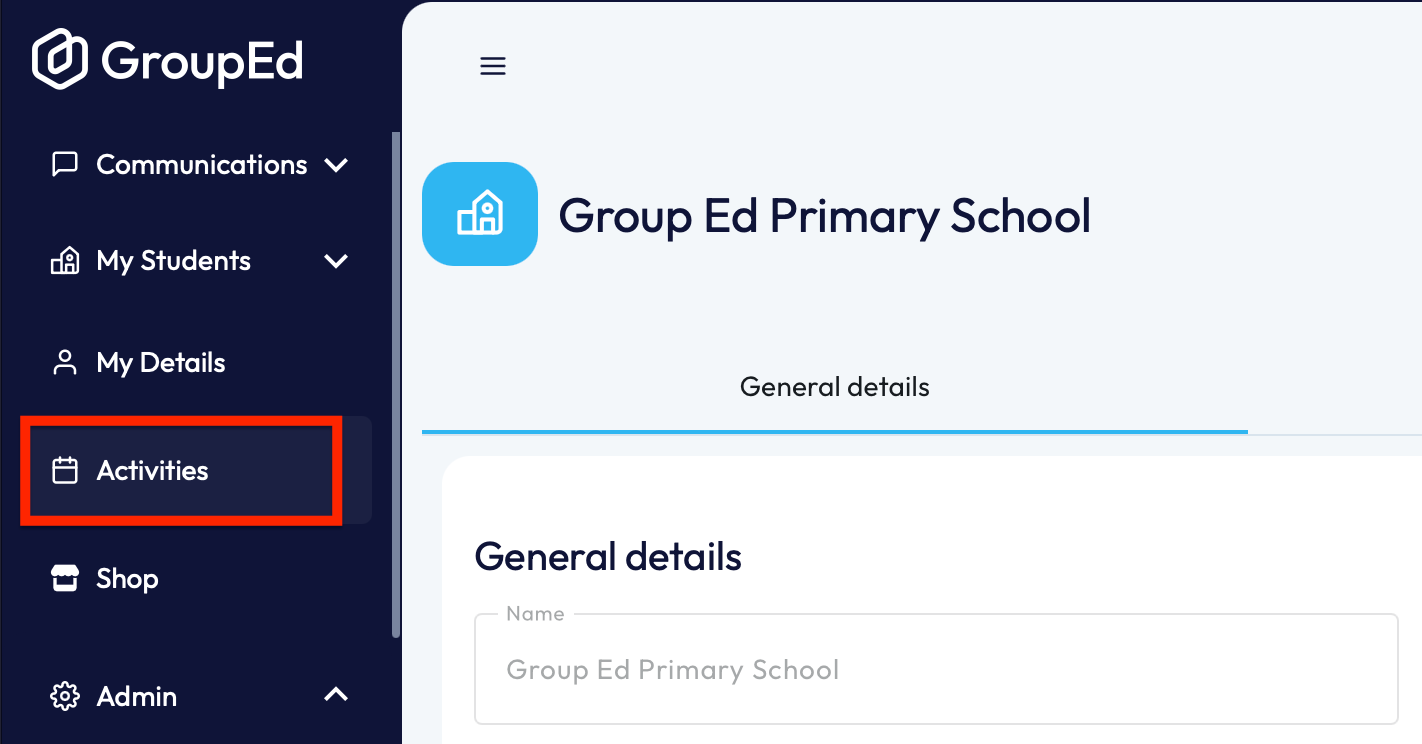
1. To start setting up the activity you’ll first need to navigate to the ‘Activities’ section on the left-hand side as shown below:
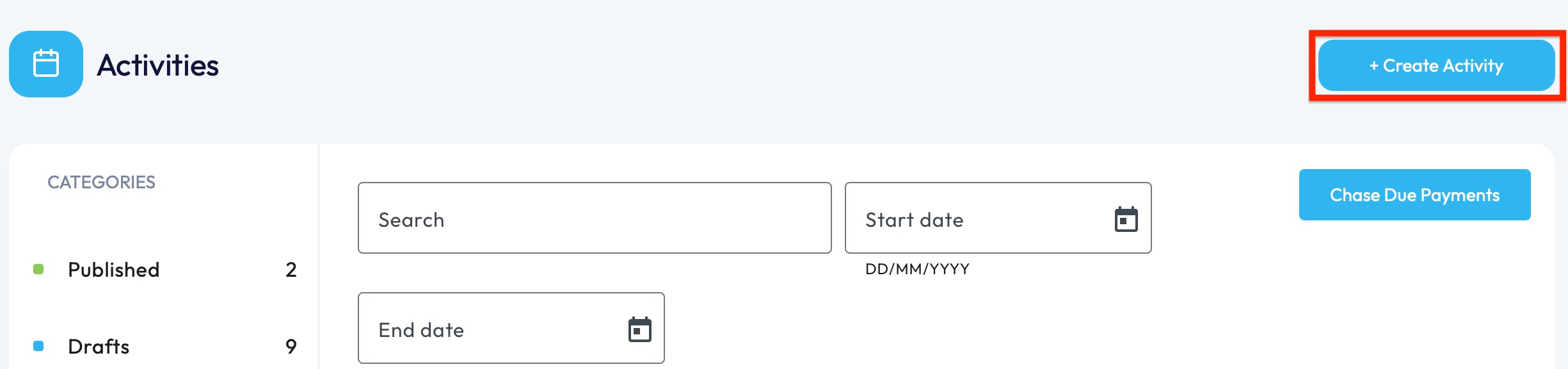
2. Upon opening the 'Activities' section, you'll be presented with the main Activities page where you can view all Published, Draft, Cancelled and Past Activities. You will also be able to search for activities using the search bar for filtering by date range.
To create the Club Activity: you will need to select the option to 'Create Activity' in the top right-hand corner.
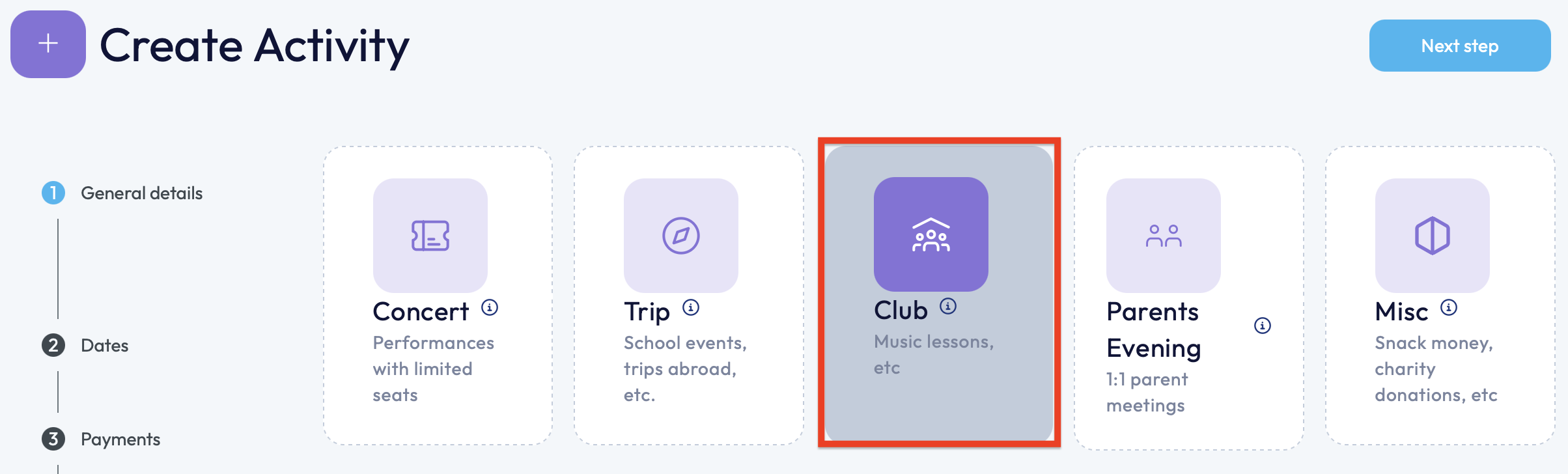
3. Once you have selected to create an activity you will be required to complete 4 separate steps before you can publish the activity.
Based on the type of activity you're creating, you'll need to select the appropriate type of activity: in this case you can select the 'Club' option.
4. After selecting the 'Club' option, you'll be required to fill in the details underneath: Activity Title, Location and Description. Without this information, you will not be able to proceed to the next step of creating this activity.
Guidance on how to fill in this information:
a. Activity Title: The Club Name.
b. Location: Where the Club will take place (this could be the class/room name).
c. Description: A description of the Club (you will be able to add external links and images).
5. Once you have completed all 3 fields, you will need to click the 'Next Step' button in the top right-hand corner.
6.This next page involves the dates associated to the club. All the details will need to be completed in order to move onto the next step.
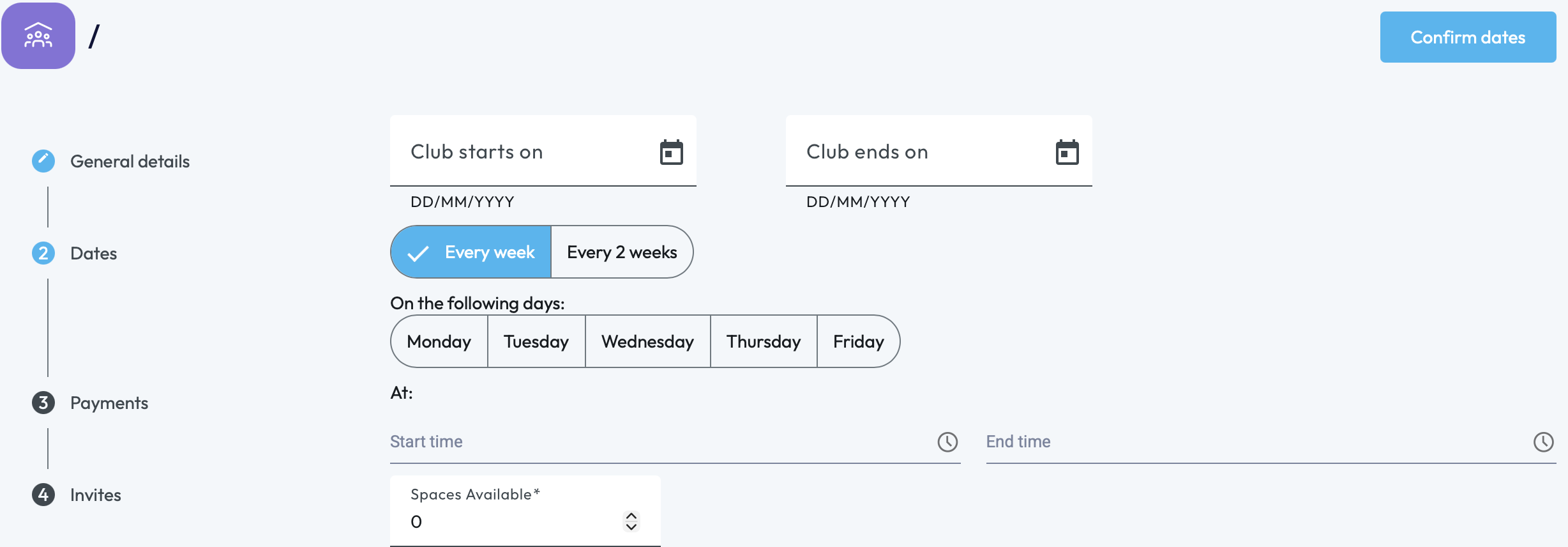 The above screenshot shows what information will need to be completed:
- The date associated to the club.
- Does it take place every week or every 2 weeks?
- Which day does it take place on (can be more than one day).
- The times associated.
- How many spaces are available in the club.
Once the above information has been inputted you can move onto the next page - to do this you'll need to click the option to 'Confirm Dates' in the top right-hand corner.
Confirming the dates will allow you to preview all the dates that this club will take place during the time frame set. Once you're happy with those, click 'Confirm' and it will take you to Page 3, Payments.
7. For payments, it can be set up for the payment to be made in bulk ('All Together') or individually by each session, if there's more than one ('By Selecting Dates').
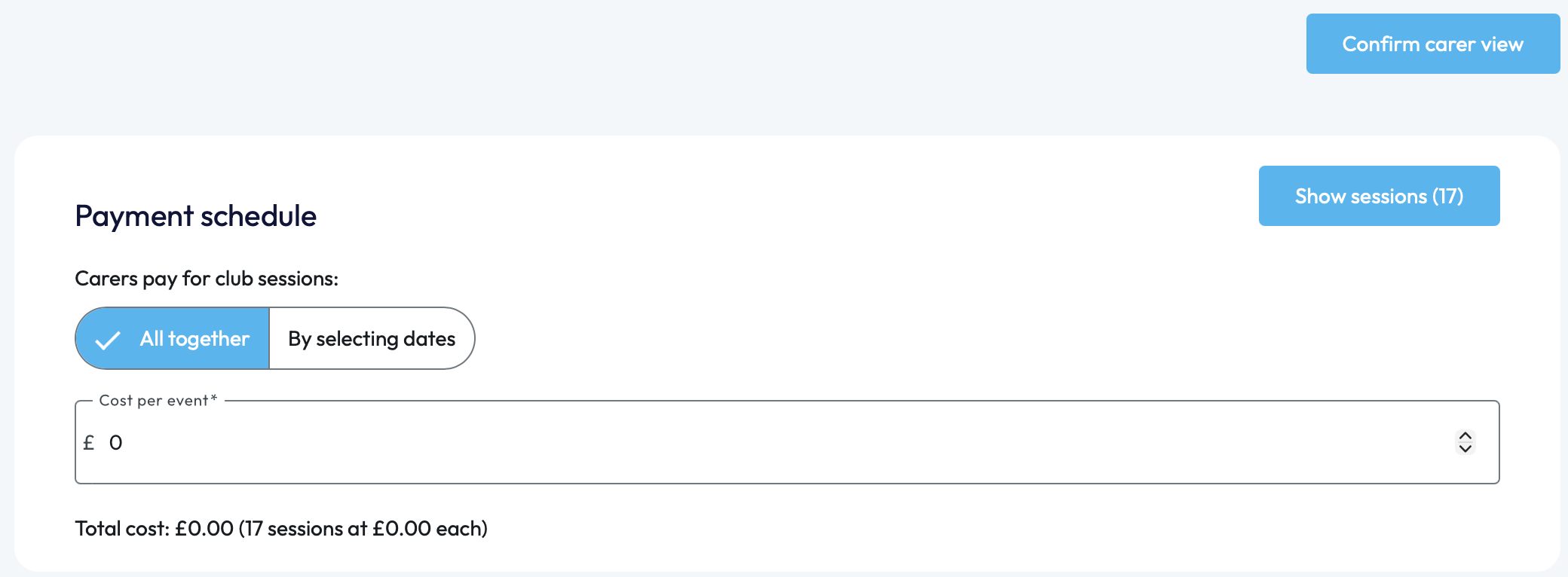
Once the details have been inputted, you can view the sessions under 'Show Sessions' or you can continue to the final step by clicking 'Confirm Carer View' in the top right-hand corner.
If the club doesn't have a cost - you can leave the 'Cost per Event' as £0.
8. The next step will be where students need to be added to the activity.
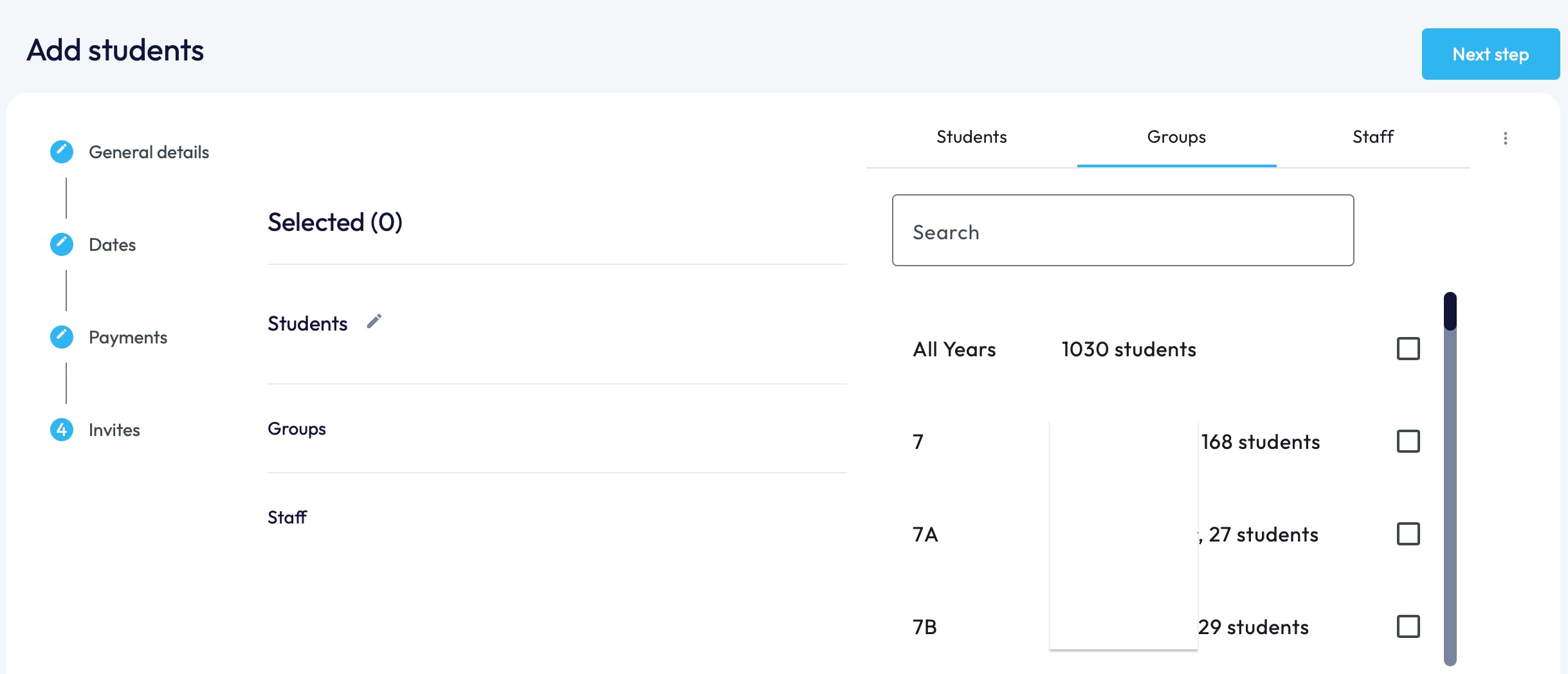
If you navigate to the 'Groups' section on the right-hand side, you can then tick the boxes associated to the year and tutor groups/classes. If there are then any students you wish not to select you can navigate to the students section and de-tick the boxes. Once a group is selected the box will turn blue with a white tick in the center.
If the whole school is to be invited, the box next to the amount of students can be 'ticked'.
If you only need to invite individual students, click on the students section and select the pupils you would like to invite. You can do this by manually scrolling through the list or by typing their name into the search box and selecting.
9. When all students have been selected, adjustments can be made by selecting the 'X' next to each student/class.
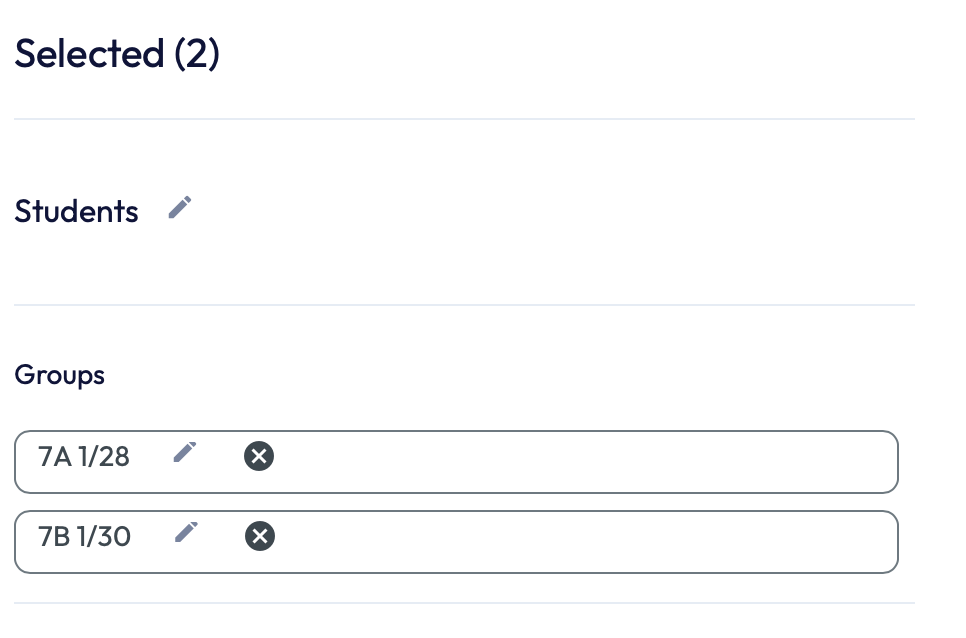
10. Once pupils have been assigned, you can move onto the final page by clicking 'Next Step in the top right corner. You will now be prompted to review all the information that has been inputted against the club.
Carefully read through this page and make any amendments before you continue.
If you need to make any changes, click on the 'Draft' button on the top right-hand side and select 'Edit Activity'.

Only School Admins will be able to 'Publish' the activity. If you wish to Publish the activity, read on:
Publishing the Activity
To publish your activity, click on the button 'Publish' in the top right-hand corner.
This will send a notification to all invited pupil’s parents/carers who are the main and secondary that a new activity’s available to view.
NOTE:
1.You can always save the activity as a draft and come back to complete later.
2. To view any activities that you have in drafts, click on the 'Activities' section on the left-hand side and select the 'Drafts' section - you can then click on the required trip/activity to reopen and update.
Please remember that you need to publish when complete.
If you require any further assistance, please contact us by completing this form.
Was this article helpful?
That’s Great!
Thank you for your feedback
Sorry! We couldn't be helpful
Thank you for your feedback
Feedback sent
We appreciate your effort and will try to fix the article